

 Dispatch
 Cloud
Cloud- Avoid performance bottlenecks by proactively identifying issues in your code
- Promptly solve identified issues by taking advantage of actionable recommendations
- Create performance budgets for critical parts of your app and get alerted of any problem before a change hits your production
Upsun Blackfire is installed natively on Upsun Cloud and works integrally with the Upsun Cloud workflow.
This results in an effortless setup process and smooth user experience.
Get started with Upsun Blackfire
You can only access your Upsun Blackfire environments after you’ve been granted access to the related Upsun Cloud project. Therefore, to access your Upsun Blackfire environments, make sure you log in using your Upsun account. To access an Upsun Blackfire environment, each project user needs an Upsun Blackfire account. When a project user doesn’t already have an Upsun Blackfire account, a new one is automatically created using the user’s Upsun Cloud credentials.If you’re using a Content Delivery Network (CDN),
make sure you configure it
to let Upsun Blackfire profile the code running on your servers.
Automated integration
The Upsun Blackfire automated integration is enabled on your environments by default. When you create a new environment, it automatically triggers the creation of an Upsun Blackfire environment with the same settings. On this Upsun Blackfire environment, you have access to all the features provided by Upsun Blackfire. This includes monitoring, profiling, alerting, and build-related features. Note that Upsun Blackfire monitoring is enabled by default on your production environment. On other environment types, you need to enable it. User access settings are replicated from the Upsun Cloud Console to Upsun Blackfire — this includes all access levels. You might have Upsun Blackfire variables already set on your project. In this case, the existing variables override the settings of the automated integration.To trigger the synchronization of changes to users and their access levels,
you need to redeploy the environment.
Upsun Blackfire monitoring
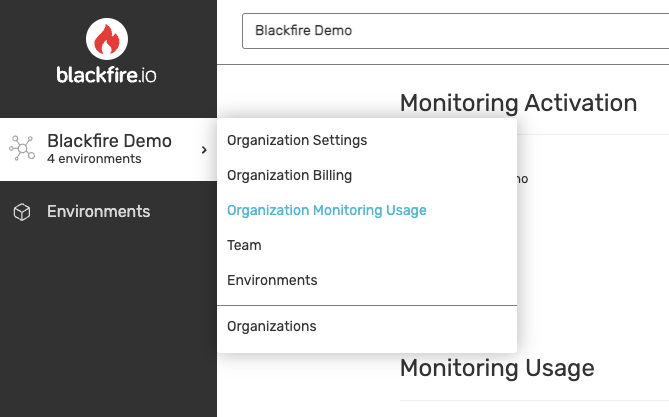
Upsun Blackfire monitoring is enabled by default on your production environment. To enable Upsun Blackfire monitoring on your development or staging environments, follow these steps:- Go to your organizations list and select the organization where you want to enable Upsun Blackfire monitoring.
-
Click Organization Monitoring Usage.
-
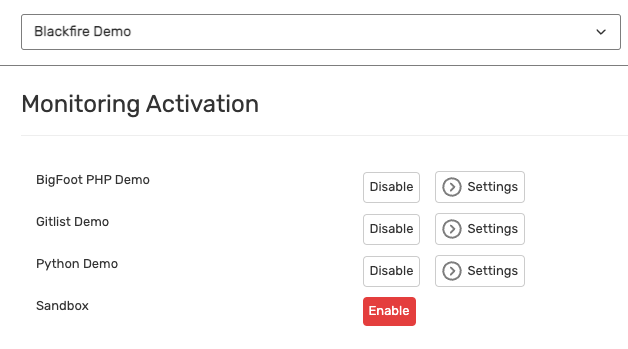
In the Monitoring Activation section,
enable monitoring on the environments of your choice.
Upsun Blackfire Profiling
While your code is running, the Upsun Blackfire profiler collects deep performance metrics and provides full details and context of your code’s behavior. This helps you find the root cause of performance bottlenecks. Upsun Blackfire lets you profile your application anywhere it’s deployed, including on your local development machines. Using a browser extension or CLI command, you can profile HTTP requests, CLI scripts, Consumers, and Daemons. While HTTP requests can be profiled out-of-the-box, CLI profiling requires a specific configuration. For more information on Upsun Blackfire profiling features, see the Upsun Blackfire documentation. Upsun Blackfire profiles are also one of the observability signals correlated by the Upsun Cloud performance agent, which analyzes up to 7 days of profiling and traffic data alongside your application source code to generate a performance analysis report with recommendations.Test the performance of each new deployment
Upsun Blackfire’s native integration with Upsun Cloud enables you to test your app’s performance every time you deploy a branch in production, staging, or development. Follow these steps:- Set up the Upsun Blackfire Builds integration.
- Optional: set up an integration with your Git provider and get commit status updates from build reports.
- Recommended: test business-critical use cases, with Upsun Blackfire synthetic monitoring.
Troubleshooting
Bypass your reverse proxy, load balancer or CDN
To use Upsun Blackfire profiling, you need to bypass any reverse proxy, load balancer or CDN that sits in front of your app. See how to configure a bypass.Configure your HTTP cache
To take advantage of Upsun Blackfire features while using the HTTP cache with cookies, allow the__blackfire cookie to go through the cache.
To do so, add a configuration
similar to the following:
.upsun/config.yaml
Get support
If you’re experiencing issues with Upsun Blackfire and troubleshooting information doesn’t help, follow these steps:- Retrieve startup errors.
- Retrieve your Upsun Blackfire logs.
- Send this data to Upsun Blackfire Support.
1. Retrieve startup errors
To retrieve startup errors, run the following command:2. Retrieve your Upsun Blackfire logs
To retrieve your Upsun Blackfire logs, follow these steps:-
On the environment where you’re facing issues, create the following variable:
-
To set the verbosity of the logs to level 4 (debug level), create the following variable:
- Start a profile or build.
-
To display the logs, run the following command: