

 Dispatch
 Cloud
CloudCreate environments
You can create new environments in one of two ways:- Push a local branch through Git or a source integration.
- Branch existing environments using the CLI or the Console.
Default environment
Your default environment comes from your default branch and is a production environment. Your project must have a default environment, but you can name it as you want. This environment is your live site. You might want to give it a custom domain name.Environment status
Your environments can have one of three statuses:- Active: A deployed environment with services and data.
- Inactive: An environment that isn’t deployed and has no services or data, only code.
- Paused: An environment that hasn’t been redeployed in 14 days or longer.
- In the Console
- Using the CLI
When you open your project, inactive environments appear lighter in the environment list.
You also can’t select them from the Environment dropdown menu.To check the status of an environment,
you can also open it and view its information panel.
Organize your environments
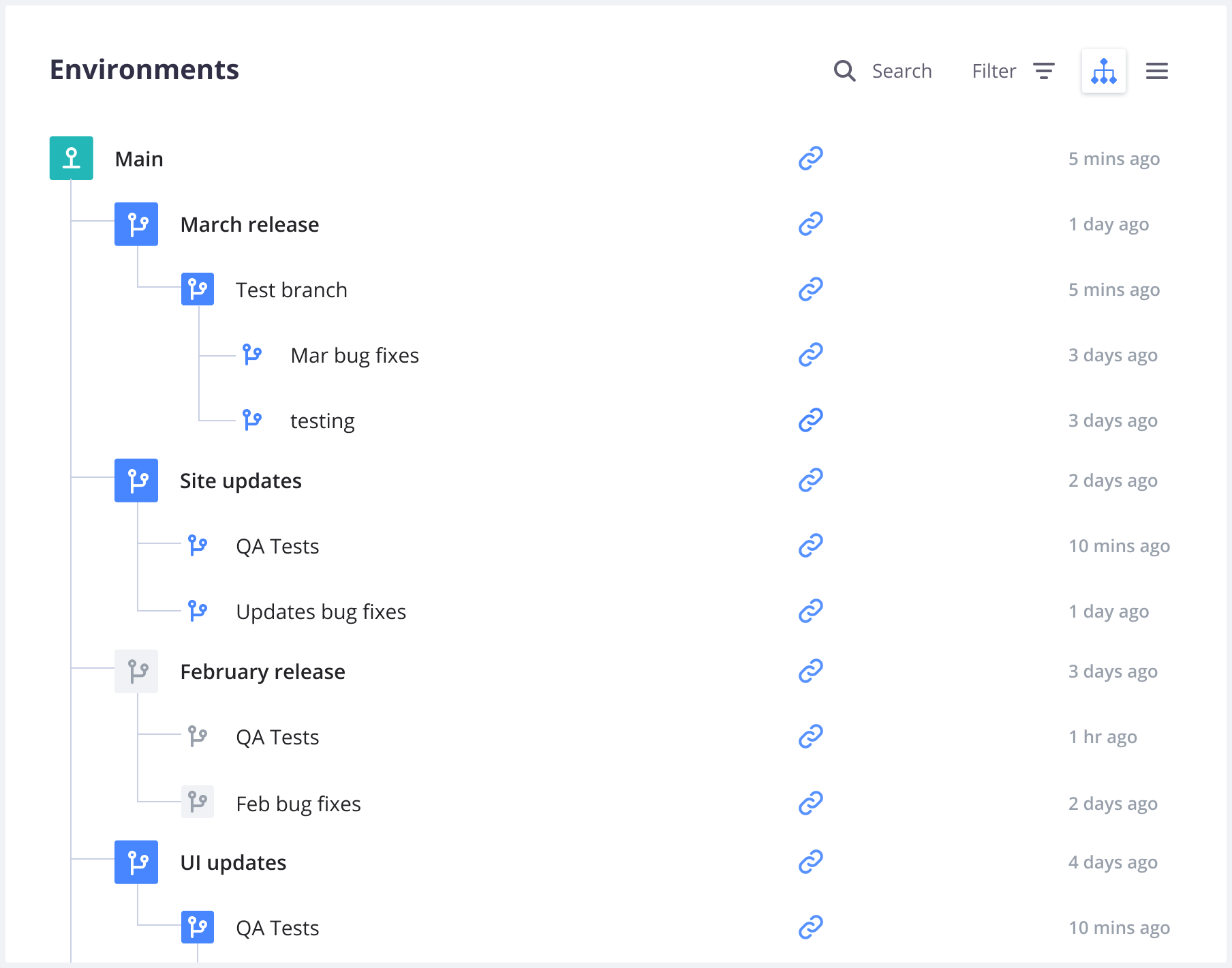
Hierarchy
Workflows
Since you can customize your environment hierarchy, you can create your own workflows. You can decide which structure best fits your needs.Possible approaches
You may want to take one of the following approaches when creating your workflows:- Agile: A child environment per sprint. Each story in the sprint can have its own environment as a child of the sprint environment.
- Developer-centric: One QA environment and a few preview environments (per developer, per task, or similar).
- Testing: An operational test environment, a user test environment, and a few unit test environments.
- Hotfix: One environment for each bug, security issue, or hotfix that needs deployment.
Example workflow
Example Agile workflow:- An admin branches the Live (default) environment to create a Sprint environment.
-
The admin gives each developer permission to branch the Sprint environment to create new feature environments.

- Feature 1 is developed and work is reviewed by accessing the deployed Feature 1 environment.
-
When the review is done, Feature 1 is merged into the Sprint environment.

-
The remaining features sync with the Sprint environment.
This ensures their working environment is up-to-date with the latest code.

- When the sprint is complete and all features merged into the Sprint environment, the admin makes a backup of the live site.
-
The admin merges the Sprint environment into the Live environment.

-
The admin syncs the next sprint’s environment with the Live environment
to repeat and continue the development process.

Naming conventions
You can organize and work with your preview environments in many different ways. It can help to introduce a convention for how you name and structure your environments. For each environment, choose a name that represents what the environment is for. If you use Agile, for example, you can adopt a naming convention similar to the following:Paused environments
Preview environments are often used for a limited time and then abandoned. To prevent unnecessary consumption of resources, Upsun Cloud automatically pauses preview environments (of both development and staging types) that haven’t been redeployed in 14 days. You can pause (and resume) an environment manually at any time.Pause an environment
To pause an environment, follow these steps:- Using the CLI
- In the Console
Run the following command:
Resume a paused environment
Pushing new code or redeploying a paused environment automatically resumes it. You can also resume it manually at any time.- Using the CLI
- In the Console
Run the following command:
Push options
Git provides push options to pass a string to the server (see the official Git documentation). Upsun Cloud supports some of these push options, which allows you to push changes to your environment and trigger the following actions at the same time:
If your remote location isn’t named
upsun,
make sure you adjust the commands accordingly.
You can’t use push options if you have a source integration set up.
push,
you can activate your environment, set a title for it,
set a parent environment for it, and clone the data from its parent into it.
Terminal