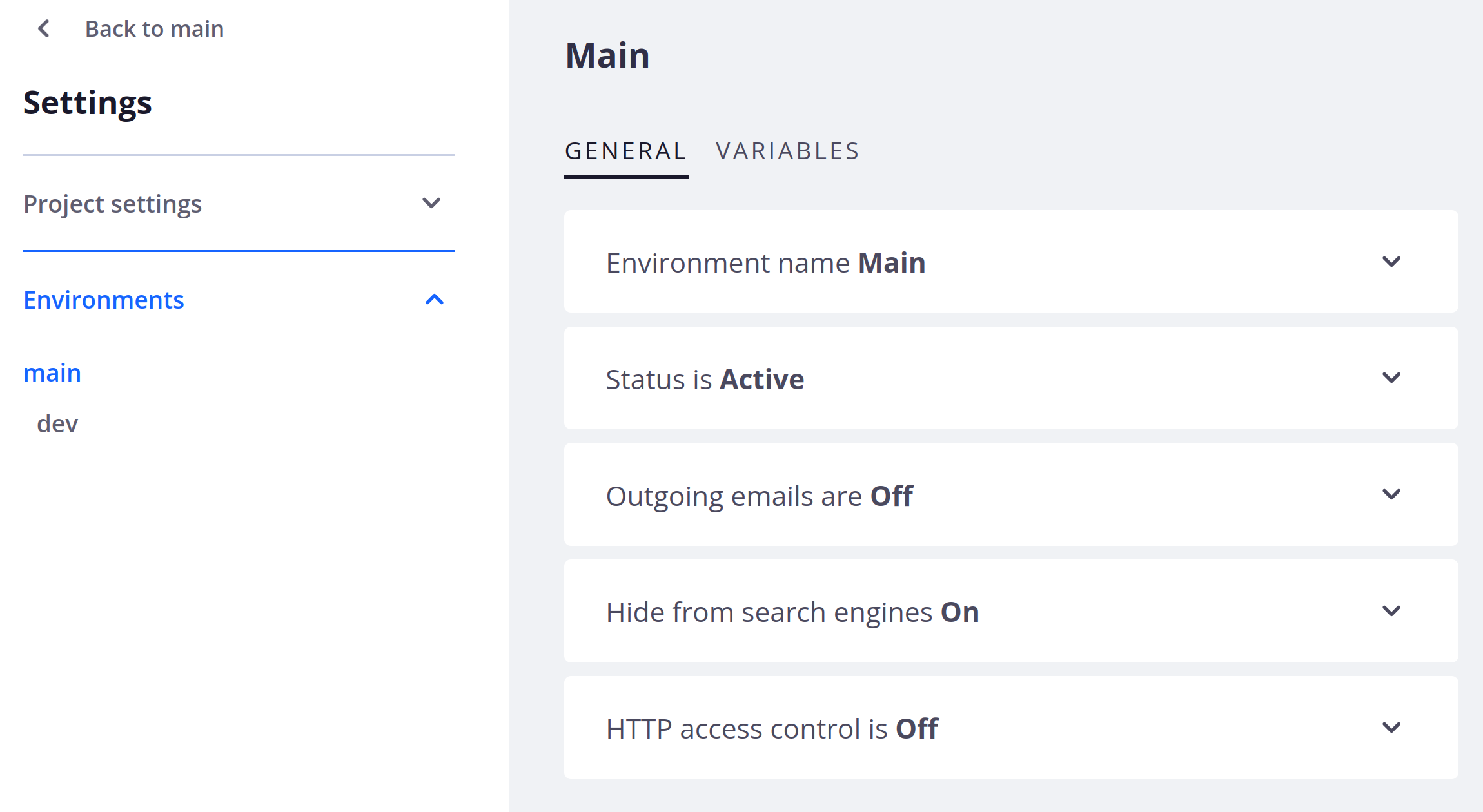
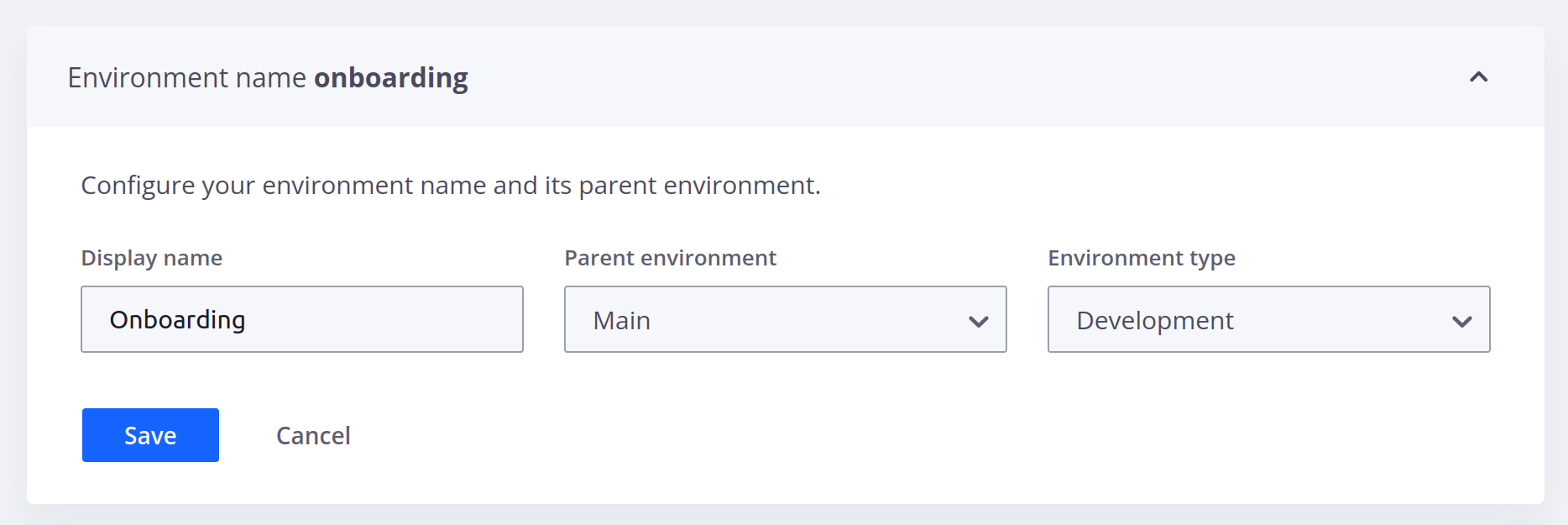
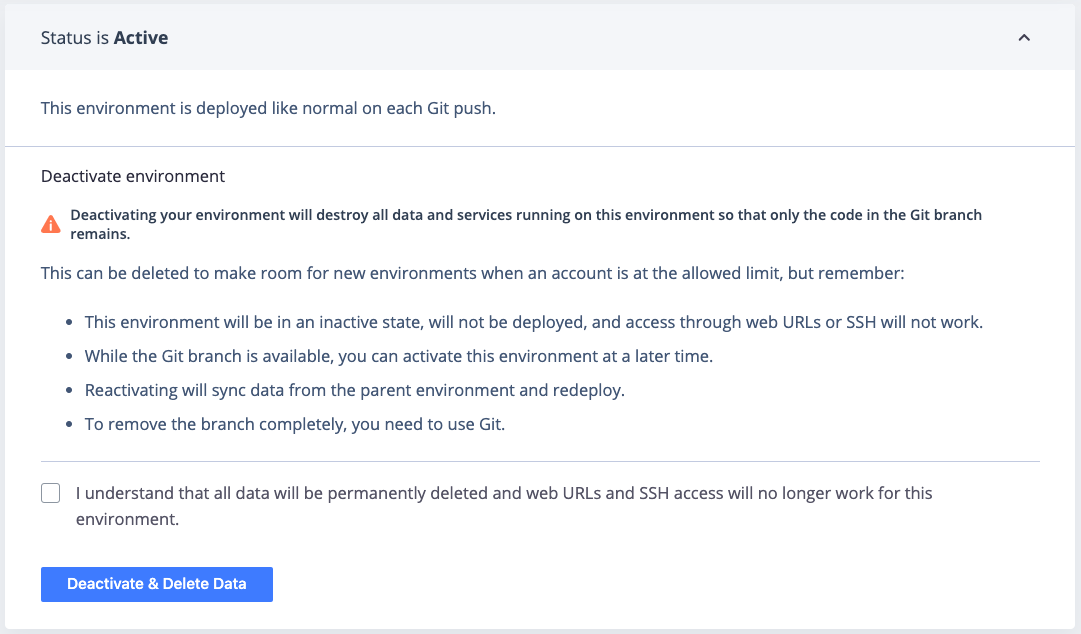
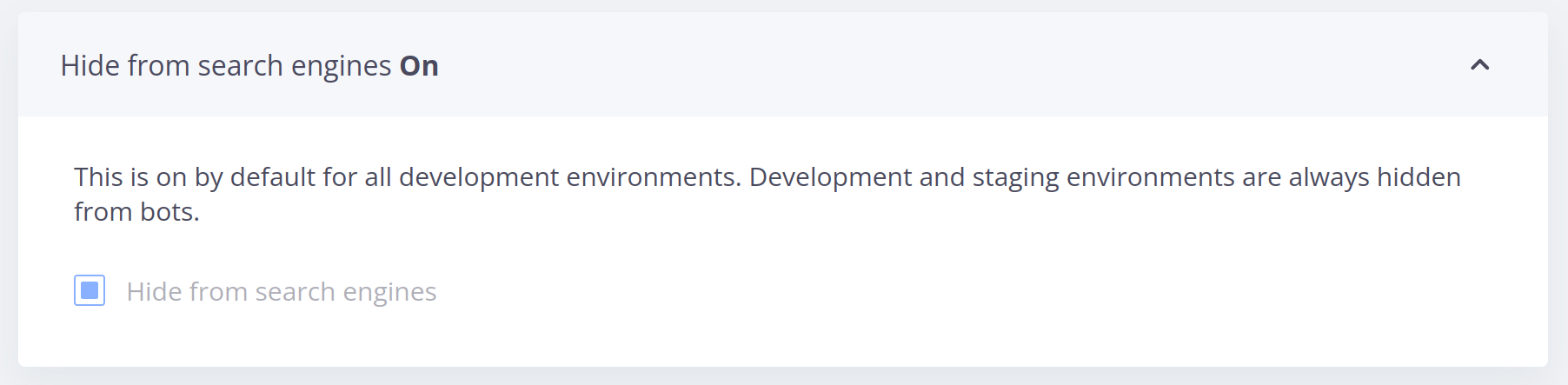
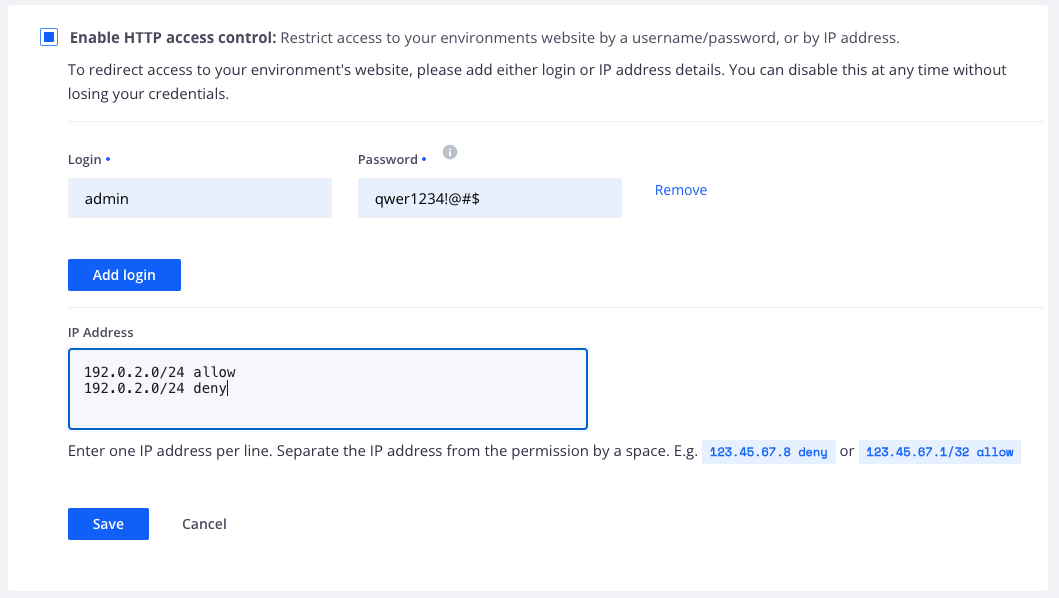
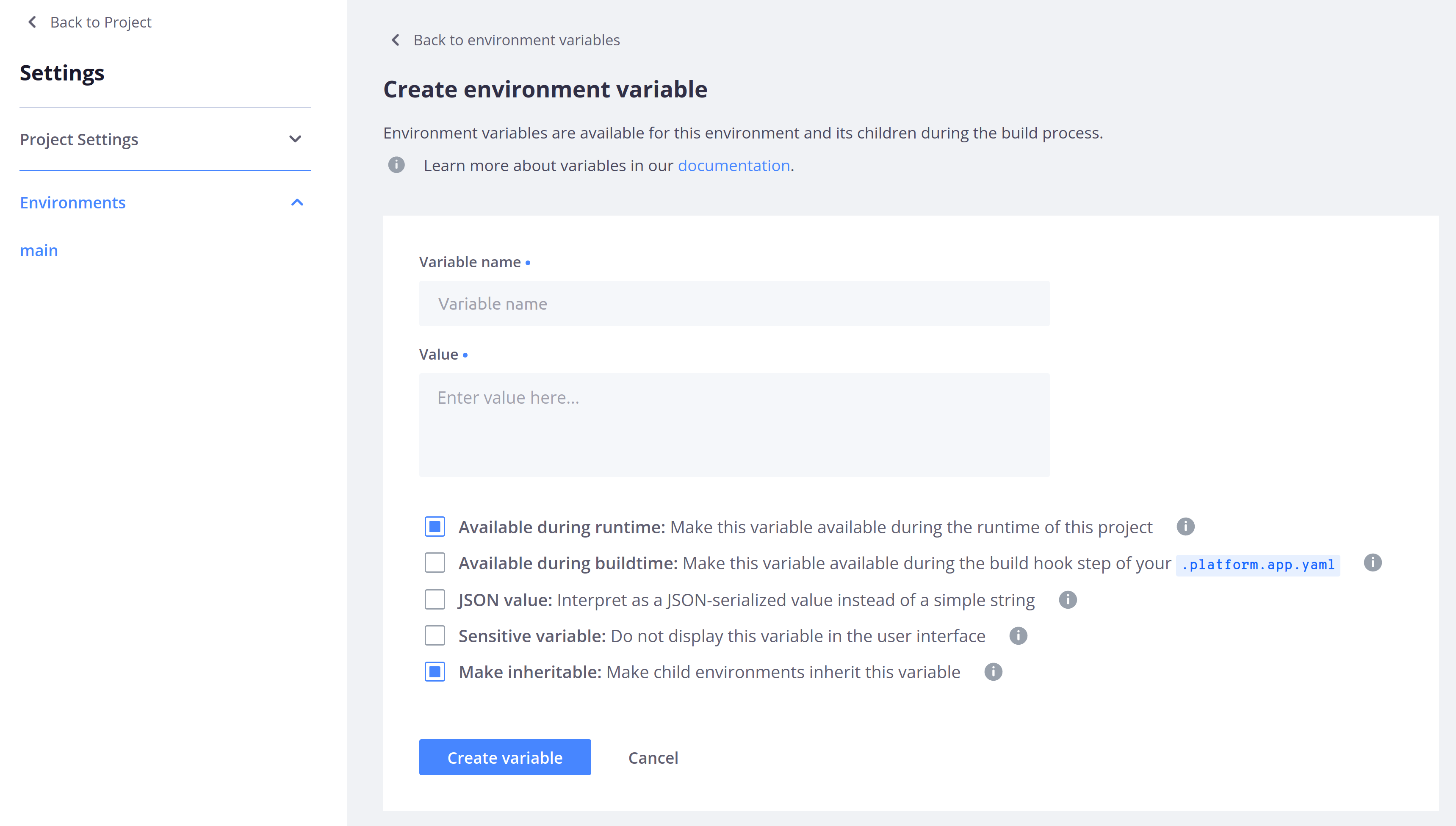
Configure your environments including their name, status, and visibility.
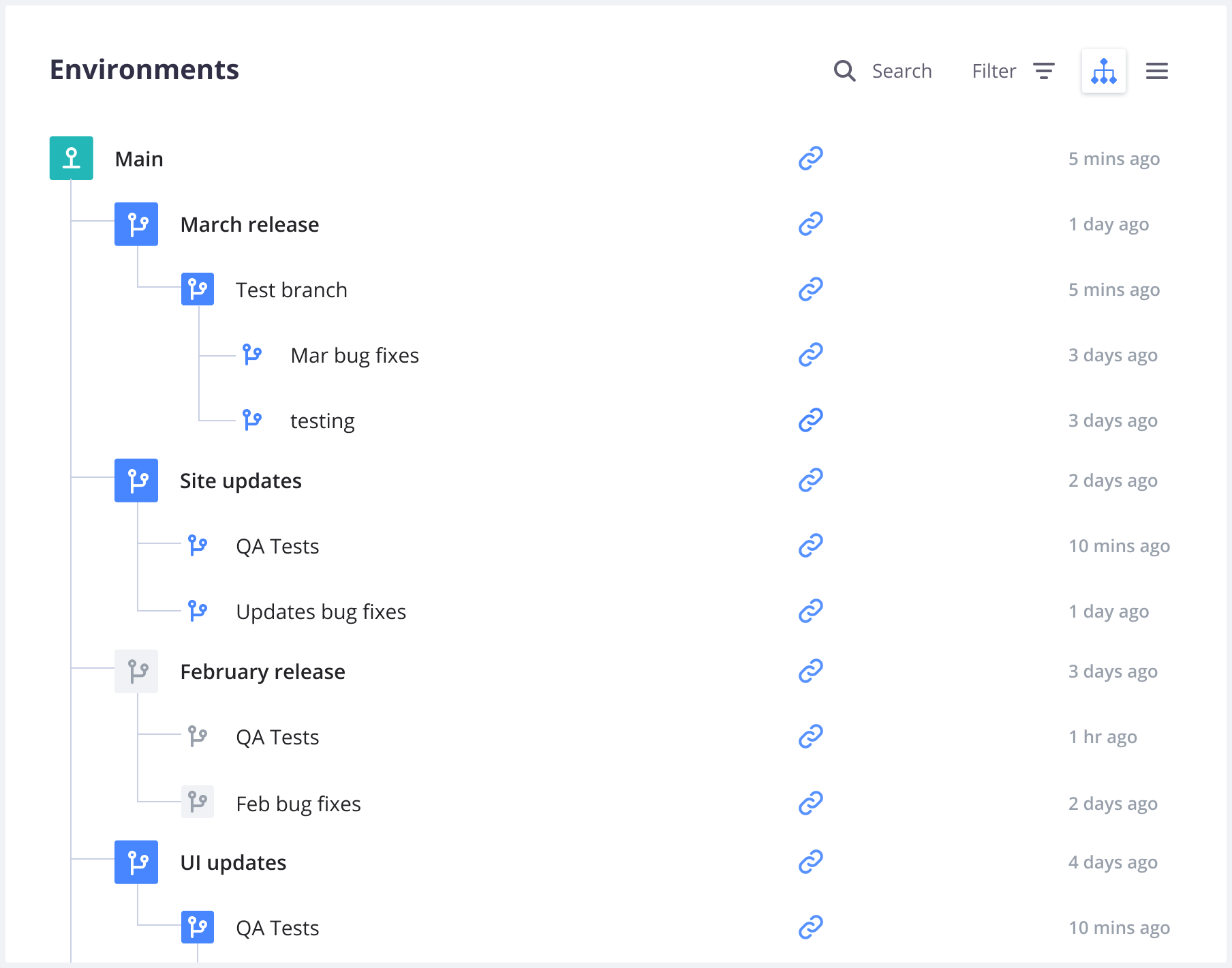
From your project’s main page in the Console, you can see all your environments as a list or a project tree:In this overview, the names of inactive environments are lighter.
Selecting an environment allows you to see details about it,
such as its activity feed, services,
metrics, and backups.
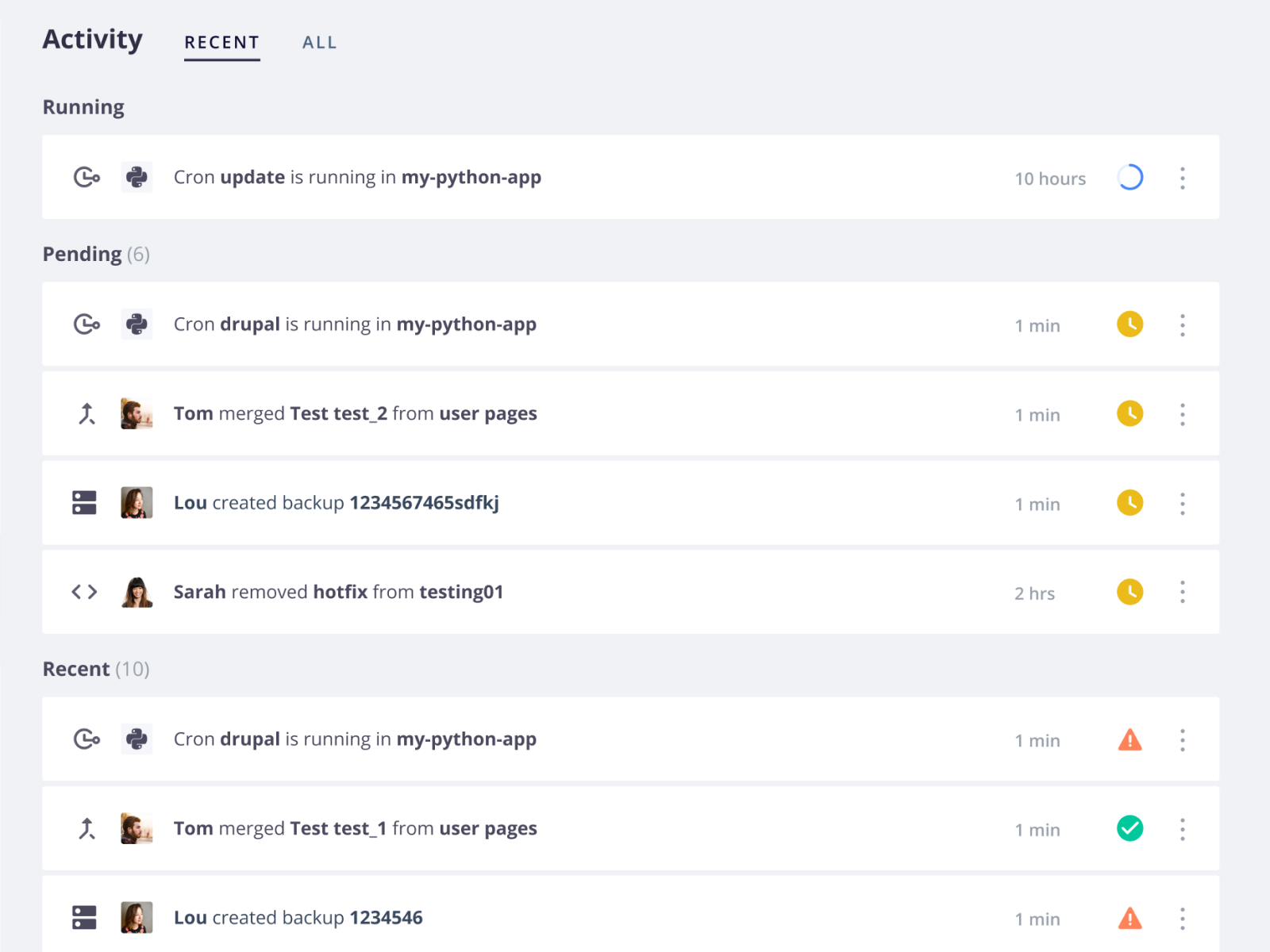
When you access an environment in the Console, you can see its activity feed.
This allows you to check which activities have happened or are currently happening on the selected environment:You can filter activities by type (such as merge, sync, or redeploy).
URLs to access the deployed environment from the web.
SSH to access your project using SSH.
Code
CLI for the command to get your project set up locally with the Upsun Cloud CLI.
Git for the command to clone the codebase via Git.If you’re using Upsun Cloud as your primary remote repository, the command clones from the project.
If you have set up an external integration,
the command clones directly from the integrated remote repository.If the project uses an external integration to a repository that you haven’t been given access to,
you can’t clone until your access has been updated.
See how to troubleshoot source integrations.
When you access an environment in the Console, you can view its URL. While the environment is loading in the Console, a Waiting for URL... message is displayed instead of the URL. If this message isn’t updated once your default environment’s information is loaded, follow these steps:
For each environment, you can view information about how your routes, services, and apps are currently configured.To do so, click Services.
By default, you see configured routes.
The Router section shows a list of all the routes configured on your environment.
You can see each route’s type and check if caching and server side includes have been enabled for it.To view the configuration file where your routes are set up, click Configuration.
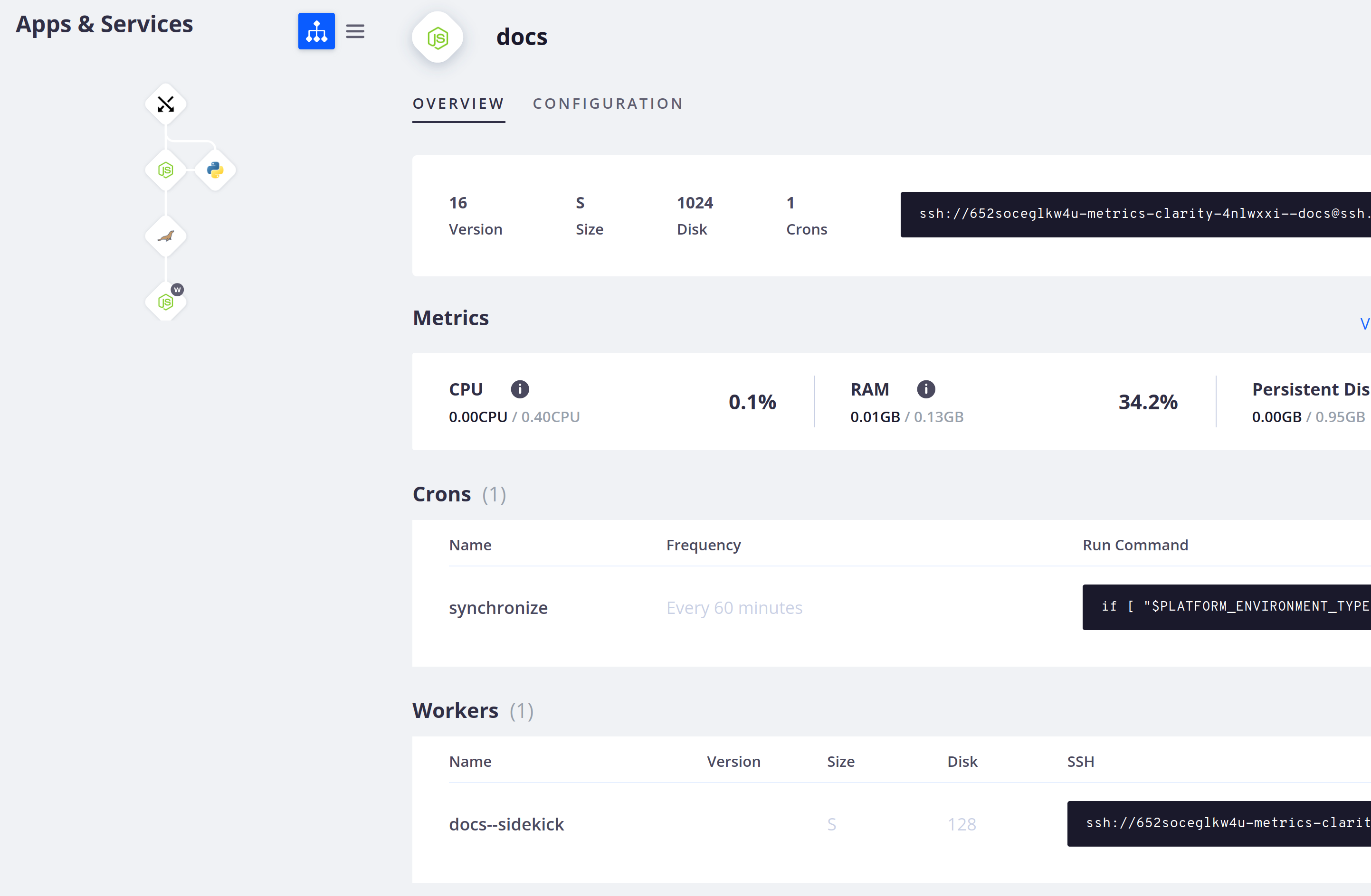
To see detailed information about an app container,
select it in the tree or list on the left-hand side:The Overview tab gives you information about your app.
You can see:
The language version, the container size, the amount of persistent disk,
the number of cron jobs, and the command to SSH into the container.
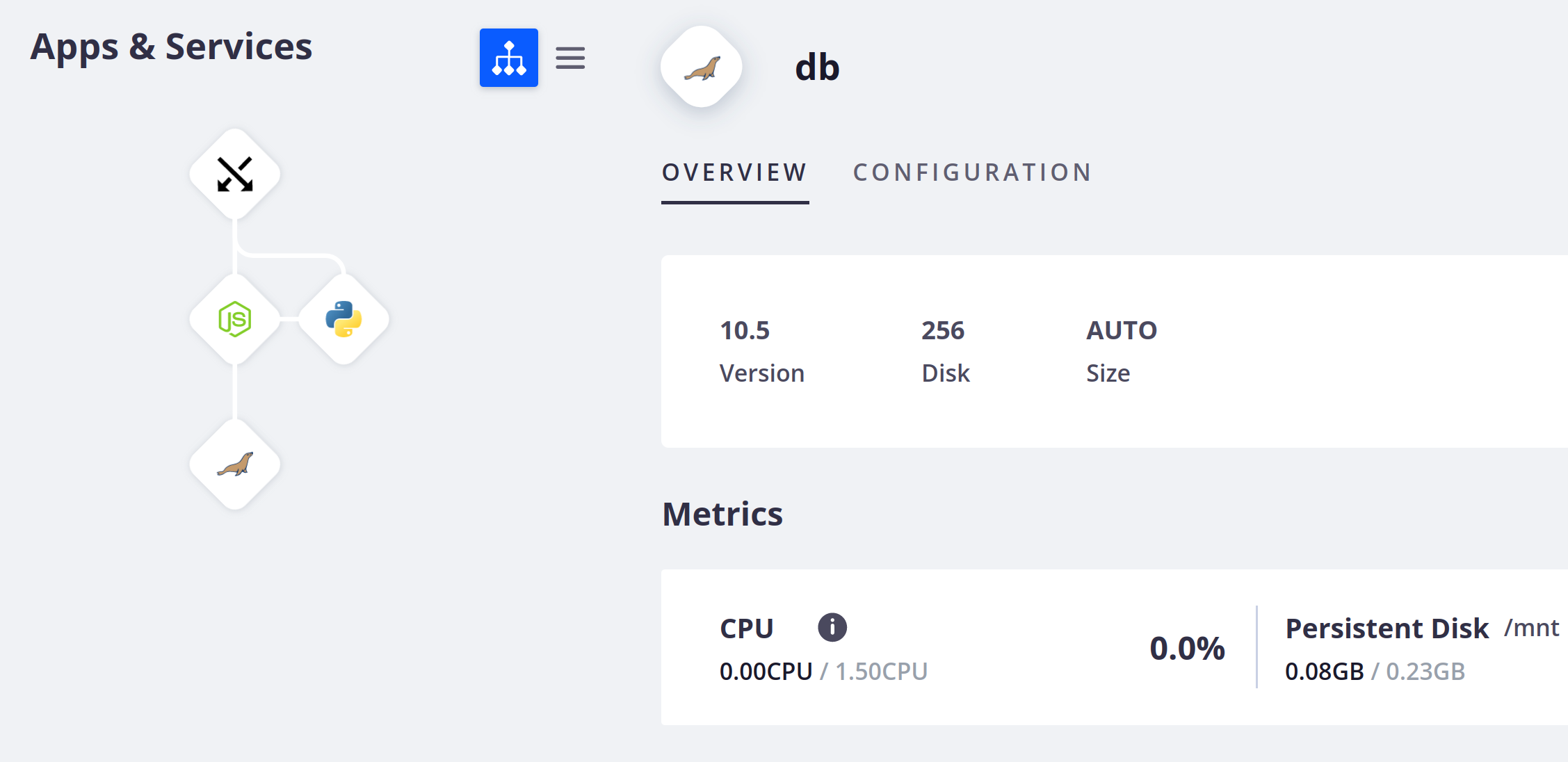
To see detailed information about a running service,
select it in the tree or list on the left-hand side:The Overview gives you information about the selected service.
You can see the service version, the container size, and the disk size, if you’ve configured a persistent disk.
You can also see a summary of metrics for the environment.To view the configuration file where your services are set up, click Configuration.
Last modified on September 16, 2026
Was this page helpful?
Assistant
Responses are generated using AI and may contain mistakes.


 Dispatch
 Cloud
Cloud