

 Dispatch
 Cloud
CloudManual resource initialization strategy,
you can adjust container resources manually.
To do so, follow the instructions on this page.
Upsun Cloud allows you to configure resources (CPU, RAM, and disk) per environment for each app and service.
You can also add instances for each app depending on your needs.
For example, you can scale vertically and allocate more resources to your production and staging environments
than to your development environments.
This flexibility allows you to optimize performance and costs.
You can also scale horizontally if your apps are struggling with high load, or if you’re expecting a traffic spike,
by adding more instances for your apps and workers.
For information on costs related to resource usage, see the Upsun pricing page.
You can monitor these costs in the Console.
Vertical scaling
To define how much CPU, RAM, and disk storage you want to allocate to each individual container, follow these steps:- Using the CLI
- Using the Console
To set resources for each of your apps and services,
you can use the Upsun Cloud CLI interactive prompts, or run commands manually.After you’ve set resources, your environment is redeployed,
which causes a short downtime.Example 2:The following command allocates Example 3:You can also use wildcards. For example, if you have two apps named
- Interactive prompts:
upsun resources:set command, and follow the prompts to set resources for each app and service.For further guidance on how to set resources using the CLI, run the
upsun resources:set --help command.
Note that if the deployment fails after you’ve run upsun resources:set,
you may need to set the resources again.- Manual commands:
resources:set command using the following CLI options:Example 1:The following command allocates
0.1 CPU to the frontend app, 0.25 CPU to the backend app, and 1 CPU to the database service.
The amount of RAM these settings translate into depends on each container profile.Terminal
640 MB of disk to the backend app, and 2048 MB to the database service:Terminal
frontend and backend,
you could allocate the same CPU and RAM combination to both by using the following command:Terminal
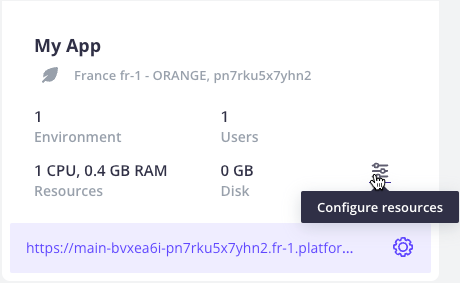
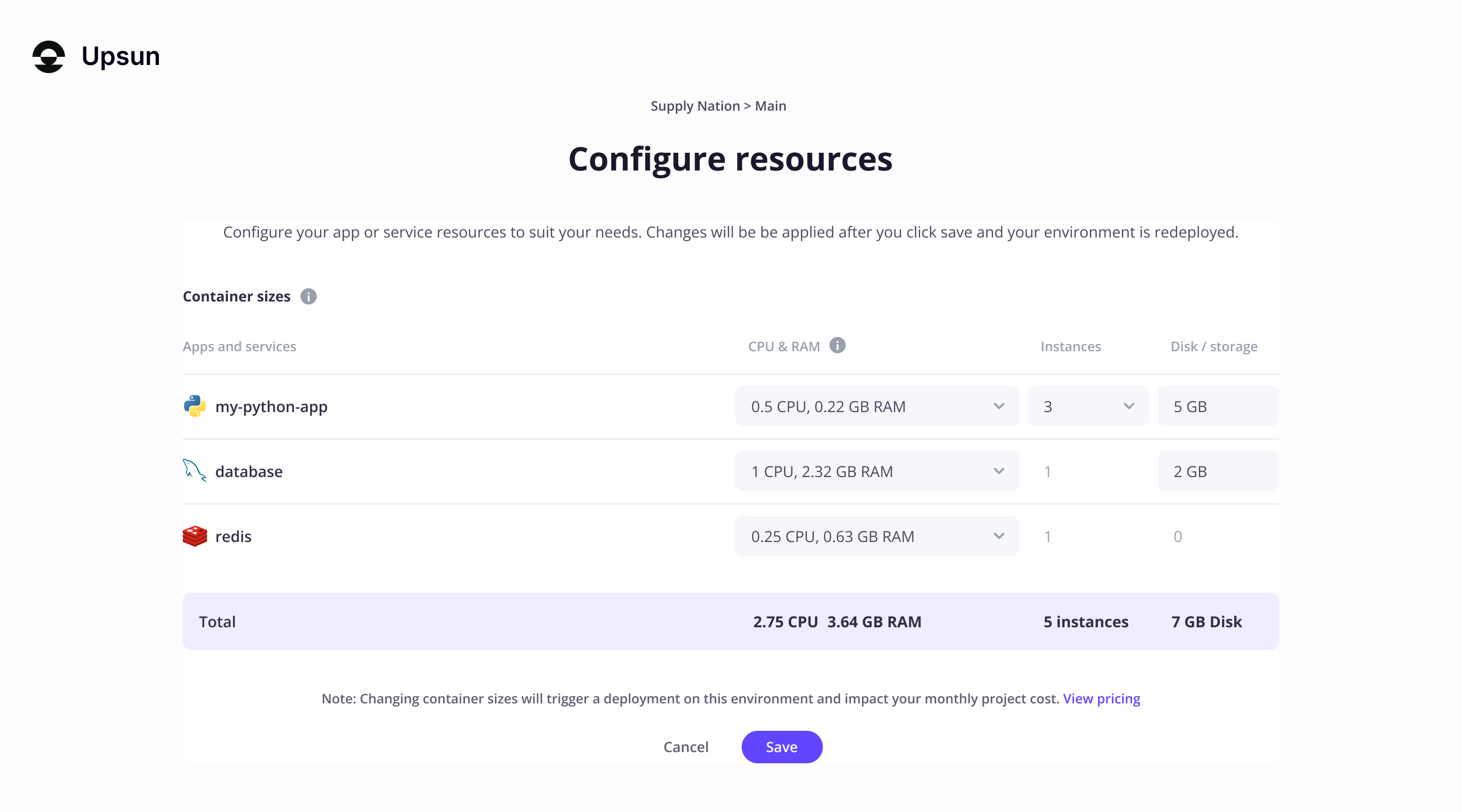
Horizontal scaling
For apps and workers, you can also define how many instances you want to deploy. To do so, follow these steps:When you have several instances of an app, the Upsun Cloud router randomly distributes requests to available instances.
- Using the CLI
- Using the Console
To define how many instances of an app or worker you want to deploy,
you can use the Upsun Cloud CLI interactive prompts,
or run commands manually.
-
Interactive prompts:
Run the
upsun resources:setcommand, and follow the prompts to set resources for each app and service.For further guidance on how to set resources using the CLI, run theupsun resources:set --helpcommand.Note that if the deployment fails after you’ve runupsun resources:set, you may need to set the resources again. -
Manual commands:
To scale an app or worker, run the following command:
For example, to scale yourTerminal
myappapp to 3 instances, run the following command:You can also set the same instance count for all your apps using a wildcard. To do so, run the following command:TerminalFor example, to scale all your apps to 3 instances, run the following command:TerminalTerminalFor further guidance on how to set resources using the CLI, run theupsun resources:set --helpcommand.After you’ve set the number of instances for your apps and workers, your environment is redeployed. If you’ve made no other changes, this redeployment causes no downtime.If the redeployment fails after you’ve runupsun resources:set, you may need to set the resources again.
Autoscaling
Upsun Cloud provides native autoscaling support. You can configure thresholds for metrics such as CPU, RAM, and request latency. Resources will automatically adjust horizontally to meet demand.View application instance details
Upsun Cloud maintains a real-time indexed list of an application’s instances and their IP addresses in the project’s/run/peers.json file. You might view this read-only file to gain insight into how your application instances are distributed. Upsun Cloud maintains this file whether you scale instances manually or have autoscaling enabled.
Distributed applications (for example, those running on Elixir and Erlang) and applications that can scale horizontally must be aware of all its instances in order to coordinate activities such as setting up clusters and handling application failures.
The number of instances in this file at any time matches the number of application instances shown on the Configure Resources page of the Console.
To view the contents of the file, run this command from the root of your project directory:
Advanced: Container profiles
Shared CPU container sizes
By default, Upsun Cloud allocates a container profile to each app and service depending on the range of resources it’s expected to need. Each container profile gives you access to a specific list of CPU and RAM combinations. Using the Upsun Cloud CLI or Console, you can then pick a CPU and RAM combination for each of your apps and services. There are four container profiles available:HIGH_CPU, BALANCED, HIGH_MEMORY, and HIGHER_MEMORY.
The following table displays the different CPU and RAM combinations each container profile provides:
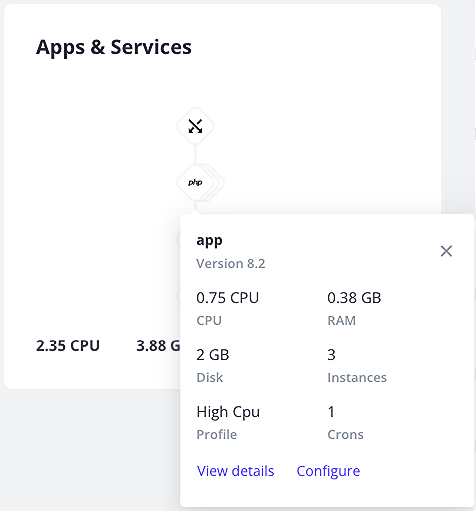
You can check which container profile is set for an app or service in your project from the Console.
To do so, navigate to your environment and select the app or service in the tree on the left-hand side:
Guaranteed CPU container sizes
When selecting a container profile for Guaranteed CPU, use the table below to identify available CPU and memory combinations. These predefined sizes help you match resource profiles to your application’s workload requirements.Guaranteed CPU is not currently available on OVHcloud regions and some CPU sizes may not be available in all regions.For more information about pricing, visit the Upsun pricing page.
Default container profiles
The following table shows the default container profiles Upsun Cloud applies when first deploying your project.Adjust a container profile
In most cases, it’s best not to adjust container profiles. As a best practice, Upsun recommends adjusting the profile of a container only if the CPU/RAM ratio doesn’t match how the container scales, taking into account both production and preview (staging and development) environments. To adjust a container profile, amend the value of thecontainer_profile key in your configuration: