

Why upgrade from SQLite?
Performance limitations of SQLite:- SQLite has locking issues when multiple workflows execute simultaneously.
- Database queries slow down as your workflow history grows.
- No built-in clustering support—you’re limited to a single instance.
- PostgreSQL provides a proper relational database with concurrent query support, better query optimization, and the ability to handle millions of executions.
- Redis acts as a caching layer and queue backend, reducing database load and speeding up workflow execution lookups.
Prerequisites
Before you start, make sure you have:- A working n8n instance on Upsun (follow this tutorial if you don’t have one yet).
- Access to your Upsun project via the CLI or console.
- Basic familiarity with
.upsun/config.yamlconfiguration.
Architecture overview
Here’s what your upgraded setup will look like:
- n8n main process handles the web UI and API requests.
- Worker processes execute workflows independently, preventing long-running jobs from blocking the main application.
- PostgreSQL stores all workflow definitions, executions, credentials, and history.
- Redis manages the job queue, ensuring tasks are processed reliably and can be retried if needed.
Step 1: Create an environment for PostgreSQL and Redis
As we never push major changes in production directly, we will first create a staging environment to test the new configuration before applying it to production.Terminal
add-postgresql-redis where we will be able to test the new
configuration without affecting the production environment.
Step 2: Add PostgreSQL and Redis services
First, update your.upsun/config.yaml to include PostgreSQL and Redis services:
.upsun/config.yaml
- A PostgreSQL 16 database for persistent workflow storage.
- A Redis 8.0 instance for caching and the job queue.
Step 3: Configure n8n application
Update your n8n application configuration in.upsun/config.yaml to connect to PostgreSQL and use Redis:
.upsun/config.yaml
relationshipslink n8n to PostgreSQL (asdatabase) and Redis as a job queue.workershandle background job processing—scale the concurrency setting as needed.- n8n auto-detects PostgreSQL and Redis via services variables Upsun injects.
Step 4: Add .environment specific environment variables
Step 5: Migrate existing data
User accounts can’t be migrated automatically. Theexport:entities / import:entities CLI commands are still
experimental and unreliable across different n8n versions — attempts may fail with migration timestamp mismatches.
Exporting n8n encryption key
N8n uses a default pre-generated TOKEN to store your data securely in your SQLite database. To be able to export and re-import your workflows and credentials into the new built version of n8n, your need to export and save this token on the project level, for environment inheritance.Terminal
N8N_ENCRYPTION_KEY with the value of the encryption key used in
your current n8n production instance, and let all environments inherit it.
Exporting existing workflows
If you already have workflows in SQLite, you need to export them:Terminal
workflows.json in your local directory with all your workflows exported.
This file is encrypted with the same encryption key as your current n8n instance, so you can re-import it in the new
n8n instance without any issue.
Exporting existing credentials
If you already have credentials in SQLite, you need to export them:Terminal
credentials.json in your local directory with all your credentials exported.
This file is encrypted with the same encryption key as your current n8n instance, so you can re-import it in the new
n8n instance without any issue.
Step 6: Deploy
When all previous steps are done, deploy your new n8n application:- PostgreSQL and Redis services are automatically provisioned.
- The main n8n application starts and connects to both services.
- Worker processes are spawned to handle background jobs independently.
- n8n automatically detects the database is empty and initializes its schema.
- Existing workflows and credentials from your SQLite database need to be reimported.
Step 7: Import Workflows and Credentials
To import your existing workflows and credentials into the new n8n staging instance, follow these steps:Terminal
Terminal
Step 8: Verify the setup
After deployment, verify that n8n is using PostgreSQL and Redis:-
Check the main application logs:
Look for messages confirming PostgreSQL and Redis initialization.Terminal
-
Check worker process logs:
Verify workers are listening for jobs:TerminalTerminal
- Confirm the connection from the n8n UI by running a test workflow—execution history should load instantly and background jobs should process via workers.
- In your Upsun console, verify all services and processes are running and healthy.
Step 9: Update production environment
Before merging to production, make sure to create a backup of your production environment, in case you need to rollback:Terminal
Merge to production
Once you’ve verified everything is working correctly in staging, you can merge your changes to the production branch:Terminal
Reimport workflows and credentials to production
You can redo what you did in staging to export the encryption key, workflows and credentials from the current production instance, and re-import them in the new production instance:Terminal
Step 10: Recreate N8N users
As the users are stored in the database, they will not be automatically migrated from the old n8n instance to the new one. You will need to recreate them manually in the n8n UI.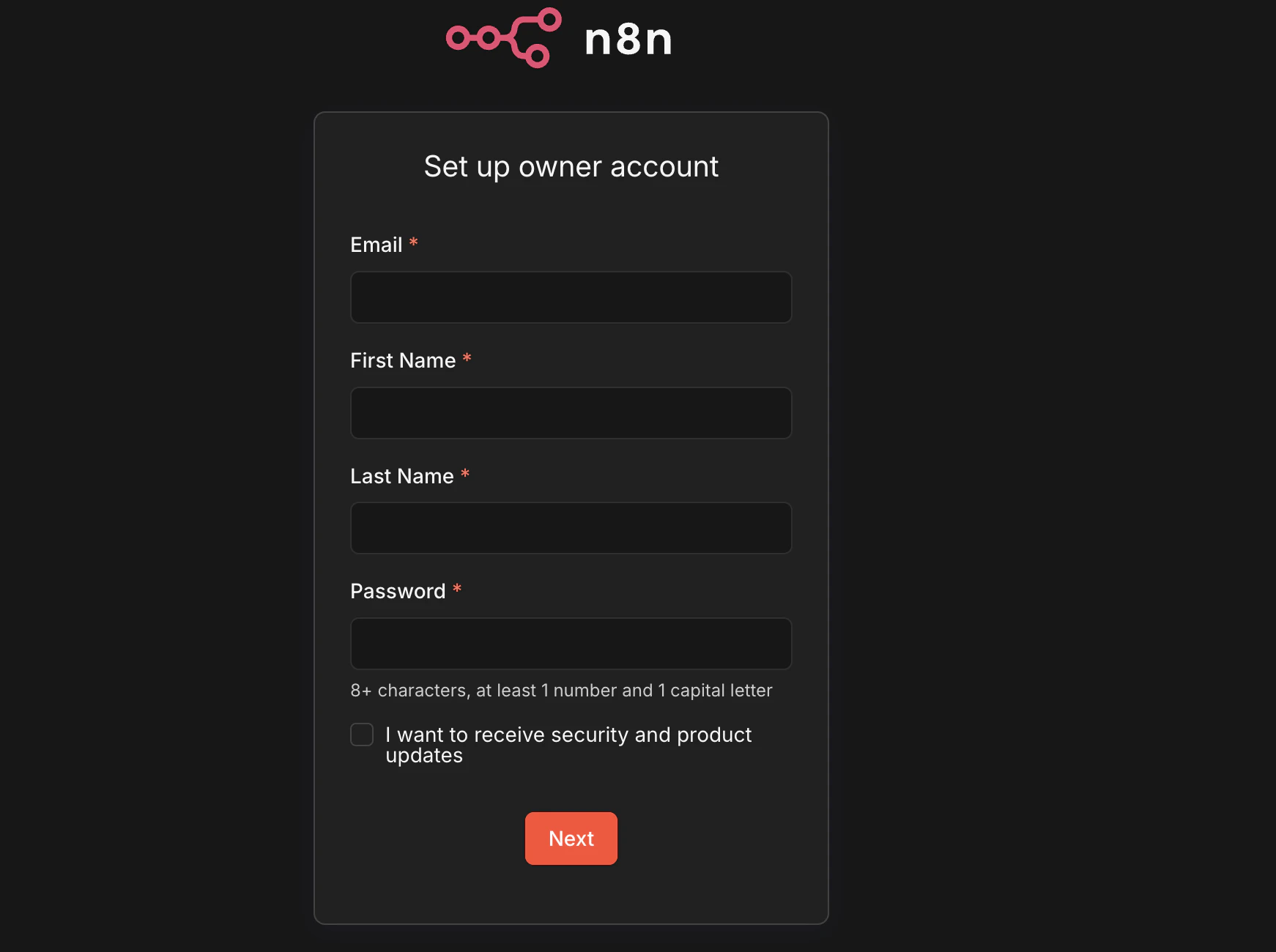
Performance tuning tips
Now that you’re using PostgreSQL and Redis with dedicated workers, optimize further:Worker concurrency
Adjust theN8N_WORKER_CONCURRENCY environment variable to control how many jobs a worker processes simultaneously:
.upsun/config.yaml
container_profile: HIGHER_MEMORY is recommended.
PostgreSQL optimization
- Backup regularly: Enable automatic backups in your Upsun environment to protect your workflow data.
- Monitor disk usage: As your execution history grows, the database will expand. Allocate enough disk space or set retention policies.
- Monitor slow queries: Check PostgreSQL logs if workflow execution feels sluggish.
Redis optimization
- Monitor queue depth: Use
upsun sshto check Redis memory and queue depth during peak times:
Terminal
Troubleshooting
Workers not processing jobs
- Verify worker process logs:
upsun logs worker - Check Redis is running:
upsun logs redis - Ensure
N8N_WORKER_CONCURRENCYis set to a reasonable value.
High memory usage
- Confirm
container_profile: HIGHER_MEMORYis set in your n8n app config. - Lower
N8N_WORKER_CONCURRENCYif workers exceed available memory. - Monitor via:
upsun ssh→topor check environment metrics in the console.
PostgreSQL connection errors
- Check app logs:
upsun logs app - Ensure the relationship names match in both
applicationsand services. - Verify environment variables are correctly set and injected.
Workflows not appearing after migration
- Verify credentials were correctly re-entered (they don’t auto-migrate).
- Check that all imports completed successfully in the UI.
- Ensure
.n8nmount has enough storage space.
Next steps
You now have a production-ready n8n setup on Upsun. From here, you can:- Add more workflows without performance concerns.
- Enable API access for external integrations.
- Set up monitoring with Upsun’s observability tools.
- Integrate with your CI/CD pipeline for workflow deployment.