

 Dispatch
 Cloud
Cloudblackfire-google-alert-example repository with a new branch feed-dashboard.
In this new branch, you will find all the necessary source code to get a Symfony admin interface allowing you to manage your RSS Feeds and your Blackfire markers.
I started from an empty Symfony Demo application and changed the source code to add 2 dashboards to the admin interface:
RSS Feed List: manage all Google Alert RSS Feeds you want to automatically import on your Blackfire timeline (via the existing cron).Blackfire Marker List: an overview of your imported feeds, and you can also manually add markers on your Blackfire timeline.
feed-dashboard branch and see how to use it.
Manage your RSS Feeds and Blackfire markers
Assumptions:
- You’ve already created an Upsun project with a source integration to your own fork of the
blackfire-google-alert-examplerepository, from the previous post.
Get the Symfony Demo dashboards
After following the previous episode, you end up with an Upsun project having a source integration enabled to your forked repo of theblackfire-google-alert-example repository.
Thanks to this source integration, every new branches on your forked GitHub repo would create a corresponding Upsun preview environment.
If the
feed-dashboard branch does not exist yet in your forked repo, you need to sync your forked GitHub repo
with the original blackfire-google-alert-example repository, directly from the GitHub interface.
As soon as it’s done, the source integration will do the rest by creating corresponding environment and initialize the SQLite database (using a Symfony migration file).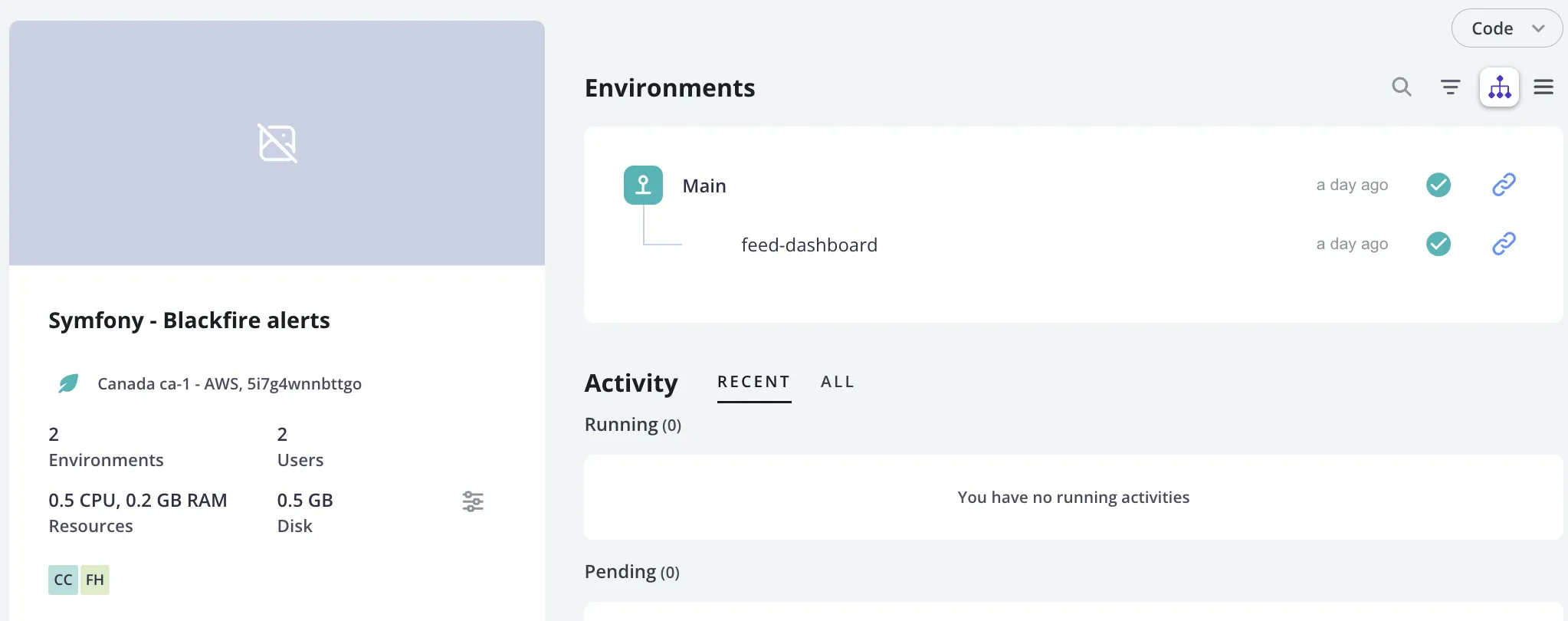
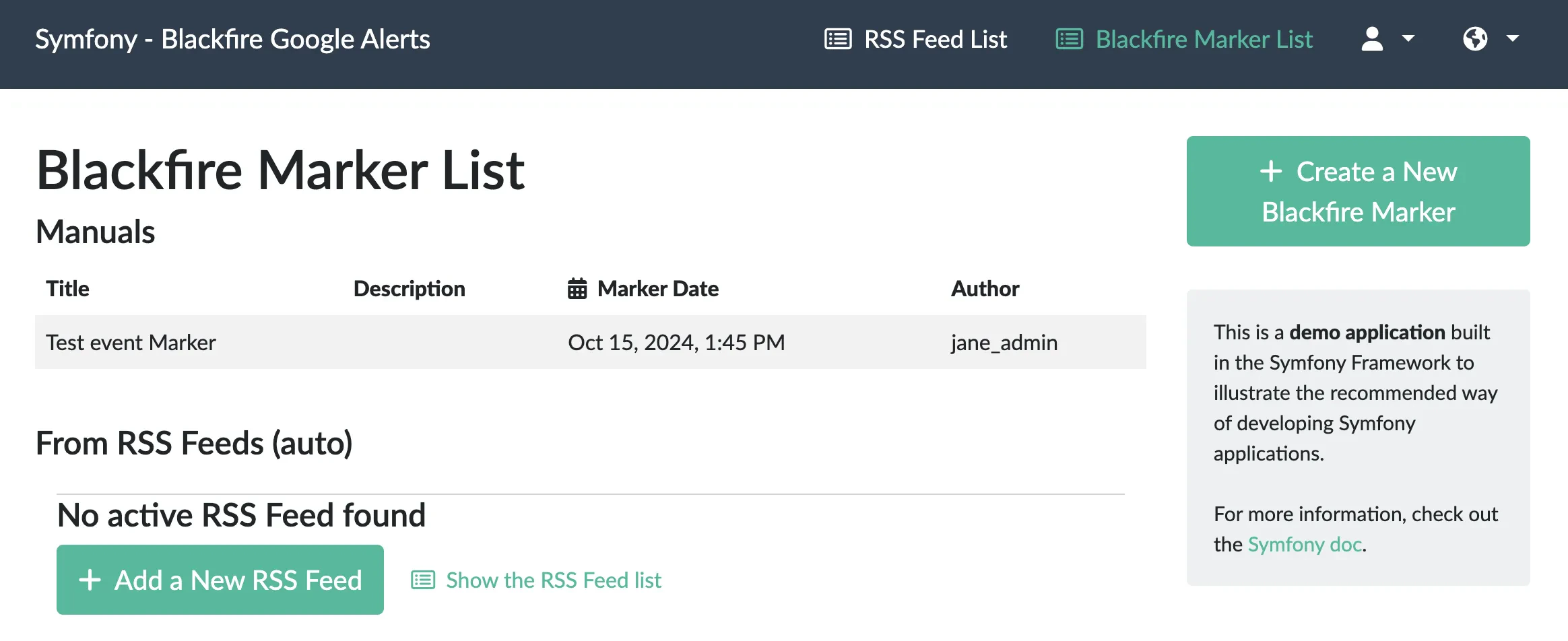
When connecting to the Admin interface, please use
jane_admin account as all features require you to be an admin to access them.RSS Feed management
From the previous episode, on themain branch, we use an environment variable GOOGLE_RSS_ALERT to define which Google Alert RSS Feed (only one) needed to be imported via a cron.
That was a good start to showcase how to do it.
But as it was not convenient to manage many Google Alert RSS Feeds. So, I develop this RSS Feed List dashboard for you to add as many Google Alert RSS Feed as you want.
You can also switch on/off the import of your RSS Feeds (active field).
If you want to import other RSS Feed than the Google Alerts one, you would just need to adapt the PHP code to import RSS entries (function
createFeed from class src/Services/BlackfireGoogleAlert.php) to your new RSS Feed structure.Blackfire Marker List
At first, this interface gives you an overview of the latest imported feeds. The major feature here is to also give your team (Marketing team?) the possibility to manually add markers on your Blackfire timeline by using theCreate a New Blackfire Marker button on the right column.
Doing so, you will be able to add marker for any incoming events, with a message and a date (it can be in the future).
- Your CEO plan to participate in a TV show to talk about your brand? Spot it!
- Your Marketing team starts a long term nurturing campaign next week? Spot it!
- You want to spot a marker for a major code release (with a lots of new features)? Spot it!
As there is (yet) no way, using Blackfire marker API, to delete existing markers on the Blackfire timeline,
So, manuals markers or automatic ones (from the Google Alert RSS Feeds) can’t be deleted.
Conclusion
Adding more context to your Observability timeline is crucial if you are running applications with a lot of traffic and if you want to be able to detect what I previously calledTV show effects in the previous episode.
Possibilities are infinite, and all of these features to add context on your Blackfire timeline would help a lot your observers/developers to analyse your traffic and understand why and when a performance bottleneck is happening.
I keep you posted, I will soon write a third episode to go further and push markers from your Google Alert RSS Feeds on your Google Analytics timeline.
Happy spotting!
Remain up-to-date on the latest from us over on our social media and community channels:
DEV.to, Reddit,
and the Upsun Community Forum.