

 Dispatch
 Cloud
CloudTV show effect.
Other names can be found for these external events leading to traffic spikes: Slashdot effects or Hug of death.
Of course, most of the requests on your website would be absorbed by your reverse proxy in front (Varnish, Faslty,…), but some of those requests won’t and would lead to an increase of the resource consumption.
Blackfire is a great Application Performance Monitoring (APM) tool to observe and gather data about consumed server resources like memory, CPU time, and I/O operations.
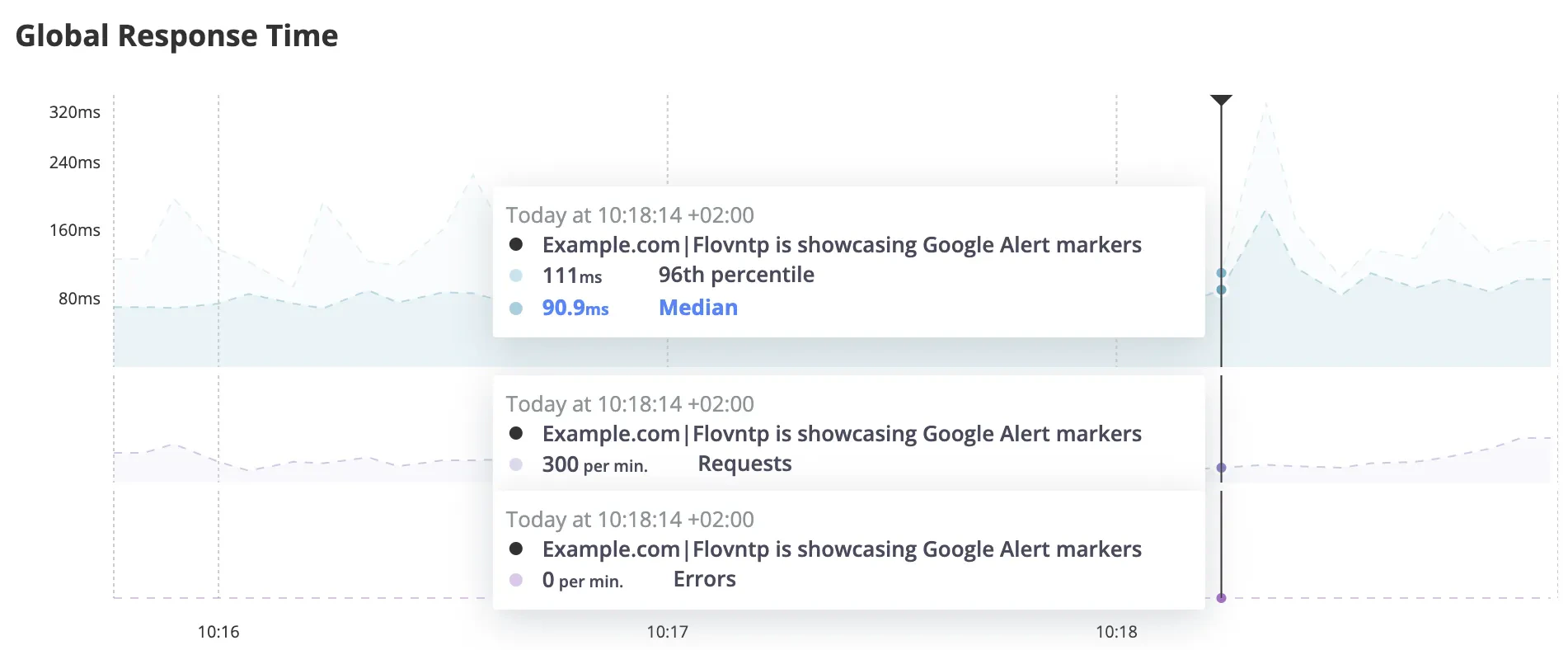
On the Monitoring section of your Blackfire dashboard, the timeline helps you to analyse the behavior of your application, by giving a lot of metrics in a specific timeframe of your traffic.
Blackfire also provides a great (and not so well known) feature to spot markers on this timeline.
These markers are a way to add more context for your observers to better understand what’s going on (when and why?).
We saw in a previous tutorial How to automatically spot markers on your Blackfire timeline for any occurring Upsun infrastructure processes.
In this current tutorial, I will showcase how you can import any new Google alerts that pops up and spot markers on your Blackfire timeline.
As a summary for this tutorial, we will import, via a cron, any new RSS Feed entries in a Symfony database (SQLite), and spot corresponding markers on your Blackfire timeline.
🚨 Please note:
I choose to use Google alerts (RSS Feed) as it’s an easy way to get notification when a new article/page is added in their index
but that’s just an example.
Everything related to Google alerts in this article can easily be adapted to another RSS Feed structure.
You would just need to adapt the PHP code to import RSS entries (function
createFeed from class src/Services/BlackfireGoogleAlert.php) to your new RSS Feed structure.Google alerts and Blackfire markers
Assumptions:
- You already have a Google Account
- You already have a GitHub account
- You already have an Upsun account. If you don’t, please register for a trial account. You can sign up with an email address or an existing GitHub, Bitbucket, or Google account. If you choose one of these accounts, you can set a password for your Upsun account later.
- You have the Upsun CLI installed locally.
- (optional) Your local environment is compatible with Symfony requirements
Create a new Google alert RSS Feed
The first step is to create a new RSS Feed alert. To do so, connect to your Google account and go on Google alerts page and follow this official tutorial. Please fill it with the following options: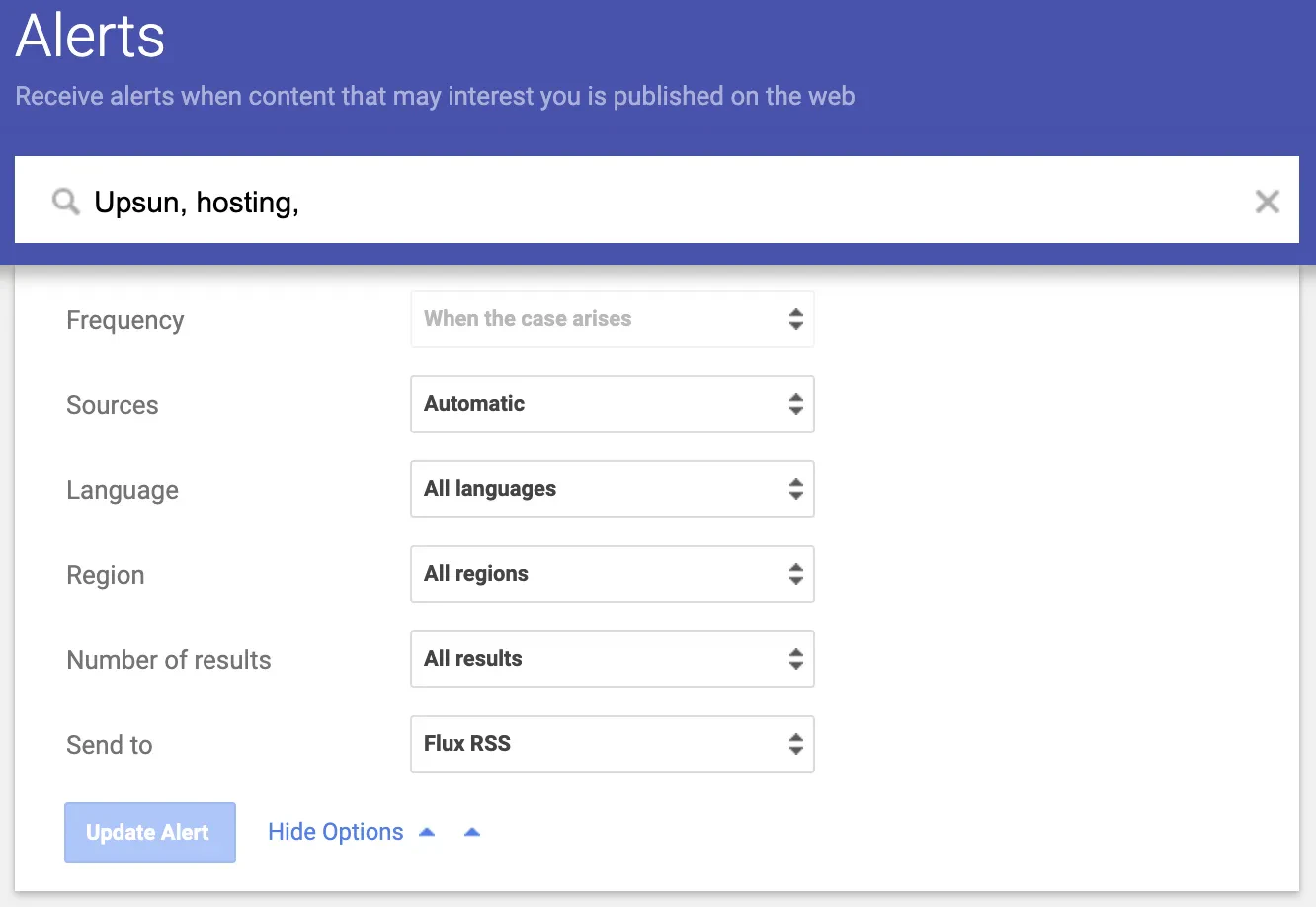
Create a fork of the blackfire-google-alert-example repository
To ease your work, I already developed a small Symfony application that contains the minimum codebase for importing all feeds from a Google Alert RSS Feed in your database and spotting corresponding markers on your Blackfire timeline, using a cron.
You can start by creating a fork of this blackfire-google-alert-example GitHub repository in your own GitHub organization for later usage.
🚨 Please note: for this tutorial, we use a Symfony application but feel free to reuse the business logic and come up with a solution using any other framework you like.
<OWNER/REPOSITORY>is your forked<REPOSITORY>in GitHub.<PROJECT_ID>: keep this project ID in mind for later use
Define your RSS Feed uri in an environment variable
Before deploying, please note that thisblackfire-google-alerts app need you to define an environment variable for your RSS Feed uri (<GOOGLE_RSS_ALERT_URI>).
For local usage of this application, you can define this GOOGLE_RSS_ALERT environment variable in a .env file:
.env file (local Symfony server), there are 3 ways to define environment variables for your Upsun environment/project.
You can either:
-
use an
.environmentfileThen you need to add this file to your Git history - use the Upsun CLI.
- define it from the Upsun Console: to do so, please follow steps described in the corresponding documentation page (
In the Consoletab)
Add a source integration to your fork
Then, you need to add a source integration to sync your Upsun project with your new forked GitHub repository.<PROJECT_ID>is the ID of your newblackfire-google-alertproject ID (fromupsun project:createcommand).<GITHUB_ACCESS_TOKEN>is your generated GitHub API Token.
For more information about source integration, please refer to the enable source integration documentation page.
Blackfire Timeline testing
From the Upsun Console of your project, wait for the first deploy to be completed (~3 minutes) and then click onLaunch Blackfire button on the left menu.
🚨 Please note: If you would like to automatically open your current project Console dashboard from your terminal, you can use this command from the root of your source code:
Monitoring menu item on the left.
Markers should appear on the timeline, such as:
🚨 Please note: The
If you want to manually trigger the first import, you can also execute this command:
blackfire-google-alerts app imports RSS Feed entries via a cron that runs every 5 minutes, so depending on the timing, you probably need to wait a bit for the first import to take place.
If you want to manually trigger the first import, you can also execute this command:
Conclusion
Adding more context to your Observability timeline is crucial if you are running applications with a lot of traffic and if you want to be able to detect what i calledTV show effects.
In this guide, we took a look at how to automatically add context to your Blackfire timeline using an external source (here, Google Alert RSS Feed).
Some next steps could include importing any other external source of information that could explain traffic spikes on your application,
or give a way for your marketing team to manually spot incoming events on your Blackfire timeline?
- In 2 weeks, your CEO is willing to be at a TV show, talking about your brand?
- A new 1 month nurturing campaign is planned in 3 weeks (start|end markers?)?