

 Dispatch
 Cloud
CloudThis is Part 1 of the Upsun Task Containers series, where we build up — episode by episode — from a simple background job to a fleet of autonomous AI agents. In this first episode, no AI yet: we focus on the foundation, using a cron to trigger an on-demand task container for a heavy workload.Every team eventually hits the same wall: a nightly job that almost fits in a cron. A database import, a full search reindex, a bulk export — something that runs for several minutes, eats memory, and competes with the very application that is supposed to be serving traffic. You bump the cron, you cross your fingers, and you hope it finishes before the next schedule fires. There is a cleaner way. Instead of running the heavy work inside your application container, you can keep the cron tiny and let it trigger a dedicated task container — an on-demand, run-to-completion workload with its own image, its own resources, and its own timeout. The cron becomes a trigger; the task does the work.
Task containers are currently in prerelease. To enable them on your project,
open this prepopulated support ticket
and add your project ID before submitting.
Prerequisites
Before starting, make sure you have:- An Upsun account with task containers enabled (see the note above)
- The Upsun CLI installed
- An existing application deployed on Upsun (this guide uses a PHP/Symfony app, but the pattern is language-agnostic)
- A heavy application command you want to offload (for example
bin/console app:reindexor a database import script)
Why not just run it in the cron?
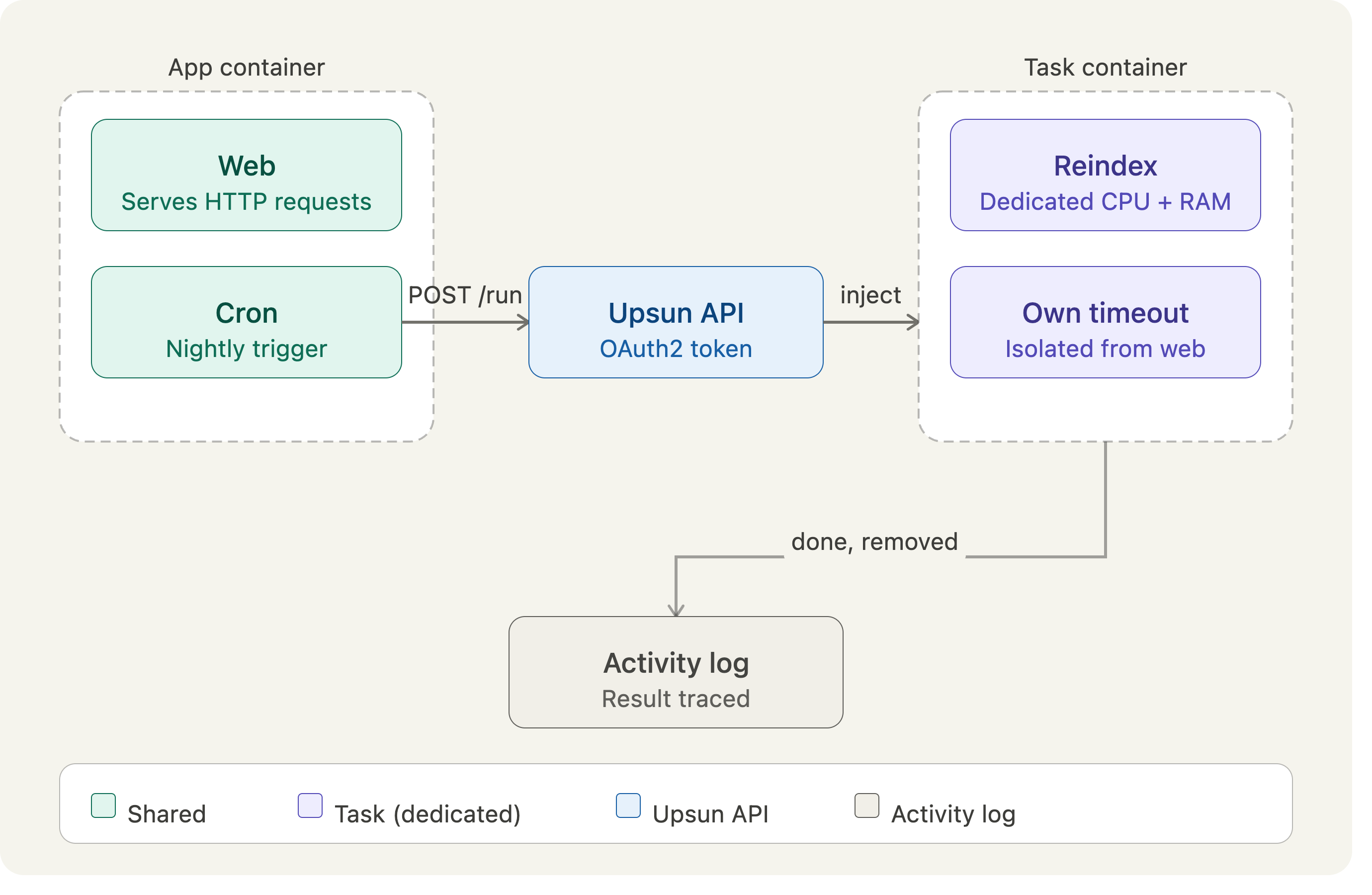
Crons are the right tool for scheduling, but they run inside your application container. That means the heavy job shares CPU and memory with the process serving HTTP traffic, and it is bound by the app’s resource profile. A long reindex can starve your web requests, and a deploy will cancel a running cron mid-flight. A task container flips the model. It is a separate, on-demand workload that is injected into your environment’s cluster only while it runs, then removed when the command exits. Here is how the four workload types compare:
The pattern we build in this episode keeps the best of both worlds: a lightweight cron does nothing but fire an
API call, and a task container with its own resources does the heavy lifting.
Step 1 - Define the task
Tasks are declared at the top level of.upsun/config.yaml, alongside applications: and services:. Let’s define a
task that runs a heavy search reindex command against the same database the app uses.
.upsun/config.yaml
typeuses the same runtime syntax as an application. Here the task reuses the app’s PHP image so the application command and its dependencies are available.run.commandis the heavy job. It runs to completion, not as a daemon. If you need setup steps that require service access, chain them at the start of the command, for examplephp bin/console cache:warmup && php bin/console app:reindex.run.timeoutcaps the run at one hour (the default). The maximum is86400(one day). On timeout, the platform sendsSIGTERM, thenSIGKILLafter a short grace period.relationshipsgive the task its own connection to the database. Inside the task container, these appear inPLATFORM_RELATIONSHIPSexactly as they do for an application.mountsdeclare writable directories. Remember thatinstanceandtmpmounts are reset between runs — use astorageor service mount if you need to persist data across runs.
Step 2 - Authorize the app to trigger the task
A task does not trigger itself. Something has to call the Upsun API — in our case, a cron running in the application container. For that, the application needs permission to operate the task. Declare it with a workload authorization:.upsun/config.yaml
Step 3 - Trigger the task from a cron
Now the lightweight part. The cron does not run the reindex itself; it mints a token and POSTs to the task run endpoint. Every Upsun container exposes a local credential broker athttp://localhost:8200/oauth2/token that exchanges the
container’s ambient credentials for a short-lived access token.
Add a small trigger script to your repository:
bin/trigger-reindex.sh
.upsun/config.yaml
Multiple task runs can execute in parallel up to a default limit of 3. Further triggers queue behind running ones,
so a cron that fires while a previous run is still going will not pile up unbounded.
Step 4 - Pass run-time variables
Often the same task needs to do slightly different work depending on when it runs. Pass run-time variables in the POST body and read them as environment variables inside the task:bin/trigger-reindex.sh
BATCH_SIZE and INDEX are available as regular environment variables your command can read. In a
Symfony command, that is simply $_ENV (or getenv()):
src/Command/ReindexCommand.php
Step 5 - Deploy and observe
Commit your configuration and push:Terminal
pending, in_progress, complete, cancelled), and streamed logs. You can watch
the activity feed while the task runs:
Terminal
Terminal