

 Dispatch
 Cloud
CloudWhy the standard GitLab integration won’t work
The standard Upsun GitLab integration relies on a webhook-based architecture:- GitLab sends webhooks - When you push code, create branches, or open Merge Requests, GitLab sends HTTP webhooks to Upsun’s servers
- Upsun pulls your code - Upon receiving the webhook, Upsun attempts to connect back to your GitLab instance to pull the repository
- The connection fails - Since your GitLab instance isn’t accessible from the internet, Upsun can’t reach it to pull the code
The push-based solution
Instead of relying on Upsun pulling from GitLab, you can implement a push-based workflow where your GitLab CI/CD pipeline actively pushes code to Upsun. This approach works because:- Your GitLab runners can reach external services (including Upsun)
- No inbound connections to your GitLab instance are required
- You maintain full control over when and how deployments occur
- Your GitLab instance remains completely isolated from the internet
main production environment when the branch is updated and will create preview environments whenever a new merge request is created.
Prerequisites
Before setting up your pipeline, you’ll need:- A GitLab runner with internet access to reach Upsun
- An Upsun project
- An Upsun API token for environment management
- SSH keys configured on Upsun for Git operations
Setting up authentication
Generate an SSH key pair
Create a dedicated SSH key for your GitLab CI/CD pipeline: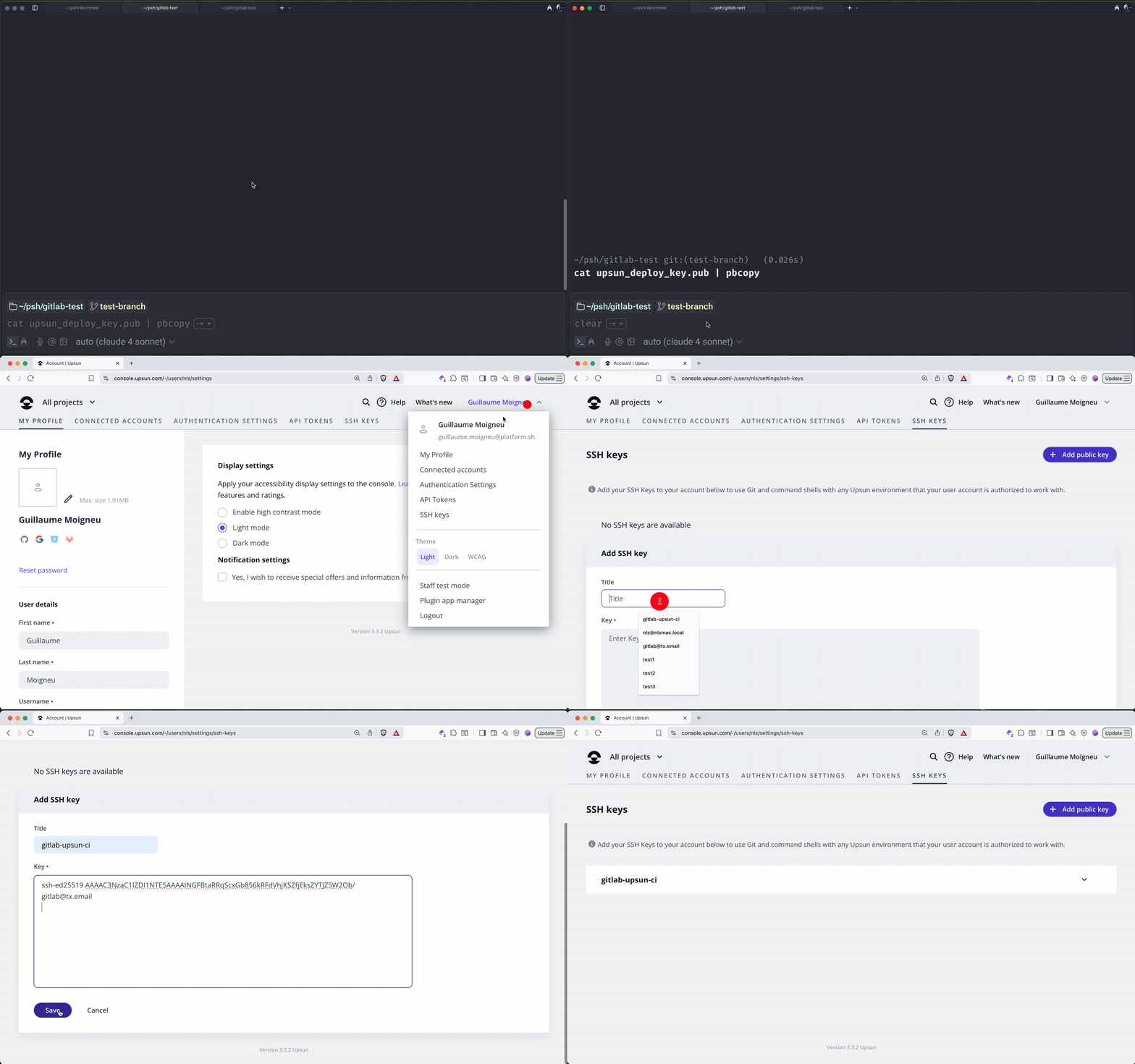
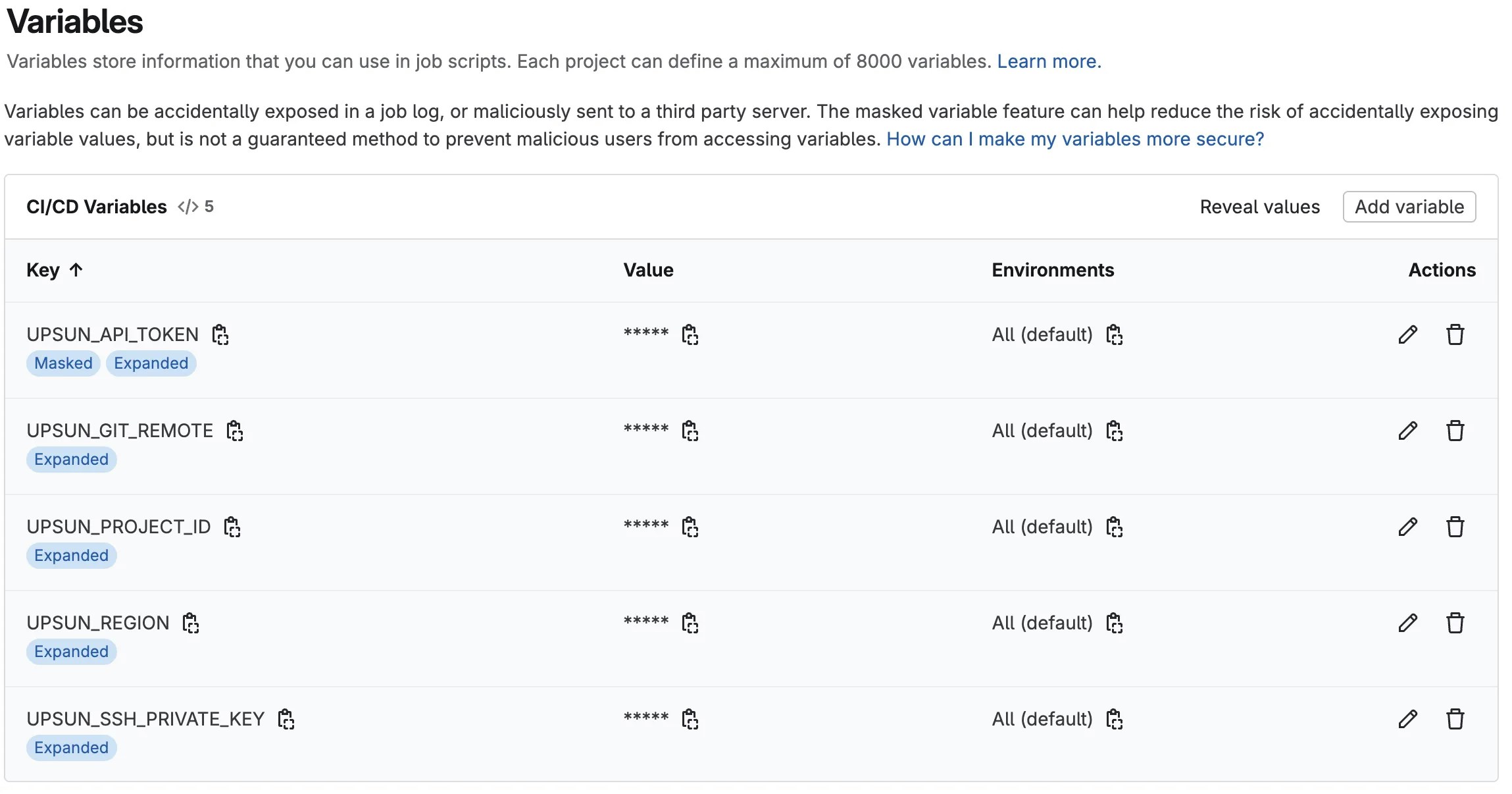
Configure GitLab CI/CD variables
Add these variables to your GitLab project’s CI/CD settings:UPSUN_PROJECT_ID: Your Upsun project ID (e.g.,abcdefgh1234567)UPSUN_API_TOKEN: Your Upsun API token (masked variable)UPSUN_SSH_PRIVATE_KEY: Contents of your private SSH key (It unfortunately can’t be a masked variable due to the key format)UPSUN_GIT_REMOTE: Your Upsun Git remote URLUPSUN_REGION: The Upsun region the project is hosted on (us-3.platform.sh,fr-1.platform.sh, etc.)
Creating the GitLab CI/CD pipeline
The full
.gitlab-ci.yml file can be found in our GitHub snippets repository..gitlab-ci.yml file in your repository root.
Start by creating two scripts that will be referenced in the different jobs.
The first one sets up your private SSH key on the container and whitelists the Upsun git endpoint:
Deploying to production
Once done, you can create the first job, deploying the main branch to Upsun:main environment on Upsun is always enabled, no additional checks are required. This job will be triggered any time something happens on the main branch (merge, commit, etc.).
Deploying preview environments for Merge Requests
For preview environments based on Merge Requests, the job will follow the same logic with some extra steps to enable the environment:API_TOKEN for an access_token, checks out the correct branch and then pushes it. The last step is to call the Upsun API to activate the environment.
With the above job in place, every new Merge Request created on your GitLab will trigger an environment creation on the Upsun side. Please note that the API call might throw a graceful error if the environment is already activated.
While the configuration triggers this job on a new Merge Request, you can change this to follow branches by switching the
only: flag to branches instead. This can be done if your workflow does not rely on Merge Requests.Cleaning up unused environments
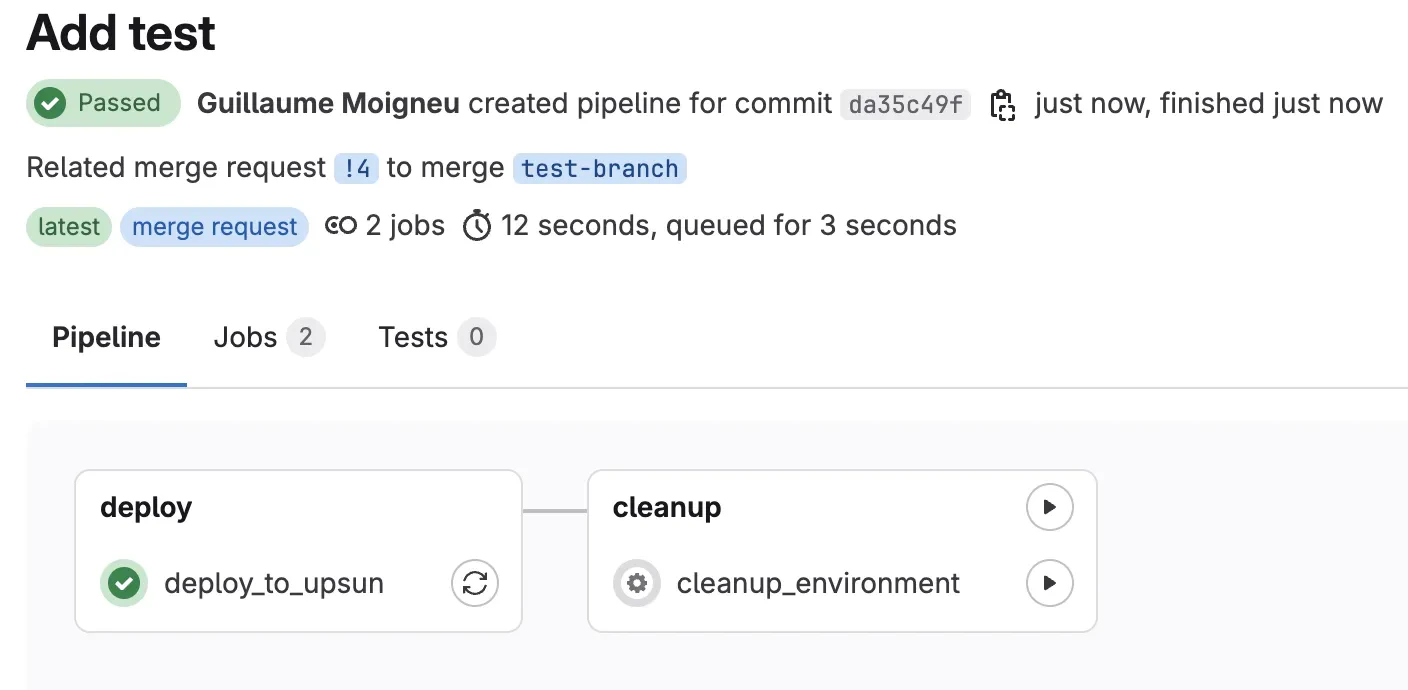
In order to not be running environments and resources for nothing, you can add a new job to clean up environments when a Merge Request is closed or merged. GitLab does not allow the CI script to detect exactly what happened on the Merge Request. It can only detect that something happened. That’s why the script uses amanual flag to trigger the job. A more robust solution would be to set up webhooks that call a script to handle the cleanup.
The cleanup script includes more actions as we need to complete the following tasks:
- Delete the Upsun remote branch
- Deactivate the Upsun environment
- Delete the Upsun environment
Deploying the script
Now that you have created the whole .gitlab-ci.yml file, add it to your repository: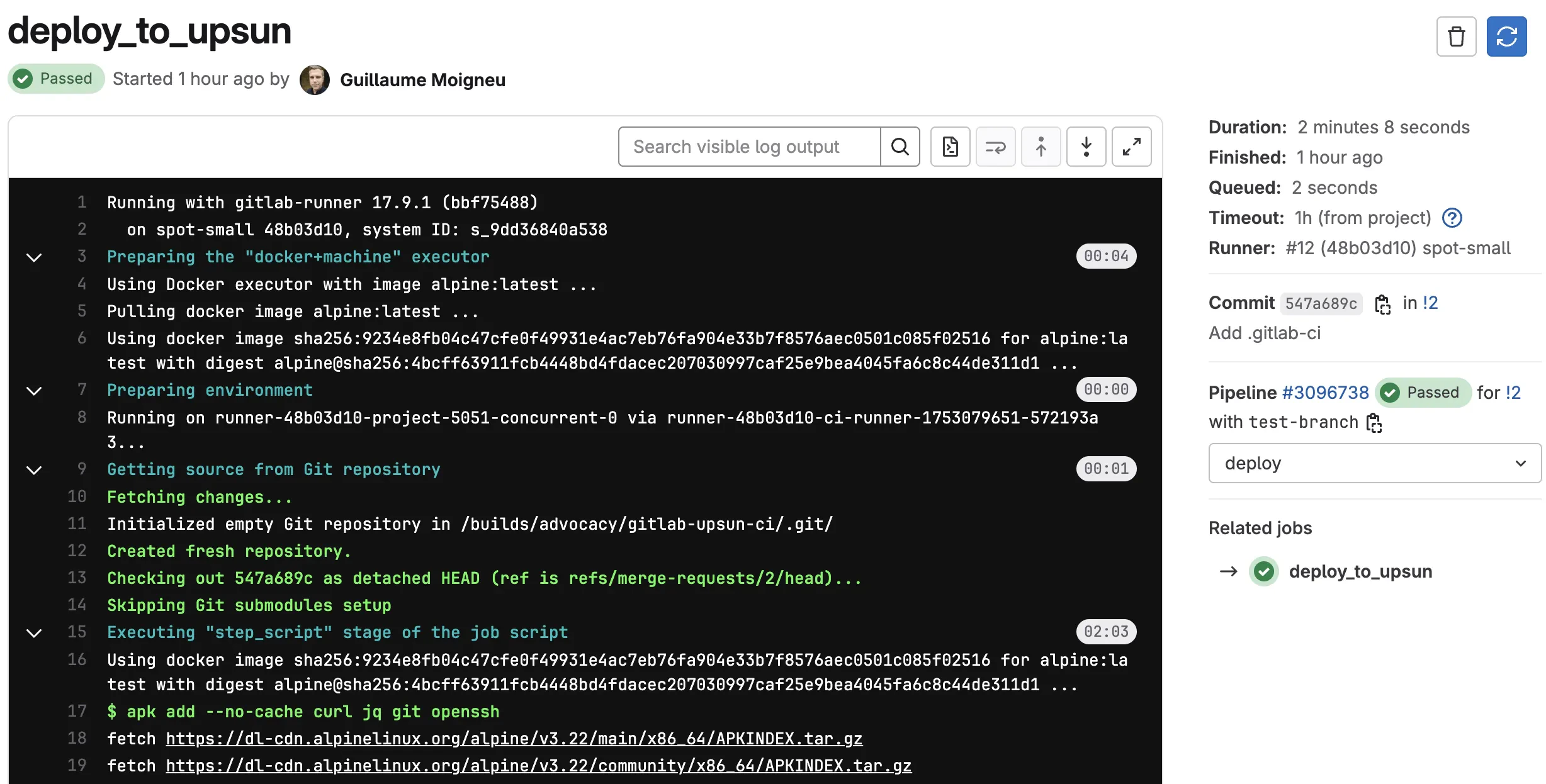
Branch name conflicts
If your branch names contain special characters, Upsun recommends converting them to safe strings:Security best practices
- Rotate API tokens regularly - As API tokens have no expiration, it is recommended to rotate them periodically
- Use protected variables - Mark sensitive variables as protected in GitLab
- Limit runner access - Use specific runner tags for deployment jobs
- Audit deployments - Enable GitLab’s deployment tracking
Summary
With your GitLab CI/CD pipeline configured, you can now deploy to Upsun from your private air-gapped GitLab instance. This setup provides:- Automatic deployments on every push
- Preview environments for Merge Requests
- Cleanup of unused environments
- Full control over your deployment process
Create your Upsun account to get started with GitLab CI/CD deployments today.