

 Dispatch
 Cloud
CloudOverview
This guide provides instructions for deploying and working with Forem, an “open-source software for building modern, independent, and safe communities” on Upsun, by Platform.sh. If you’re not familiar with Forem, it’s the platform that powers DEV.to and is built using Ruby on Rails. Installing Forem manually is not for the faint of heart, and even its own docs state:“Please note that Forem is a complex piece of software, and hosting and managing it in a cloud environment is non- trivial. ”But I’m always up for a good challenge! So, before we dive in, let’s establish some assumptions that we’ve made about you to ensure you can follow this guide successfully:
- You have an account set up on Upsun.com and the necessary permissions to create a new project
- You have the Upsun CLI installed
- You have authenticated in the CLI
- You have named your application
myapp
Setting up the application and repository
To start, we need to clone the Forem repository. From a terminal/command prompt, clone the repo locally:.environmentin the root of the Forem repository and a new directory.upsunwith a single file inside namedconfig.yaml
git add and git commit.
Ruby Version
We’re still not done. These two files require a few more changes to get Forem up and running. In your favorite IDE, open up.upsun/config.yaml. Scroll down to the type key and change it from ruby: 3.2 to ruby: 3.3. Not only do
we want Forem running on the latest version of Ruby, but Forem also requires it in the .ruby-version file.
At the time of this writing, Forem pinned the Ruby version to 3.3.0. However,
new ruby images in Upsun are released on a regular basis to apply security patches.
To avoid issues when such updates are performed, let’s update the .ruby-version file to use ruby ~>3.3. Please
note that if or when you update your clone of Forem from the upstream, if they have updated the .ruby-version file, you
Project configuration adjustments
Container Profile
Ruby images by default are assigned acontainer_profile of HIGH_CPU while new projects are assigned a
resource size of 0.5 by default,
giving us a mere 224 MB of memory for our Forem app. This is not nearly enough for it to start up and function correctly.
So for now, we’ll adjust the container profile to BALANCED to give
Forem 1088 MB of memory while keeping our 0.5CPU.
In the .upsun/config.yaml file scroll down to the key container_profile: key which will be commented out. Remove the
comment indicator (#) and update the key to container_profile: BALANCED.
Please note: When uncommenting a section, make sure you remove both the comment marker
# as well as the extra
space. If you don’t remove the extra space, you will end up with an Invalid block mapping key indent error when the
configuration file is validated.Writable locations
By default, the file system in app containers in Upsun is read-only, but Forem requires the ability to write to a collection of known locations. To address this, we’ll need to add a series of writable mounts into the application container. In the.upsun/config.yaml file, scroll down to the mounts: key (currently commented out), uncomment it,
and add the following mounts:
Serving Forem
Now we need to instruct Upsun on how we want to serve the Forem application. Forem uses Puma as the web server, so inside.upsun/config.yaml , scroll down to the sub key web:commands:start. Replace the current contents of start:
with:
upstream or upstream:socket_family keys
from their defaults, so scroll
down and either remove those keys or comment them out.
Next, we need to update the
locations key (also a sub-key
of web) to the correct root. Since we just added several mounts that will contain uploaded files we’ll want to be
able to access later, let’s go ahead and add a couple of extra properties to this location: allow (to serve files that
don’t match a specific rule)1, and expires (how long to cache static assets). Update locations to:
1 If you know exactly which assets you want to serve, you can change
allow to false and then add
matching rules for the assets you want to serve. See
https://docs.upsun.com/create-apps/app-reference/single-runtime-image.html#rulesBuilding the application container
We’re now ready to define how we want our application container to be built out. The build hook will require several steps. Here is the entirety of the build hook2, then I’ll go over each part:2 You can also move the entirety of the build hook into a bash script if you prefer. However, make sure you
pass the file to bash, and don’t try to execute directly (ie
bash build.sh vs ./build.sh )Build steps explained
set -eux
Using the set builtin, exit (e) immediately if a pipeline, simple/compound command, or list does any of the following:
- returns a non-exit code
- treats unset (
u) variables as an error when performing parameter expansions - prints a trace of simple commands,
forcommands,casecommands,selectcommands, and arithmeticforcommands and their arguments or associated word lists after they are expanded (x) and before they are executed.
n auto && hash -r
Set the node version based on the contents of the .nvmrc file and reset shell’s cache of utility locations.
export BUNDLER_VERSION="$(grep -A 1 "BUNDLED WITH" Gemfile.lock | tail -n 1)"
Grab the bundler version from the Gemfile.lock file and set it as the shell variable BUNDLER_VERSION (which we’ll
use in the next step).
gem install --no-document bundler -v $BUNDLER_VERSION
Install the specific version of bundler as defined by $BUNDLER_VERSION
bundle exists in PLATFORM_CACHE_DIR location, sync its contents into vendor/bundle, deleting
any extraneous files from the vendor/bundle directory. Otherwise, create the directory bundle in the
PLATFORM_CACHE_DIR location. This allows us to have our dependencies cached for future builds, thereby speeding up the
build process.
bundle lock --add-platform x86_64-linux
Because the Gemfile.lock file might have been generated on a different platform, we could end up missing dependencies
that we need for the linux platform. Update the Gemfile.lock file by adding any gems that are needed for linux.
bundle install --jobs=4
Install our dependencies from the updated Gemfile.lock file
rsync -az --delete vendor/bundle/ "$PLATFORM_CACHE_DIR/bundle/"
Sync the contents from vendor/bundle back into "$PLATFORM_CACHE_DIR/bundle/" so they’re available for the next build.
yarn add ahoy.js
Add the ahoy library for the frontend. Ahoy is used for visit and event tracking
in Forem.
mkdir -p public/assets
The next step will compile our assets, so we need to make sure we have an assets directory for them to be placed into.
bundle exec rails assets:precompile
This allows us to compile all the assets as defined in config.assets.precompile.
Once the build hook is completed, we’ll have everything generated and ready for our Forem application.
Container deployments
The next step is to define the things that need to happen for each deployment. In the.upsun/config.yaml
file, scroll down until you find the deploy: key. Remove the commented line, and replace it with:
bundle exec rake db:migrateNormally, during the deploy stage, we would apply any database changes that need to happen. However, you’ll notice
that this is commented out. As of right now we haven’t set up our database, so if we were to go ahead and push this code
to Upsun, our migrations would fail. We’ll uncomment it here in a bit.Workers
Finally, we need to define our worker. Scroll up from thedeploy: key. Right before you get back to the locations
key, you should see a commented key for workers. Uncomment it, and update it to:
Leverage environment variables
Next up, we need to make some modifications to the generated.environment file. Specifically, we need to add several
of the items as defined in .env_sample. Open the .environment
file and scroll down to the space between the database-related environment variables and the redis-related variables.
Note: I’m going to walk through each group of additions to this file but will include the file in its entirety at
the end of this post.
upsun project:init generated the bulk of what we need for the database, minus two. Just after the line for
export DATABASE_URL, add the following:
DATABASE_POOL_SIZE coming straight from the .env_sample file.
For the remaining additions, feel free to add them at any location in the file. As this file will be committed to your
repository, for any that contain values that you are not comfortable storing in the repository (e.g. DEFAULT_EMAIL),
you can instead create them as
project variables, either in
the CLI or in the Upsun console.
Next, we need to define the domain where our instance of Forem is running via the APP_DOMAIN environment variable.
When you create a preview environment, not only will Upsun clone the data from your production environment, it will also
generate an ephemeral URL for you to use. In order for Forem to operate in this preview environment, the value in
APP_DOMAIN will need to point to this new domain. Lucky for us, Upsun provides a
series of environment variables
to inform our app about its runtime configuration, including the new domain(s). In your .environment file, add the
following:
PLATFORM_ROUTES environment variable. However,
this is the full URL and not just the domain, so we’ll use awk to retrieve the domain and set it to APP_DOMAIN.
All URLs on Upsun are https, so we’ll set APP_PROTOCOL to https.
The next round of environment variables we need to set have to do with secrets, so these values need to be random and secure.
Once again, Upsun has provided us with something we can use for this very purpose:
PLATFORM_PROJECT_ENTROPY.
In your .environment file, add the following:
config/environments). In Upsun, we can tell which environment type we are in via the
PLATFORM_ENVIRONMENT_TYPE environment variable.
Note: If you do not want your preview environments to load a different configuration other than production, you can
statically set this value to
"production"..environment file, add the following:
- Community name
- Default email address
.env_sample file:
.env_sample is HONEYBADGER_REPORT_DATA. Honeybadger is an application
monitoring service that Forem uses for reporting application errors. If you do not have a Honeybadger API key, or do not
want to report data back to Honeybadger, leave it set to false. If you decide to use this service, you will need to
change or remove this value and fill in the remaining HONEYBADGER_* sections with your data.
As promised, here is the .environment file in its entirety (line breaks removed):
Create the Upsun project
Before we can deploy our application, we’ll need to create a new project on Upsun. To do so, we’ll type the command below into command line:First push
We’re finally to the point where we can push our repository to Upsun and have it perform the first build:Finish setting up the database
Forem uses Hypershield to hide sensitive information, which requires its own schema. In a moment we’ll need to alter roles for our PostgreSQL user, so we need to make sure we have the correct user name. From the command line:main, but we want to make sure before proceeding.
The remaining database changes come directly from
Hypershield’s setup documentation, so feel
free to refer to them if you have questions, or run into issues. From the command line:
main). If the postgresql username for your instance is different, update main to the correct username. In your ps
session:
PLATFORM_PROJECT_ENTROPY so while we’re here, let’s print the value and copy it so we can use it in the next step.
In your ssh session, run:
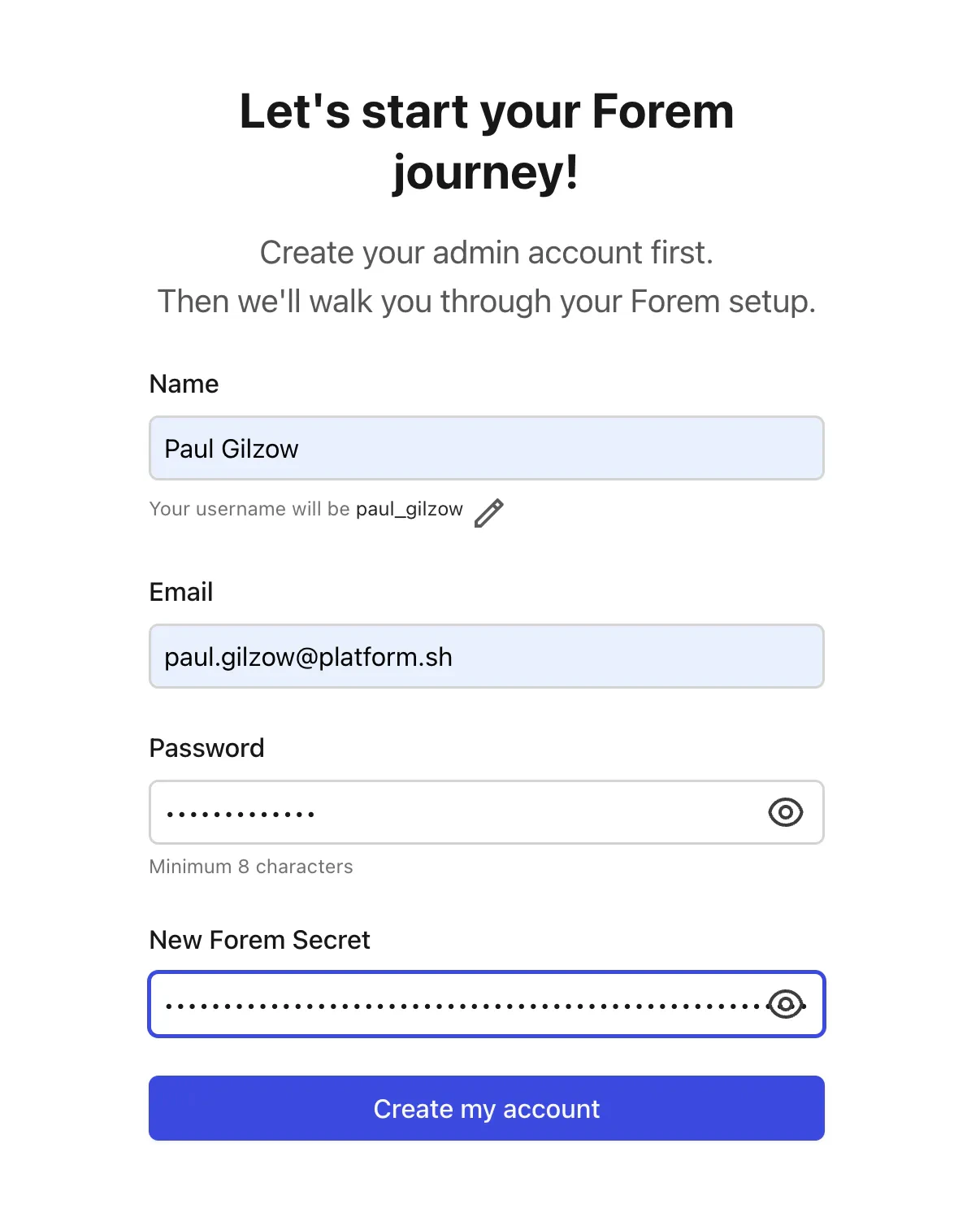
FOREM_OWNER_SECRET. Now you can exit your ssh session and visit your site to begin the
Forem set up!
Forem setup
We can finally start setting up our Forem instance. To do that we need to visit our new site in a browser. If you don’t remember the site’s URL, you can run the following command in terminal:FOREM_OWNER_SECRET. Click on Create my account.
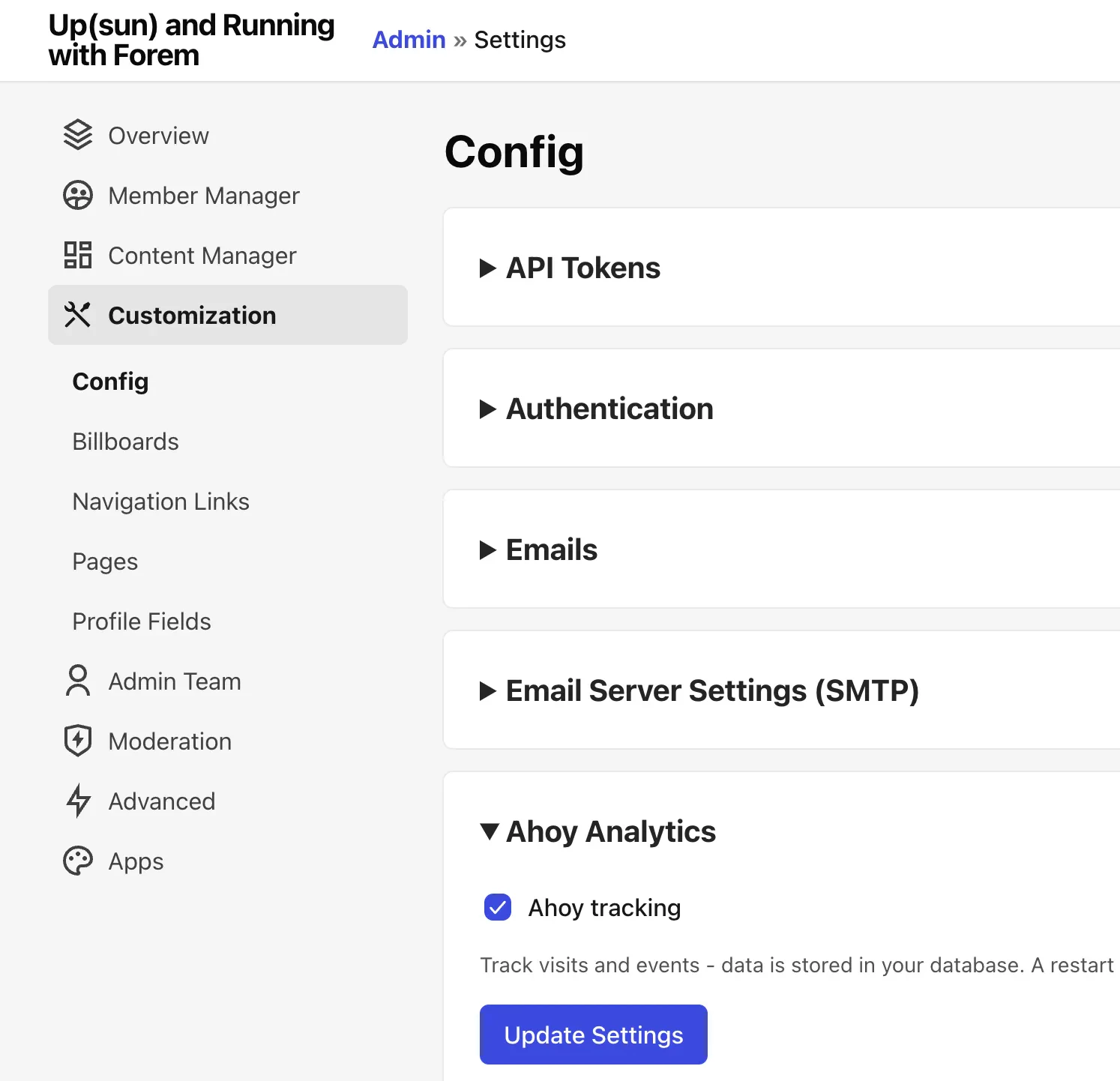
.upsun/config.yaml scroll back down the
deploy: key, and uncomment: