

 Dispatch
 Cloud
CloudIn this new article, we will integrate ClamAV in Service mode in order to scan files on demand. But let’s start with a reminder about ClamAV
What is ClamAV?
ClamAV (Clam AntiVirus) is an open-source antivirus engine designed for detecting malware, viruses, and other malicious threats. It is widely used for scanning file servers, and web applications. ClamAV is known for its lightweight nature and ability to be integrated into various security systems. In this tutorial we will be implementing ClamAV in service mode.
Context
In this tutorial, we will simulate a typical application requirement.Our example application, built in PHP (though this approach can be applied to different languages and frameworks), allows users to upload files. Before integrating the uploaded files into the filesystem, we want them to be scanned by ClamAV for security purposes. Workflow: This tutorial builds on the setup from the previous article. At this stage, we already have:
- ClamAV binaries installed via Composable Image
- Writable mount points for uploaded files (
data) - Necessary mounts for ClamAV to function properly (
var)
clamav container.
For this tutorial, we will introduce a new PHP application to upload files and use the existing clamav application to check uploaded files.
So we will need to:
- transform our project in a multiple application structure
- run ClamAV in Daemon mode
- add a new
appPHP application to upload files
Prepare your ClamAV project
The initial step will be to prepare our source code architecture to welcome a frontend application that will display a PHP upload form.Create a preview environment
As we never work on the production environment, we will create a dedicated preview environment. To create a preview environment, use the following command line. It will create, on the fly, an exact copy of your parent environment (here, branchmain, so it’s your production environment).
php-upload-form and deploy the corresponding preview environment in less than a few minutes.
Transform project with a multiple application structure
To prepare the project for handling multiple applications, move all existing ClamAV source code into a dedicatedclamav folder.
From the root of your project source code, execute the following command lines:
.upsun/config.yaml file, update the source.root parameter of your app application:
Setting up ClamAV
Enable ClamAV On-Access scanning mode
In order to run ClamAV as a service (On-Access scanning mode), we first need to enable the TCP listening mode in its configuration. To do so, update yourclamav/etc/clamd.conf file with these 2 lines at the end:
clamav/scripts/clam_install.sh file with the following:
TCPAddr ClamAV variable.
Add ClamAV to SystemD
To start ClamAV as a service, we can executeclamd binary within our clamav container:
clamav/scripts/systemd.d/clamav.service:
./scripts/systemd_install.sh in your hooks.build, and ./scripts/systemd_init.sh in your hooks.deploy:
Deploying ClamAV on Upsun
We need to push these additions to the Upsun project.3310 by connecting to the clamav container and execute netstat -laputne command line:
Troubleshoot: If you don’t, please be sure that the ClamAV database has been initialized, at least once.
If not, execute the following command line:
Add app PHP application
This basic PHP application will display a basic form to upload a file and then use an external library (appwrite/php-clamav) to perform the ClamAV scan.
Create an app folder
Our app source code will be located in a app folder. To create this folder, execute the following:
Create the upload form
All the logic of this PHP form will be located in apublic/index.php file, with the following:
/data/folder2scan/ folder for clamav app being able to scan the file.
If ClamAV does not detect any threat, then the file is moved to a final /data/uploads/ folder, moved otherwise in the /data/quarantine/ folder.
Import appwrite/php-clamav library
We will need to import appwrite/php-clamav library using Composer.
From the app folder, execute the following command line:
Configure app application
Then, we need to declare a new app Upsun application.
Update your .upsun/config.yaml file with the following:
Some information on this
app configuration:- line 16-17: please note the
service: clamavparameter. This additional parameter allowsappandclamavapps sharing the same NFS folders (see Share a mount between several apps documentation page). This will be useful for ourappapplication to upload files to scan in a directory shared with theclamavapplication (ClamAV scan only local files). - line 25-28: we add a relationship from
apptoclamav. This will enable internal communication between apps and expose environment variables within theappcontainer withclamavapp info (seeCLAMAV_*envVars in yourappcontainer).
Deploy
Finally, we need to push all of this on our Upsun project.Test it
You can then open the frontend by using the following command line: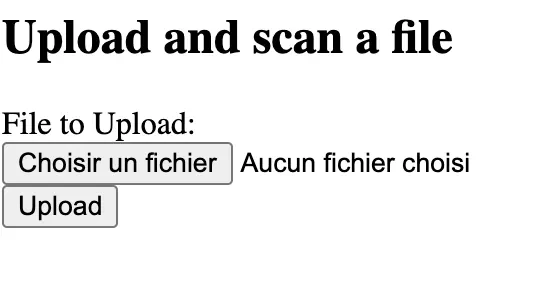
fake.txt file with such a source code:
Eicar-Signature virus,
and is totally safe for your local machine and for your Upsun application.
Please note: some local antivirus software, as SentinelOne,
will detect this file as a virus and will immediately move them, after saving it, to your local quarantine folder,
and so, this infected file will disappear from your machine.
We had a hard time finding a way to test it.Tips: we used a non-protected laptop (😇) to upload it.
fake.txt file, you should get such a response:
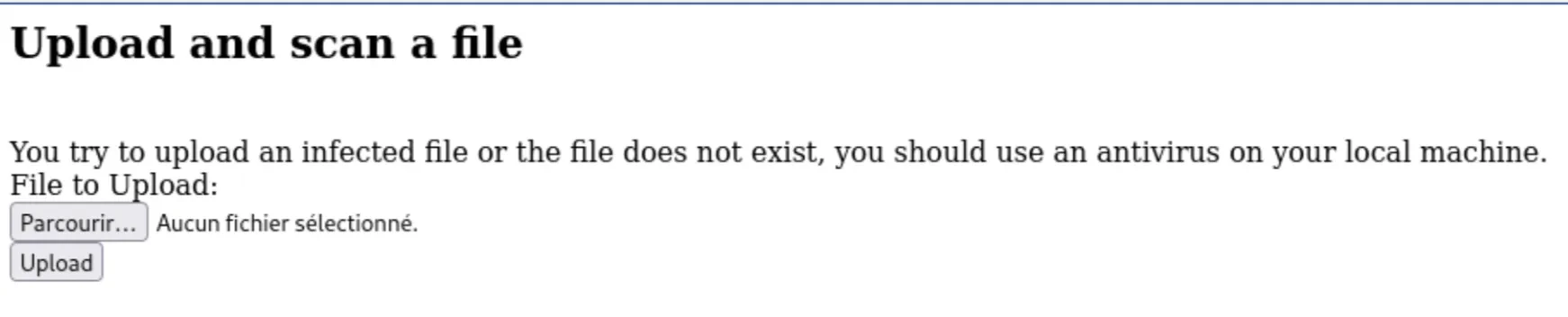
Conclusion
Both methods (one-time scan and service mode) can coexist within the same project.For example, we can scan files at the time of upload to ensure immediate security checks while also running a full scan of the entire file repository every night.
Project on our Github Upsun (branch
php-upload-form)