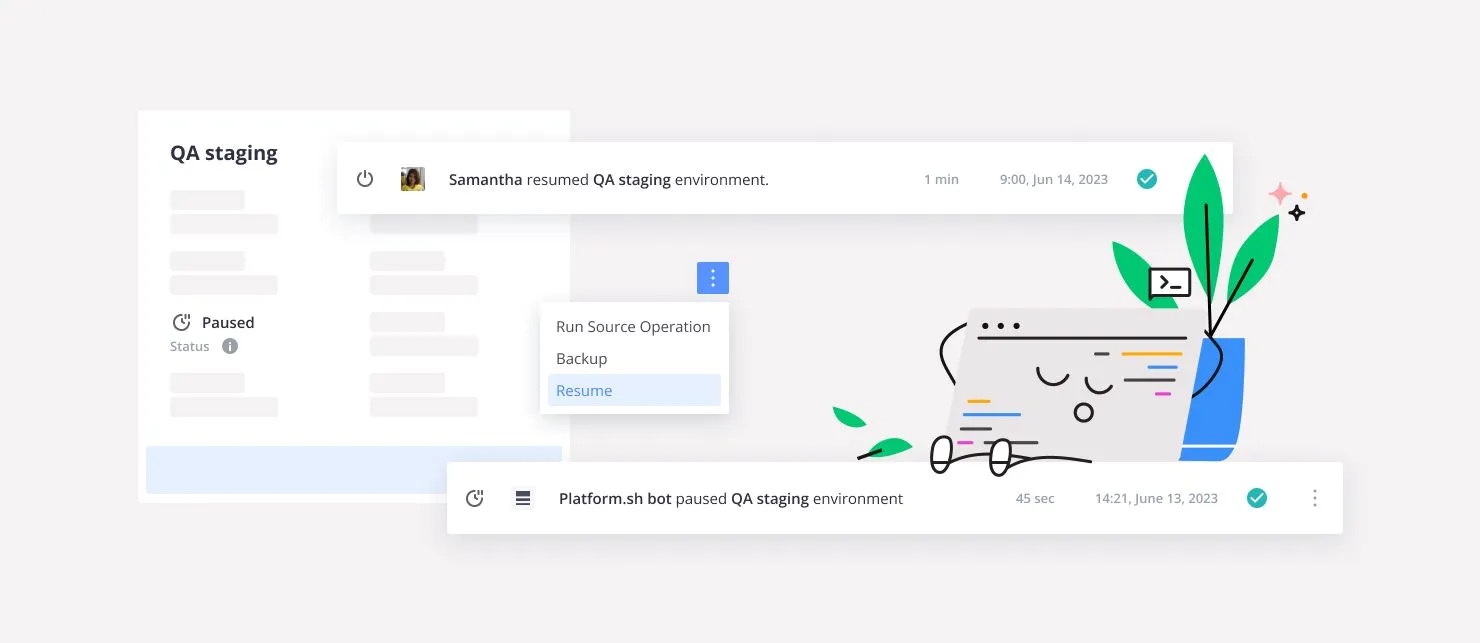
Help reduce resource consumption: Put your preview environments on pause
You can now manually pause your idle preview environments or have them automatically paused after 14 days of being idle to minimize your resource usage.
With Platform.sh, every Git branch maps to a preview environment which is an exact and isolated copy of your live
application—including all data, services, and files. They are usually created to build new features, apply security
patches, or upgrade dependencies in full isolation and before deploying to production.Although there is a catch—preview environments are often left idle waiting for someone to review and approve any changes
made. And while they are idle, they continue to use CPU and RAM which both consume electricity and emit CO2.That’s why we wanted to put you back in control of your resource usage and help you reduce your carbon footprint, as
well as our own.In the coming weeks you will be able to pause your idle preview environments to limit that resource consumption
instantly. We’re also going to automate this process for preview environments which have been idle for 14 days or more
without being redeployed to minimize resource usage across the thousands of projects we host. Dramatically reducing the
number of machines required to run our infrastructure across all of our regions—hooray!
Understanding the 14-day pause for preview environments
You might be curious to know why we chose 14 days as our timeframe for a preview environment to be paused automatically.
It’s mostly due to the very positive feedback we received from the paused crons we released last year with the same
timeframe.Our assumption is that most of the time, preview environments will automatically resume via a deployment, and that only
a few will require manual reactivation. Of course, we will monitor that assumption closely and make any changes needed
to this process accordingly following feedback.
All preview environments (development or staging) can be manually and automatically paused, while production environments can only be manually paused.When an environment is paused, all routes will redirect to a static web page explaining that the environment is paused and a button to resume the environment.When a preview environment is paused, all the containers are paused and stop consuming resources. Pausing an environment does not delete any data, and all disks remain and become available again when the environment is resumed.
When all of your changes have been approved and you’re ready to redeploy once again there are a couple of ways in which you can resume a paused environment:
Make a change that triggers a deployment, such as: push the code or trigger a redeployment.
We rely on the feedback of our users to make our PaaS as great as possible, so please don’t be shy—let us know what you
think of this new function!Feel free to share your feedback through our portal or
open a support ticket if you experience any issues and we’ll be sure to help.In the meantime, you can also learn more about our greener hosting commitments on
our dedicated page.
Last modified on April 27, 2026
Was this page helpful?
Assistant
Responses are generated using AI and may contain mistakes.


 Dispatch
 Cloud
Cloud