

Introduction to Model Context Protocol (MCP)
Model Context Protocol (MCP) is an open standard that creates a bridge between large language models (LLMs) and external tools, data sources, or services. It standardizes how AI assistants can access and interact with information outside their training data, allowing them to perform actions in the real world through a consistent interface. MCP servers act as specialized connectors that expose specific capabilities to AI assistants. These servers follow the MCP specification to provide tools and resources that LLMs can use to:- Access data sources (like databases, APIs, or file systems)
- Execute functions (like running queries or performing calculations)
- Interact with external systems (like applications or services)
Learn more about the MCP protocol on the official documentation.
Why Connect Databases to LLMs via MCP?
Connecting a PostgreSQL database to an LLM through MCP offers several compelling advantages:- Natural language access to data: Non-technical team members can query complex databases using plain English instead of SQL.
- Controlled, secure access: MCP servers can enforce read-only access, preventing accidental data corruption or unauthorized changes.
- Deeper context for AI conversations: The AI can reference your actual data when answering questions, making responses more accurate and relevant to your specific situation.
- Simplified data exploration: Quickly explore database structures and content without writing SQL queries for every investigation.
- Enhanced productivity: Developers can focus on higher-level problems while the AI handles routine data retrieval and analysis tasks.
- Cross-platform compatibility: The same MCP server works with multiple AI assistants (Claude, GitHub Copilot, etc.) that support the protocol.
1. Adding a PostgreSQL Database to Upsun
If you don’t have one already, add a PostgreSQL database service on your Upsun project:- Edit your
.upsun/config.yamlfile to add a PostgreSQL service:
- Create a relationship to this service in your application configuration:
- Push your changes to deploy the PostgreSQL service:
2. Opening a Tunnel to Your Remote Database
Use the Upsun CLI to open a secure tunnel to your Upsun PostgreSQL database:DATABASE_HOST, DATABASE_PORT, DATABASE_USERNAME, and DATABASE_PASSWORD.
The variable prefix (
DATABASE_) depends on how you named the relationship to the application in config.yaml3. Installing the PostgreSQL MCP Server
The PostgreSQL MCP server provides a standardized way for AI tools to interact with your database.- Make sure you have Node.js installed on your system.
- You don’t need to install anything manually - we’ll use
npxto run the server directly.
4. Configuring the MCP Server in Your Editor
For VSCode
- Install the GitHub Copilot extension if you haven’t already.
- Create a
.vscode/mcp.jsonfile in your project with the following configuration:
For Cursor
- Open Cursor and go to Settings > Features > MCP.
- Click on ”+ Add New MCP Server”
- Fill out the form:
- Name: “postgres”
- Type: “stdio”
- Command: “npx”
- Arguments:
-y @modelcontextprotocol/server-postgres postgresql://main:main@127.0.0.1:30000/main
mcp.json settings file as below:
5. Testing the Setup
- Make sure your Upsun tunnel is open and running. You can check the tunnel status and credentials with the following command:
- Activate the AI assistant in your editor:
- In VSCode: Open the Copilot Chat panel and switch to “Agent mode”
- In Cursor: Open Composer and ensure the MCP server is active
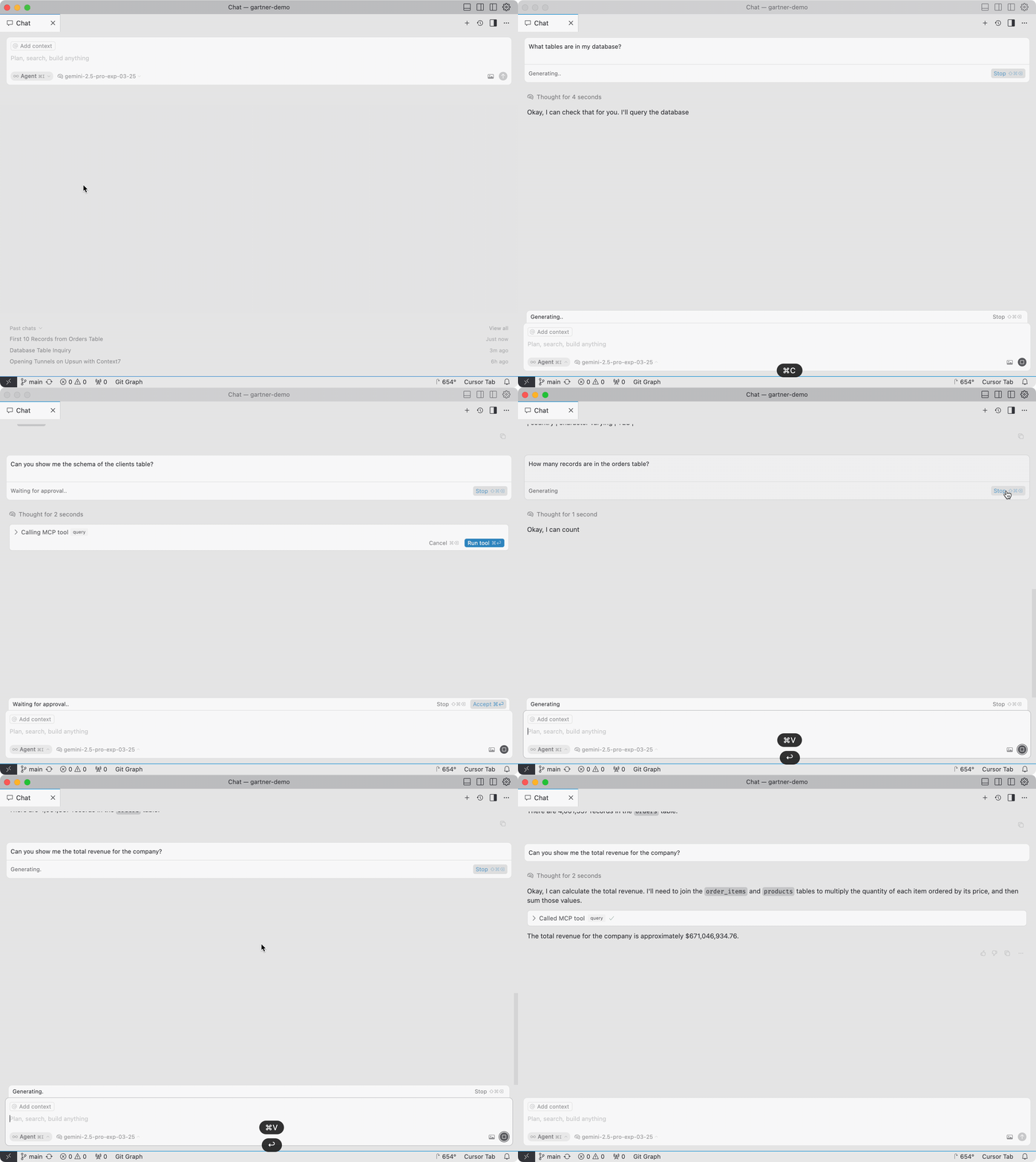
- Try asking questions about your database:
- “What tables are in my database?”
- “Can you show me the schema of the users table?”
- “How many records are in the orders table?”
Troubleshooting
- Connection issues: Ensure your Upsun tunnel is open and the connection string is correct
- Permission errors: Check that your database credentials are matching
- MCP server not responding: Verify the MCP server configuration and ensure the required packages are installed
Security Considerations
- The PostgreSQL MCP server provides read-only access to your database
- Always use tunnels for secure connections to remote databases
- For sensitive data, work with non-production environments by creating development branches in Upsun
Using Non-Production Databases
One of Upsun’s key advantages is the ability to create isolated environments with cloned databases:-
Create a development branch from your production environment:
- Upsun automatically creates a new environment with a complete copy of your production database
-
You can then safely connect your MCP server to this development environment: