> ## Documentation Index
> Fetch the complete documentation index at: https://developer.upsun.com/llms.txt
> Use this file to discover all available pages before exploring further.

# Introducing the Upsun MCP server: bring Upsun into your LLMs

> Manage your Upsun infrastructure directly through AI assistants with our new Model Context Protocol server - now in beta at mcp.upsun.com

export const PostMeta = ({data = {}}) => {
  const {author, date, image} = data;
  const authors = Array.isArray(author) ? author : author ? [author] : [];
  const resolveAuthor = slug => {
    const entry = AUTHOR_MAP[slug] || ({});
    const name = entry.name || slug;
    const github = entry.github || null;
    const linkedin = entry.linkedin || null;
    const url = github ? `https://github.com/${github}` : linkedin || null;
    const avatarUrl = github ? `https://github.com/${github}.png?size=64` : null;
    return {
      name,
      url,
      avatarUrl
    };
  };
  const formattedDate = date ? new Date(date).toLocaleDateString('en-US', {
    year: 'numeric',
    month: 'long',
    day: 'numeric'
  }) : null;
  if (!image && authors.length === 0 && !formattedDate) return null;
  const AUTHOR_MAP = {
    "aaron-collier": {
      "name": "Aaron Collier"
    },
    "aaron-dudenhofer": {
      "name": "Aaron Dudenhofer"
    },
    "aaron-porter": {
      "name": "Aaron Porter"
    },
    "adriaan-odendaal": {
      "name": "Adriaan Odendaal"
    },
    "ajmal": {
      "name": "Ajmal Siddiqui"
    },
    "akalipetis": {
      "name": "Antonis Kalipetis"
    },
    "alexander-varwijk": {
      "name": "Alexander Varwijk"
    },
    "alicia-bevilacqua": {
      "name": "Alicia Bevilacqua"
    },
    "amelie-deguerry": {
      "name": "Amelie Deguerry"
    },
    "anacidre": {
      "name": "Ana Cidre",
      "linkedin": "https://www.linkedin.com/in/ana-cidre"
    },
    "andoni": {
      "name": "Andoni Auzmendi"
    },
    "andrei-taranu": {
      "name": "Andrei (Alex) Taranu",
      "linkedin": "https://www.linkedin.com/in/andrei-alex-taranu/"
    },
    "andrew-baxter": {
      "name": "Andrew Baxter"
    },
    "andrew-melck": {
      "name": "Andrew Melck"
    },
    "antoine-crochet-damais": {
      "name": "Antoine Crochet Damais"
    },
    "augustin-delaporte": {
      "name": "Augustin Delaporte",
      "linkedin": "https://www.linkedin.com/in/augustindelaporte/"
    },
    "branislav-bujisic": {
      "name": "Branislav Bujisic"
    },
    "carl-smith": {
      "name": "Carl Smith"
    },
    "caroline-leroy": {
      "name": "Caroline Leroy"
    },
    "cati-mayer": {
      "name": "Cati Mayer"
    },
    "catplat": {
      "name": "C Trinkwon"
    },
    "ceelolulu": {
      "name": "Celeste van der Watt"
    },
    "chadwcarlson": {
      "name": "Chad Carlson",
      "github": "chadwcarlson",
      "linkedin": "https://www.linkedin.com/in/chadwcarlson"
    },
    "chris-ward": {
      "name": "Chris Ward"
    },
    "chris-yates": {
      "name": "Chris Yates"
    },
    "christian-sieber": {
      "name": "Christian Sieber"
    },
    "christopher-lockheardt": {
      "name": "Christopher Lockheardt"
    },
    "christopher-skene": {
      "name": "Christopher Skene"
    },
    "chuck-morgan": {
      "name": "Chuck Morgan"
    },
    "corey-dockendorf": {
      "name": "Corey Dockendorf"
    },
    "crell": {
      "name": "Crell"
    },
    "damz": {
      "name": "Damz"
    },
    "dan-morrison": {
      "name": "Dan Morrison"
    },
    "davidbonachera": {
      "name": "David Bonachera",
      "github": "davidbonachera",
      "linkedin": "https://www.linkedin.com/in/davidbonachera"
    },
    "dereliahmet1": {
      "name": "Ahmet Faruk Dereli"
    },
    "devicezero": {
      "name": "Jonas Kröger",
      "github": "devicezero",
      "linkedin": "https://www.linkedin.com/in/jonaskroeger/"
    },
    "doug-goldberg": {
      "name": "Doug Goldberg"
    },
    "duncan-naves": {
      "name": "Duncan Naves",
      "github": "duncannaves",
      "linkedin": "https://www.linkedin.com/in/duncan-naves-a94423aa"
    },
    "erika-bustamante": {
      "name": "Erika Bustamante"
    },
    "fabpot": {
      "name": "Fabien Potencier"
    },
    "flovntp": {
      "name": "Florent Huck",
      "github": "flovntp",
      "linkedin": "https://www.linkedin.com/in/florenthuck"
    },
    "fred-plais": {
      "name": "Fred Plais"
    },
    "gauthier-garnier": {
      "name": "Gauthier Garnier"
    },
    "gilzow": {
      "name": "Paul Gilzow"
    },
    "gmoigneu": {
      "name": "Guillaume Moigneu",
      "github": "gmoigneu",
      "linkedin": "https://www.linkedin.com/in/guillaumemoigneu/"
    },
    "gregqualls": {
      "name": "Greg Qualls"
    },
    "guguss": {
      "name": "Augustin Delaporte"
    },
    "haylee-millar": {
      "name": "Haylee Millar"
    },
    "ivana-kotur": {
      "name": "Ivana Kotur"
    },
    "jackrabbithanna": {
      "name": "Mark Hanna"
    },
    "jared-wright": {
      "name": "Jared Wright",
      "github": "jww-sh",
      "linkedin": "https://www.linkedin.com/in/jaredwaynewright"
    },
    "jessica-orozco": {
      "name": "Jessica Orozco"
    },
    "joey-stanford": {
      "name": "Joey Stanford"
    },
    "john-grubb": {
      "name": "John Grubb"
    },
    "jonas-kruger": {
      "name": "Jonas Kruger"
    },
    "kathryn-frazer": {
      "name": "Kathryn Frazer"
    },
    "kemiojo": {
      "name": "Kemi Elizabeth Ojogbede"
    },
    "kieronsambrook-smith": {
      "name": "Kieronsambrook Smith"
    },
    "laurent-arnoud": {
      "name": "Laurent Arnoud"
    },
    "letoya-boyne": {
      "name": "Letoya Boyne"
    },
    "lolautruche": {
      "name": "Jérôme Vieilledent"
    },
    "lyly-lepinay": {
      "name": "Lyly Lepinay"
    },
    "manauwar-alam": {
      "name": "Manauwar Alam"
    },
    "marc-antoine-porri": {
      "name": "Marc Antoine Porri"
    },
    "maria-antinkaapo": {
      "name": "Maria Antinkaapo"
    },
    "maria-de-anton": {
      "name": "Maria De Anton"
    },
    "mark-dorison": {
      "name": "Mark Dorison"
    },
    "markus-hausammann": {
      "name": "Markus Hausammann"
    },
    "mary-thomas": {
      "name": "Mary Thomas"
    },
    "mathias-bolt-lesniak": {
      "name": "Mathias Bolt Lesniak"
    },
    "mathieu-strauch": {
      "name": "Mathieu Strauch"
    },
    "matthias-van-woensel": {
      "name": "Matthias Van Woensel",
      "linkedin": "https://www.linkedin.com/in/matthias-van-woensel-267a069"
    },
    "michael-sharp": {
      "name": "Michael Sharp"
    },
    "mupsi": {
      "name": "Marine Gandy"
    },
    "natalie-harper": {
      "name": "Natalie Harper"
    },
    "ngommenginger": {
      "name": "Nicolas Gommenginger",
      "linkedin": "https://www.linkedin.com/in/nicolas-gommenginger"
    },
    "nicholas-bennison": {
      "name": "Nicholas Bennison"
    },
    "nicholas-vahalik": {
      "name": "Nicholas Vahalik"
    },
    "nick-hardiman": {
      "name": "Nick Hardiman"
    },
    "nickanderegg": {
      "name": "Nickanderegg"
    },
    "nicolas-grekas": {
      "name": "Nicolas Grekas",
      "github": "nicolas-grekas",
      "linkedin": "https://www.linkedin.com/in/nicolasgrekas/"
    },
    "niti-malwade": {
      "name": "Niti Malwade"
    },
    "opensocialteam": {
      "name": "Opensocialteam"
    },
    "ori-pekelman": {
      "name": "Ori Pekelman"
    },
    "otavio-santana": {
      "name": "Otavio Santana"
    },
    "palwandi": {
      "name": "Pawan Alwandi",
      "github": "pawpy",
      "linkedin": "https://www.linkedin.com/in/pawanalwandi"
    },
    "patrick-boest": {
      "name": "Patrick Boest"
    },
    "patrick-dawkins": {
      "name": "Patrick Dawkins",
      "github": "pjcdawkins",
      "linkedin": "https://www.linkedin.com/in/patrickdawkins"
    },
    "patrick-klima": {
      "name": "Patrick Klima"
    },
    "pjcdawkins": {
      "name": "Pjcdawkins"
    },
    "prineet-kaurbhurji": {
      "name": "Prineet Kaurbhurji"
    },
    "quentin-sinig": {
      "name": "Quentin Sinig"
    },
    "ralt": {
      "name": "Florian Margaine",
      "github": "ralt",
      "linkedin": "https://www.linkedin.com/in/florian-margaine-43971136"
    },
    "ramanathanramakrishnamurthy": {
      "name": "Ramanathanramakrishnamurthy"
    },
    "remi-lejeune": {
      "name": "Rémi Lejeune"
    },
    "ribel": {
      "name": "Taras Kruts"
    },
    "robert-douglass": {
      "name": "Robert Douglass"
    },
    "rudy-weber": {
      "name": "Rudy Weber"
    },
    "ryan-hicks": {
      "name": "Ryan Hicks"
    },
    "sabri-helal": {
      "name": "Sabri Helal"
    },
    "savannah-bergeron": {
      "name": "Savannah Bergeron"
    },
    "shannon-vettes": {
      "name": "Shannon Vettes"
    },
    "shawn-ogasawara": {
      "name": "Shawn Ogasawara",
      "linkedin": "https://www.linkedin.com/in/shawn-ogasawara-83a9a0/"
    },
    "shawna-spoor": {
      "name": "Shawna Spoor"
    },
    "shedrack-akintayo": {
      "name": "Shedrack Akintayo"
    },
    "simon-ruggier": {
      "name": "Simon Ruggier"
    },
    "sophie-van-der-kindere": {
      "name": "Sophie Van Der Kindere"
    },
    "stefanos-thampis": {
      "name": "Stefanos Thampis"
    },
    "stephen-weinberg": {
      "name": "Stephen Weinberg"
    },
    "sukhman-virk": {
      "name": "Sukhman Virk"
    },
    "sumaira-nazir": {
      "name": "Sumaira Nazir"
    },
    "sumer": {
      "name": "Sümer Cip"
    },
    "syed-raza": {
      "name": "Syed Raza"
    },
    "tamara-bacchia": {
      "name": "Tamara Bacchia"
    },
    "tara-arnold": {
      "name": "Tara Arnold"
    },
    "theosakamg": {
      "name": "Mickael Gaillard",
      "github": "theosakamg"
    },
    "thomasdiluccio": {
      "name": "Thomas di Luccio"
    },
    "tim-anderson": {
      "name": "Tim Anderson"
    },
    "tom-helmer-hansen": {
      "name": "Tom Helmer Hansen"
    },
    "tylermills": {
      "name": "Tyler Mills"
    },
    "upsun": {
      "name": "Upsun"
    },
    "veronika-tolkachova": {
      "name": "Veronika Tolkachova",
      "linkedin": "https://www.linkedin.com/in/veronika-tolkachova-169167a2"
    },
    "vince-parker": {
      "name": "Vince Parker"
    },
    "vinnie-russo": {
      "name": "Vincenzo Russo"
    },
    "vrobert78": {
      "name": "Vincent Robert",
      "github": "vrobert78",
      "linkedin": "https://www.linkedin.com/in/vincent-robert-498a883"
    },
    "yuriy-babenko": {
      "name": "Yuriy Babenko"
    },
    "yuriy-gerasimov": {
      "name": "Yuriy Gerasimov"
    }
  };
  return <div className="post-meta">
      {(authors.length > 0 || formattedDate) && <div className="post-meta-info">
          {authors.length > 0 && <div className="post-meta-authors">
              {authors.map(slug => {
    const {name, url, avatarUrl} = resolveAuthor(slug);
    const inner = <>
                    {avatarUrl && <img src={avatarUrl} alt={name} className="post-meta-avatar" />}
                    <span className="post-meta-author-name">{name}</span>
                  </>;
    return url ? <a key={slug} href={url} target="_blank" rel="noopener noreferrer" className="post-meta-author">
                    {inner}
                  </a> : <span key={slug} className="post-meta-author">{inner}</span>;
  })}
            </div>}
          {authors.length > 0 && formattedDate && <span className="post-meta-separator" aria-hidden="true">·</span>}
          {formattedDate && <span className="post-meta-date">{formattedDate}</span>}
        </div>}
      {image && <img src={image} alt="" className="post-meta-image" aria-hidden="true" />}
    </div>;
};

<PostMeta data={{ author: ["gmoigneu", "theosakamg"], date: "2025-09-22T00:00:00+00:00", image: "/images/posts/ai/upsun-mcp-announcement/upsun-mcp-announcement.webp" }} />

Today marks a significant milestone in our evolution from Platform.sh to Upsun. We're launching the **Upsun MCP Server**, a new integration that transforms how you interact with your favorite cloud application platform through AI assistants.

<Note>
  Available now in **beta** at `https://mcp.upsun.com/mcp`, this represents our commitment to bringing real AI improvements directly to your development workflow. As a beta release, we're actively seeking feedback to shape its evolution and its features. Feel free to bring up issues or PR on the [`upsun-mcp-server` GitHub repository](https://github.com/upsun/upsun-mcp-server).
</Note>

## Infrastructure management where you already work

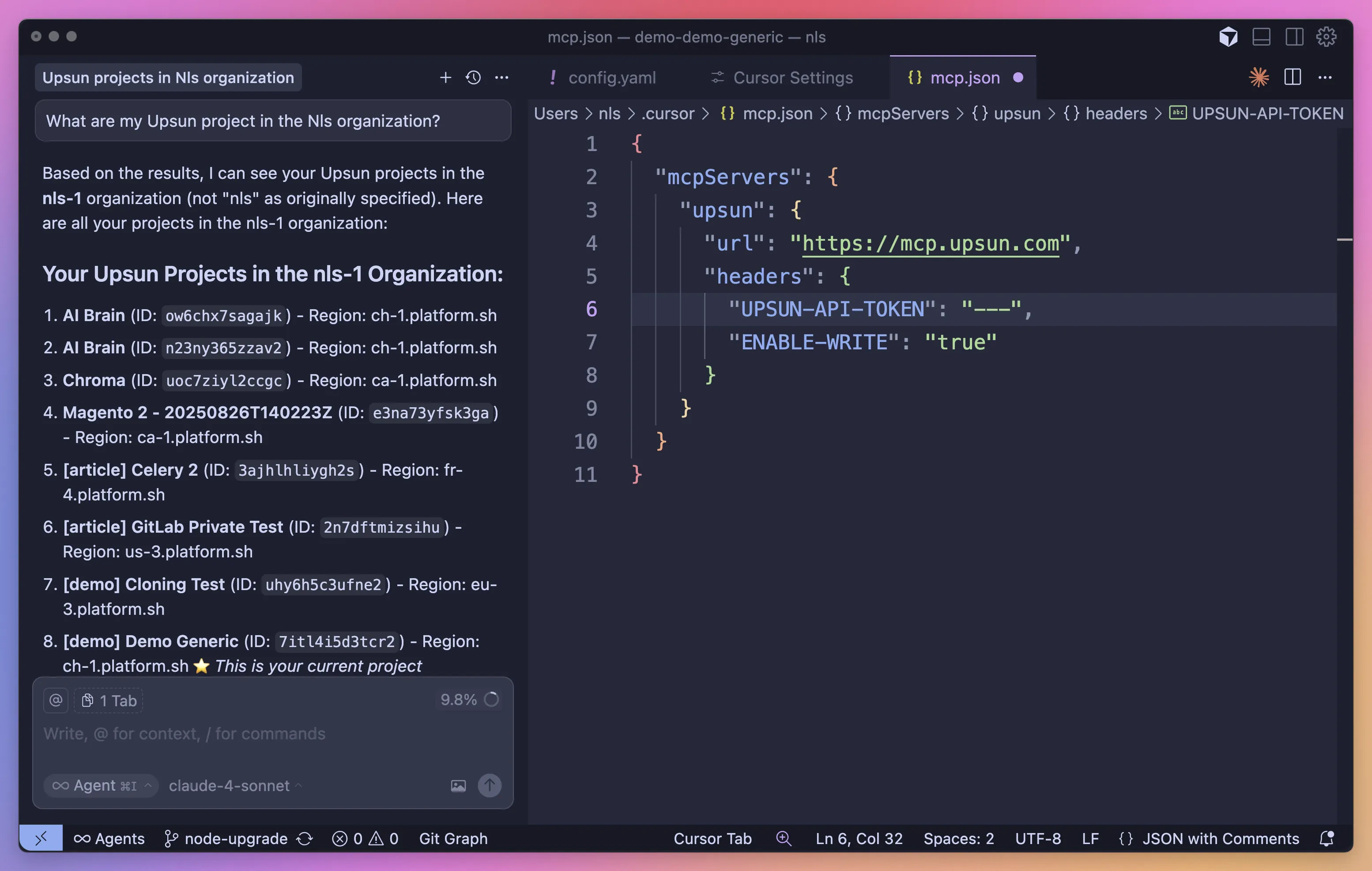
The Upsun MCP server eliminates context switching entirely. Through integration with AI assistants like Claude, you manage your entire Upsun infrastructure using natural language, right where you're already working.

```bash {filename="Claude"} theme={null}
You: "Create a preview environment for my feature branch with PostgreSQL"
Claude: "I'll create that preview environment for you now..."
[Environment created with full production data clone in 2 minutes]
```

No terminal. No console. No documentation hunting. Your AI assistant becomes your infrastructure expert.

<img src="https://mintcdn.com/upsun-c9761871/ZBMwngApLEEeuab_/images/posts/ai/upsun-mcp-announcement/mcp-projects.webp?fit=max&auto=format&n=ZBMwngApLEEeuab_&q=85&s=01be7284977ec5fd60076f46acf55547" alt="MCP projects" width="3108" height="1972" data-path="images/posts/ai/upsun-mcp-announcement/mcp-projects.webp" />

## Why MCP changes everything for infrastructure

### Natural Language Infrastructure-as-Code

Traditional infrastructure management requires memorizing commands and syntax. With MCP, you describe what you want:

* "Show me all active environments in my e-commerce project"
* "Create a backup before I deploy this breaking change"
* "Add Redis caching to my staging environment"

Your AI assistant translates intent into action, handling the complexity behind the scenes.

### Seamless CI/CD integration

MCP servers aren't isolated tools, they integrate directly into your existing workflows. Trigger deployments from your IDE. Monitor builds from your documentation. Manage resources from anywhere you interact with AI.

This integration extends **to your CI/CD pipelines**.

### Automation that thinks

Traditional automation follows rigid rules. AI-powered automation adapts. Need to scale resources based on complex patterns? Your AI assistant analyzes metrics, understands context, and makes intelligent decisions.

Example scenarios MCP enables:

* Intelligent resource allocation based on usage patterns
* Automated troubleshooting with root cause analysis
* Smart backup strategies that adapt to your workflow
* Predictive scaling before traffic spikes

## What you can do today

<Info>
  Every operation respects Upsun's security model. **The beta defaults to read-only operations for safety, with write operations available through explicit configuration.**

  To enable write operations, add the `"enable-write": "true"` header to your MCP configuration. Only enable this if you understand the implications and trust your AI assistant with infrastructure modifications.
</Info>

The Upsun MCP Server exposes our API through task oriented tools like the CLI does:

### Project & Environment Management

* Create and configure projects
* Manage environments and deployments
* Handle branching and merging strategies
* Monitor activities and logs

### Infrastructure Operations

* Configure services and databases
* Manage domains and SSL certificates
* Create and restore backups
* Set up routing and caching

### Security & Access

* Manage SSH keys
* Configure access controls
* Handle certificates

## Part of our broader AI vision

The MCP server launch represents our broader commitment to AI-enhanced development. This is the first of many AI innovations coming to Upsun.

We're not adding AI as a gimmick. We're solving real problems that cost you time and money. Every AI feature we ship must pass one test: Does it make developers' lives genuinely better?

## Upsun MCP Architecture

In order to ensure the best level of service and maintenance, Upsun has deployed its MCP with [Streamable HTTP transport](https://modelcontextprotocol.io/docs/learn/architecture).

It uses HTTP POST for client-to-server messages with optional Server-Sent Events for streaming capabilities. This transport enables remote server communication and supports standard HTTP authentication methods including bearer tokens, API keys, and custom headers.

```mermaid theme={null}
graph TB
    AI["AI Assistant<br/>(MCP Client)"]
    MCP["Upsun MCP Server<br/>mcp.upsun.com/mcp"]
    API["Upsun API"]
    
    PROJECT1["Upsun Project 1"]
    PROJECT2["Upsun Project 2"]
    PROJECT3["Upsun Project 3"]
    
    %% Connections
    AI -->|API Token| MCP
    MCP --> API
    API -->|Action| PROJECT1
    API -->|Action| PROJECT2
    API -->|Action| PROJECT3
    
    %% Styling
    classDef client fill:#D0F302,stroke:#000,stroke-width:2px,color:#000
    classDef server fill:#6046FF,stroke:#000,stroke-width:2px,color:#fff
    classDef api fill:#000,stroke:#D0F302,stroke-width:2px,color:#D0F302
    classDef projects fill:#D0F302,stroke:#000,stroke-width:2px,color:#000
    
    class AI client
    class MCP server
    class API api
    class PROJECT1,PROJECT2,PROJECT3 projects
```

## Installation instructions

Set up the Upsun MCP Server in under a minute:

1. Get your API token from the [Upsun Console](https://console.upsun.com/). Navigate to your account settings and generate a new API token with appropriate permissions for your projects.
2. Configure your MCP client to connect to `https://mcp.upsun.com/mcp`
3. Start managing infrastructure through natural language

The Upsun MCP server works with all major AI development environments. Choose your preferred client below:

<details>
  <summary><b>Install in Cursor</b></summary>

  Go to: `Settings` -> `Cursor Settings` -> `MCP` -> `Add new global MCP server`

  Pasting the following configuration into your Cursor `~/.cursor/mcp.json` file is the recommended approach. You may also install in a specific project by creating `.cursor/mcp.json` in your project folder. See [Cursor MCP docs](https://docs.cursor.com/context/model-context-protocol) for more info.

  #### Cursor Remote Server Connection

  ```json theme={null}
  {
    "mcpServers": {
      "upsun": {
        "url": "https://mcp.upsun.com/mcp",
        "headers": {
          "upsun-api-token": "YOUR_API_TOKEN",
          "enable-write": "false"
        }
      }
    }
  }
  ```
</details>

<details>
  <summary><b>Install in Claude Code</b></summary>

  Run this command. See [Claude Code MCP docs](https://docs.anthropic.com/en/docs/claude-code/mcp) for more info.

  #### Claude Code Remote Server Connection

  ```sh theme={null}
  claude mcp add --transport http upsun https://mcp.upsun.com/mcp --header "upsun-api-token: YOUR_API_TOKEN" --header "enable-write: false"
  ```
</details>

<details>
  <summary><b>Install in Windsurf</b></summary>

  Add this to your Windsurf MCP config file. See [Windsurf MCP docs](https://docs.windsurf.com/windsurf/cascade/mcp) for more info.

  #### Windsurf Remote Server Connection

  ```json theme={null}
  {
    "mcpServers": {
      "upsun": {
        "serverUrl": "https://mcp.upsun.com/mcp",
        "headers": {
          "upsun-api-token": "YOUR_API_TOKEN",
          "enable-write": "false"
        }
      }
    }
  }
  ```
</details>

<details>
  <summary><b>Install in VS Code</b></summary>

  Add this to your VS Code MCP config file. See [VS Code MCP docs](https://code.visualstudio.com/docs/copilot/chat/mcp-servers) for more info.

  #### VS Code Remote Server Connection

  ```json theme={null}
  "mcp": {
    "servers": {
      "upsun": {
        "type": "http",
        "url": "https://mcp.upsun.com/mcp",
        "headers": {
          "upsun-api-token": "YOUR_API_TOKEN",
          "enable-write": "false"
        }
      }
    }
  }
  ```
</details>

<details>
  <summary>
    <b>Install in Cline</b>
  </summary>

  You can easily configure the Upsun MCP server through Cline:

  1. Open **Cline**.
  2. Click the hamburger menu icon (☰) to enter the **MCP Servers** section.
  3. Choose **Remote Servers** tab.
  4. Click the **Edit Configuration** button.
  5. Add upsun to `mcpServers`:

  ```json theme={null}
  {
    "mcpServers": {
      "upsun": {
        "url": "https://mcp.upsun.com/mcp",
        "type": "streamableHttp",
        "headers": {
          "upsun-api-token": "YOUR_API_TOKEN",
          "enable-write": "false"
        }
      }
    }
  }
  ```
</details>

<details>
  <summary><b>Install in Zed</b></summary>

  Add this to your Zed `settings.json`. See [Zed Context Server docs](https://zed.dev/docs/assistant/context-servers) for more info.

  ```json theme={null}
  {
    "context_servers": {
      "Upsun": {
        "settings": {
          "url": "https://mcp.upsun.com/mcp",
          "headers": {
            "upsun-api-token": "YOUR_API_TOKEN",
          "enable-write": "false"
          }
        }
      }
    }
  }
  ```
</details>

<details>
  <summary><b>Install in Augment Code</b></summary>

  To configure the Upsun MCP server in Augment Code:

  ### **Manual Configuration**

  1. Press Cmd/Ctrl Shift P or go to the hamburger menu in the Augment panel
  2. Select Edit Settings
  3. Under Advanced, click Edit in settings.json
  4. Add the server configuration to the `mcpServers` array in the `augment.advanced` object

  ```json theme={null}
  "augment.advanced": {
    "mcpServers": [
      {
        "name": "upsun",
        "url": "https://mcp.upsun.com/mcp",
        "headers": {
          "upsun-api-token": "YOUR_API_TOKEN",
          "enable-write": "false"
        }
      }
    ]
  }
  ```

  Once the MCP server is added, restart your editor. If you receive any errors, check the syntax to make sure closing brackets or commas are not missing.
</details>

<details>
  <summary><b>Install in Roo Code</b></summary>

  Add this to your Roo Code MCP configuration file. See [Roo Code MCP docs](https://docs.roocode.com/features/mcp/using-mcp-in-roo) for more info.

  #### Roo Code Remote Server Connection

  ```json theme={null}
  {
    "mcpServers": {
      "upsun": {
        "type": "streamable-http",
        "url": "https://mcp.upsun.com/mcp",
        "headers": {
          "upsun-api-token": "YOUR_API_TOKEN",
          "enable-write": "false"
        }
      }
    }
  }
  ```
</details>

<details>
  <summary><b>Install in Gemini CLI</b></summary>

  See [Gemini CLI Configuration](https://google-gemini.github.io/gemini-cli/docs/tools/mcp-server.html) for details.

  1. Open the Gemini CLI settings file. The location is `~/.gemini/settings.json` (where `~` is your home directory).
  2. Add the following to the `mcpServers` object in your `settings.json` file:

  ```json theme={null}
  {
    "mcpServers": {
      "upsun": {
        "httpUrl": "https://mcp.upsun.com/mcp",
        "headers": {
          "upsun-api-token": "YOUR_API_TOKEN",
          "enable-write": "false",
          "Accept": "application/json, text/event-stream"
        }
      }
    }
  }
  ```

  If the `mcpServers` object does not exist, create it.
</details>

<details>
  <summary><b>Install in Claude Desktop</b></summary>

  #### Remote Server Connection

  Open Claude Desktop and navigate to Settings > Connectors > Add Custom Connector. Enter the name as `Upsun` and the remote MCP server URL as `https://mcp.upsun.com/mcp`.

  Add your API token in the headers configuration:

  ```json theme={null}
  {
    "upsun-api-token": "YOUR_API_TOKEN",
      "enable-write": "false"
  }
  ```
</details>

<details>
  <summary><b>Install in Opencode</b></summary>

  Add this to your Opencode configuration file. See [Opencode MCP docs](https://opencode.ai/docs/mcp-servers) for more info.

  #### Opencode Remote Server Connection

  ```json theme={null}
  "mcp": {
    "upsun": {
      "type": "remote",
      "url": "https://mcp.upsun.com/mcp",
      "headers": {
        "upsun-api-token": "YOUR_API_TOKEN",
      "enable-write": "false"
      },
      "enabled": true
    }
  }
  ```
</details>

<details>
  <summary><b>Install in JetBrains AI Assistant</b></summary>

  See [JetBrains AI Assistant Documentation](https://www.jetbrains.com/help/ai-assistant/configure-an-mcp-server.html) for more details.

  1. In JetBrains IDEs, go to `Settings` -> `Tools` -> `AI Assistant` -> `Model Context Protocol (MCP)`
  2. Click `+ Add`.
  3. Click on `Command` in the top-left corner of the dialog and select the As JSON option from the list
  4. Add this configuration and click `OK`

  ```json theme={null}
  {
    "mcpServers": {
      "upsun": {
        "url": "https://mcp.upsun.com/mcp",
        "headers": {
          "upsun-api-token": "YOUR_API_TOKEN",
          "enable-write": "false"
        }
      }
    }
  }
  ```

  5. Click `Apply` to save changes.
  6. The same way upsun could be added for JetBrains Junie in `Settings` -> `Tools` -> `Junie` -> `MCP Settings`
</details>

<details>
  <summary><b>Install in Kiro</b></summary>

  See [Kiro Model Context Protocol Documentation](https://kiro.dev/docs/mcp/configuration/) for details.

  1. Navigate `Kiro` > `MCP Servers`
  2. Add a new MCP server by clicking the `+ Add` button.
  3. Paste the configuration given below:

  ```json theme={null}
  {
    "mcpServers": {
      "Upsun": {
        "url": "https://mcp.upsun.com/mcp",
        "headers": {
          "upsun-api-token": "YOUR_API_TOKEN",
          "enable-write": "false"
        },
        "disabled": false,
        "autoApprove": []
      }
    }
  }
  ```

  4. Click `Save` to apply the changes.
</details>

<details>
  <summary><b>Install in Trae</b></summary>

  Use the Add manually feature and fill in the JSON configuration information for that MCP server.
  For more details, visit the [Trae documentation](https://docs.trae.ai/ide/model-context-protocol?_lang=en).

  #### Trae Remote Server Connection

  ```json theme={null}
  {
    "mcpServers": {
      "upsun": {
        "url": "https://mcp.upsun.com/mcp",
        "headers": {
          "upsun-api-token": "YOUR_API_TOKEN",
          "enable-write": "false"
        }
      }
    }
  }
  ```
</details>

<details>
  <summary><b>Install in Amazon Q Developer CLI</b></summary>

  Add this to your Amazon Q Developer CLI configuration file. See [Amazon Q Developer CLI docs](https://docs.aws.amazon.com/amazonq/latest/qdeveloper-ug/command-line-mcp-configuration.html) for more details.

  ```json theme={null}
  {
    "mcpServers": {
      "upsun": {
        "url": "https://mcp.upsun.com/mcp",
        "headers": {
          "upsun-api-token": "YOUR_API_TOKEN",
          "enable-write": "false"
        }
      }
    }
  }
  ```
</details>

<details>
  <summary><b>Install in Warp</b></summary>

  See [Warp Model Context Protocol Documentation](https://docs.warp.dev/knowledge-and-collaboration/mcp#adding-an-mcp-server) for details.

  1. Navigate `Settings` > `AI` > `Manage MCP servers`.
  2. Add a new MCP server by clicking the `+ Add` button.
  3. Paste the configuration given below:

  ```json theme={null}
  {
    "Upsun": {
      "url": "https://mcp.upsun.com/mcp",
      "headers": {
        "upsun-api-token": "YOUR_API_TOKEN",
      "enable-write": "false"
      },
      "start_on_launch": true
    }
  }
  ```

  4. Click `Save` to apply the changes.
</details>

<details>
  <summary><b>Install in Copilot Coding Agent</b></summary>

  ## Using Upsun MCP with Copilot Coding Agent

  Add the following configuration to the `mcp` section of your Copilot Coding Agent configuration file Repository->Settings->Copilot->Coding agent->MCP configuration:

  ```json theme={null}
  {
    "mcpServers": {
      "upsun": {
        "type": "http",
        "url": "https://mcp.upsun.com/mcp",
        "headers": {
          "upsun-api-token": "YOUR_API_TOKEN",
          "enable-write": "false"
        }
      }
    }
  }
  ```

  For more information, see the [official GitHub documentation](https://docs.github.com/en/enterprise-cloud@latest/copilot/how-tos/agents/copilot-coding-agent/extending-copilot-coding-agent-with-mcp).
</details>

<details>
  <summary><b>Install in LM Studio</b></summary>

  See [LM Studio MCP Support](https://lmstudio.ai/blog/lmstudio-v0.3.17) for more information.

  #### Manual set-up:

  1. Navigate to `Program` (right side) > `Install` > `Edit mcp.json`.
  2. Paste the configuration given below:

  ```json theme={null}
  {
    "mcpServers": {
      "Upsun": {
        "url": "https://mcp.upsun.com/mcp",
        "headers": {
          "upsun-api-token": "YOUR_API_TOKEN",
          "enable-write": "false"
        }
      }
    }
  }
  ```

  3. Click `Save` to apply the changes.
  4. Toggle the MCP server on/off from the right hand side, under `Program`, or by clicking the plug icon at the bottom of the chat box.
</details>

<details>
  <summary><b>Install in Visual Studio 2022</b></summary>

  You can configure the Upsun MCP server in Visual Studio 2022 by following the [Visual Studio MCP Servers documentation](https://learn.microsoft.com/visualstudio/ide/mcp-servers?view=vs-2022).

  Add this to your Visual Studio MCP config file (see the [Visual Studio docs](https://learn.microsoft.com/visualstudio/ide/mcp-servers?view=vs-2022) for details):

  ```json theme={null}
  {
    "inputs": [],
    "servers": {
      "upsun": {
        "type": "http",
        "url": "https://mcp.upsun.com/mcp",
        "headers": {
          "upsun-api-token": "YOUR_API_TOKEN",
          "enable-write": "false"
        }
      }
    }
  }
  ```

  For more information and troubleshooting, refer to the [Visual Studio MCP Servers documentation](https://learn.microsoft.com/visualstudio/ide/mcp-servers?view=vs-2022).
</details>

<details>
  <summary><b>Install in Crush</b></summary>

  Add this to your Crush configuration file. See [Crush MCP docs](https://github.com/charmbracelet/crush#mcps) for more info.

  #### Crush Remote Server Connection (HTTP)

  ```json theme={null}
  {
    "$schema": "https://charm.land/crush.json",
    "mcp": {
      "upsun": {
        "type": "http",
        "url": "https://mcp.upsun.com/mcp",
        "headers": {
          "upsun-api-token": "YOUR_API_TOKEN",
          "enable-write": "false"
        }
      }
    }
  }
  ```
</details>

<details>
  <summary><b>Install in BoltAI</b></summary>

  Open the "Settings" page of the app, navigate to "Plugins," and configure the Upsun MCP server:

  ```json theme={null}
  {
    "mcpServers": {
      "upsun": {
        "url": "https://mcp.upsun.com/mcp",
        "headers": {
          "upsun-api-token": "YOUR_API_TOKEN",
          "enable-write": "false"
        }
      }
    }
  }
  ```

  More information is available on [BoltAI's Documentation site](https://docs.boltai.com/docs/plugins/mcp-servers). For BoltAI on iOS, [see this guide](https://docs.boltai.com/docs/boltai-mobile/mcp-servers).
</details>

<details>
  <summary><b>Install in Rovo Dev CLI</b></summary>

  Edit your Rovo Dev CLI MCP config by running the command below -

  ```bash theme={null}
  acli rovodev mcp
  ```

  Example config -

  #### Remote Server Connection

  ```json theme={null}
  {
    "mcpServers": {
      "upsun": {
        "url": "https://mcp.upsun.com/mcp",
        "headers": {
          "upsun-api-token": "YOUR_API_TOKEN",
          "enable-write": "false"
        }
      }
    }
  }
  ```
</details>

<details>
  <summary><b>Install in Zencoder</b></summary>

  To configure the Upsun MCP server in Zencoder, follow these steps:

  1. Go to the Zencoder menu (...)
  2. From the dropdown menu, select Agent tools
  3. Click on the Add custom MCP
  4. Add the name and server configuration from below, and make sure to hit the Install button

  ```json theme={null}
  {
    "url": "https://mcp.upsun.com/mcp",
    "headers": {
      "upsun-api-token": "YOUR_API_TOKEN",
      "enable-write": "false"
    }
  }
  ```

  Once the MCP server is added, you can easily continue using it.
</details>

<details>
  <summary><b>Install in Qodo Gen</b></summary>

  See [Qodo Gen docs](https://docs.qodo.ai/qodo-documentation/qodo-gen/qodo-gen-chat/agentic-mode/agentic-tools-mcps) for more details.

  1. Open Qodo Gen chat panel in VSCode or IntelliJ.
  2. Click Connect more tools.
  3. Click + Add new MCP.
  4. Add the following configuration:

  #### Qodo Gen Remote Server Connection

  ```json theme={null}
  {
    "mcpServers": {
      "upsun": {
        "url": "https://mcp.upsun.com/mcp",
        "headers": {
          "upsun-api-token": "YOUR_API_TOKEN",
          "enable-write": "false"
        }
      }
    }
  }
  ```
</details>

<details>
  <summary><b>Install in Perplexity Desktop</b></summary>

  See [Local and Remote MCPs for Perplexity](https://www.perplexity.ai/help-center/en/articles/11502712-local-and-remote-mcps-for-perplexity) for more information.

  1. Navigate `Perplexity` > `Settings`
  2. Select `Connectors`.
  3. Click `Add Connector`.
  4. Select `Advanced`.
  5. Enter Server Name: `Upsun`
  6. Paste the following JSON in the text area:

  ```json theme={null}
  {
    "url": "https://mcp.upsun.com/mcp",
    "headers": {
      "upsun-api-token": "YOUR_API_TOKEN",
      "enable-write": "false"
    }
  }
  ```

  7. Click `Save`.
</details>