> ## Documentation Index
> Fetch the complete documentation index at: https://developer.upsun.com/llms.txt
> Use this file to discover all available pages before exploring further.
# Health notifications
> Configure health notifications for disk space and inode usage alerts. Route warning and critical threshold events to email, Slack, PagerDuty, or webhooks.
## Notification types
Notifications include the steps to take to resolve the issue.
### Low-disk warning
Upsun monitors disk space usage on all applications and services in your cluster.
* When available disk space drops below 20% or 4 GB, whichever is smaller, a warning notification is generated.
* When available disk space drops below 10% or 2 GB, whichever is smaller, a critical notification is generated.
* When available disk space returns above 20% or 4 GB, whichever is smaller, an all-clear notification is generated.
### Low-inode warning
Inodes are filesystem metadata entries that store information about files and directories.
Each file, directory, or symlink consumes one inode, regardless of its size. Running out of inodes prevents
the creation of new files even when disk space is available.
Upsun monitors inode usage on all applications and services in your cluster.
* When available inodes drop below 20% of the total available, a warning notification is generated.
* When available inodes drop below 10% of the total available, a critical notification is generated.
* When available inodes return above 20% of the total available, an all-clear notification is generated.
Notifications are generated every 5 minutes, so there may be a brief delay between when the threshold is crossed and when the notification is triggered.
## Configuring notifications
By default, Upsun emails low-disk and low-inode notifications to [project admins](/docs/administration/users#project-roles).
As a project admin, you can also:
* Configure the sending of health notifications through other channels (for example, via Slack or PagerDuty) as described in this topic.
* Use the CLI to [add](/cli/reference#integrationadd) and [manage](/cli/reference#integrationupdate) health notifications.
### Email notifications
A notification can trigger an email to be sent from an address of your choosing to one or more addresses of your choosing.
You can view an email notification by running `upsun integration:get`.
```bash theme={null}
upsun integration:get
+--------------+---------------+
| Property | Value |
+--------------+---------------+
| id | abcdefghijklm |
| type | health.email |
| role | |
| from_address | |
| recipients | - '#admins' |
+--------------+---------------+
```
To edit the `recipients` that receive the default email notification, use the `integration:update` command.
```bash theme={null}
upsun integration:update abcdefghijklm --recipients you@example.com
```
The `recipients` field may be any valid email address, or one of the following special values.
* `#admins` maps to all project admins and up.
* `#viewers` maps to everyone with access to the project.
To add a new email notification, register a `health.email` integration as follows:
```bash theme={null}
upsun integration:add --type health.email --recipients them@example.com --recipients others@example.com
```
You must specify one or more `recipients`, each as its own switch.
The default `from-address` points to the "Upsun Bot".
You can also configure a custom `--from-address`. The `--from-address` is whatever address you want the email to appear to be from. It is completely fine to use the same email address for both `from-address` and `recipients`. Note that depending on the configuration of the recipient mail server (including SPF and DKIM DNS entries) when using a custom `from-address`, the email can be marked as spam or lost.
### Slack notifications
A notification can trigger a message to be posted to a Slack channel via a [Slack app](https://api.slack.com/apps).
#### 1. Optional: Create a Slack app
If you are already have a Slack app, you can jump to [enabling notifications](#2-enable-notifications).
1. Open the [Slack API website](https://api.slack.com/) and go to **Your apps**.
2. Click **Create an App**.
3. Choose if you want to build your app from scratch, or via [an app manifest](https://api.slack.com/concepts/manifests).
4. Give your app a name.
5. Select a workspace to install your app in.
If you are not an admin of the selected workspace, request approval to install your app there.
6. Click **Create App**.
#### 2. Enable notifications
1. Open the [Slack API website](https://api.slack.com/) and go to **Your apps**.
2. Go to **Features** > **OAuth & Permissions** in the sidebar.
3. Scroll down to the **Scopes** area and select **User Token Scopes**.
4. Click **Add an OAuth Scope** to add the `chat:write` scope.
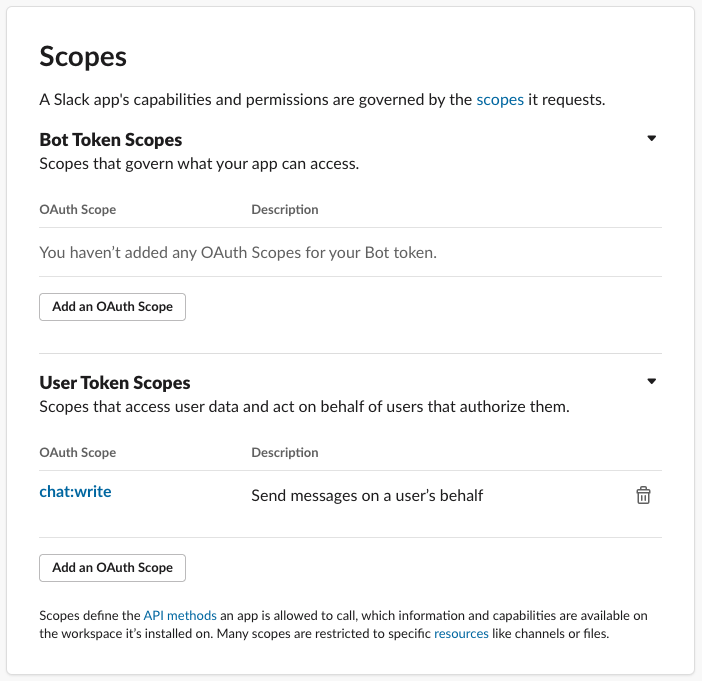 5. Go to **Settings** > **Install app** in the sidebar.
If you are *not* an admin of the workspace, you need to provide a link to install the app into the workspace and onto a channel.
Once the app is approved and installed, a **User OAuth Token** is provided in your app settings.
Copy the token, and use it in the next step.
6. Using the **User OAuth Token**, run the following command:
```bash theme={null}
upsun integration:add --type health.slack --token --channel --project
```
For example, if you want your Slack app to post messages in the `project-notifications` channel, write the channel name in the command as you would reference it within Slack:
```bash theme={null}
upsun integration:add --type health.slack ... --channel '#project-notifications' ...
```
7. When the integration is successfully configured, Upsun then sends an initial message to the channel.
5. Go to **Settings** > **Install app** in the sidebar.
If you are *not* an admin of the workspace, you need to provide a link to install the app into the workspace and onto a channel.
Once the app is approved and installed, a **User OAuth Token** is provided in your app settings.
Copy the token, and use it in the next step.
6. Using the **User OAuth Token**, run the following command:
```bash theme={null}
upsun integration:add --type health.slack --token --channel --project
```
For example, if you want your Slack app to post messages in the `project-notifications` channel, write the channel name in the command as you would reference it within Slack:
```bash theme={null}
upsun integration:add --type health.slack ... --channel '#project-notifications' ...
```
7. When the integration is successfully configured, Upsun then sends an initial message to the channel.
Bot users vs. Slack apps
Previously, Upsun allowed for the configuration of health notifications sent to Slack via *bot users* and their associated API tokens.
As of June 2024, Slack has deprecated bot users, and integrations must be configured using Slack apps as described above.
If you already have defined an integration using a bot user API token, it will continue to work properly, though you should consider upgrading your processes to the above settings to avoid any future retirement.
### PagerDuty notifications
A notification can trigger a message to be sent via PagerDuty, if you are using that service.
First, create a new PagerDuty "[integration](https://support.pagerduty.com/docs/services-and-integrations)" that uses the Events API v2.
Copy the "Integration Key" as known as the "routing key" for the integration.
Now register a `health.pagerduty` integration as follows:
```bash theme={null}
upsun integration:add --type health.pagerduty --routing-key YOUR_ROUTING_KEY
```
Any notification will now trigger an alert in PagerDuty.
## Validate the integration
You can then verify that your integration is functioning properly [using the CLI](/docs/integrations/overview#validate-integrations) command
```bash theme={null}
upsun integration:validate
```