> ## Documentation Index
> Fetch the complete documentation index at: https://developer.upsun.com/llms.txt
> Use this file to discover all available pages before exploring further.
# FAQ
> Troubleshoot issues you might encounter using [Symfony](https://www.symfony.com/), a PHP framework on Upsun.
## Why is `DATABASE_URL` not defined during the build hook?
During the build hook, services are not available to avoid breaking the
application that is still live. That is why the Symfony integration does not
expose environment variables during the build hook.
The `cache:clear` command does not need to connect to the database by default,
except if you are using the Doctrine ORM and the database engine version is not
set in your configuration.
The version information can be set in your `.env` file or in the
`doctrine.yaml` configuration file. The only important pieces of information there are
the database engine and the version; everything else will be ignored.
Note that the environment variables are available in the deploy hook.
## How can I access my application logs?
To display the application log file (`/var/log/app.log` file), run the following command:
```bash theme={null}
symfony env:log app --tail
```
All the log messages generated by your app are sent to this `/var/log/app.log` file.
This includes language errors such as PHP errors, warnings, notices,
as well as uncaught exceptions.
The file also contains your application logs if you log on `stderr`.
Note that Upsun manages the `/var/log/app.log` file for you.
This is to prevent disks from getting filled and using very fast local drives instead of slower network disks.
Make sure your apps always output their logs to `stderr`.
If you use Monolog, add the following configuration to your `config/packages/prod/monolog.yaml` file:
```gitignore theme={null}
--- a/config/packages/prod/monolog.yaml
+++ b/config/packages/prod/monolog.yaml
@@ -11,7 +11,7 @@ monolog:
members: [nested, buffer]
nested:
type: stream
- path: "%kernel.logs_dir%/%kernel.environment%.log"
+ path: php://stderr
level: debug
buffer:
type: buffer
```
Warning
If you log deprecations, make sure you **also** log them on `stderr`.
## What's this "Oops! An Error Occurred" message about?
The *Oops! An Error Occurred* message comes from your app and is automatically generated based on the Symfony error template.
### The server returned a "500 Internal Server Error"
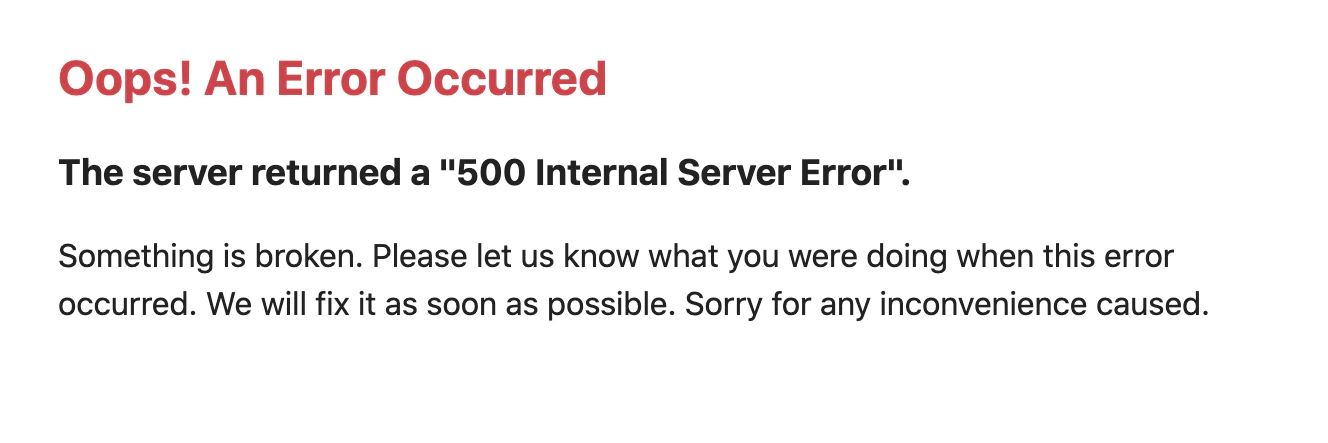 If your app's working as expected locally but you see the previous error message on Upsun,
it usually means you have a configuration error or a missing dependency.
To fix this issue, search your application logs.
They likely contain an error message describing the root cause:
```bash theme={null}
symfony env:log app
Reading log file azertyuiop-test-error-azerty--app@ssh.eu-5.platform.sh:/var/log/app.log
[12-Jan-2026 11:22:08] NOTICE: fpm is running, pid 146
[12-Jan-2026 11:22:08] NOTICE: ready to handle connections
[12-Jan-2026 11:27:31] PHP Fatal error: Uncaught Exception: [...]
Stack trace: [...]
```
If the error occurs on a preview environment,
or on the main environment of a non-production project,
you can also enable Symfony's dev/debug mode to inspect the cause of the error:
```bash theme={null}
# Enable debug mode
symfony env:debug
# Disable debug mode
symfony env:debug --off
```
### The server returned a "404 Not Found"
By default, new Symfony apps come without controllers, which means there's no homepage to show.
As a result, when you run your project locally, the following welcome page is displayed:
If your app's working as expected locally but you see the previous error message on Upsun,
it usually means you have a configuration error or a missing dependency.
To fix this issue, search your application logs.
They likely contain an error message describing the root cause:
```bash theme={null}
symfony env:log app
Reading log file azertyuiop-test-error-azerty--app@ssh.eu-5.platform.sh:/var/log/app.log
[12-Jan-2026 11:22:08] NOTICE: fpm is running, pid 146
[12-Jan-2026 11:22:08] NOTICE: ready to handle connections
[12-Jan-2026 11:27:31] PHP Fatal error: Uncaught Exception: [...]
Stack trace: [...]
```
If the error occurs on a preview environment,
or on the main environment of a non-production project,
you can also enable Symfony's dev/debug mode to inspect the cause of the error:
```bash theme={null}
# Enable debug mode
symfony env:debug
# Disable debug mode
symfony env:debug --off
```
### The server returned a "404 Not Found"
By default, new Symfony apps come without controllers, which means there's no homepage to show.
As a result, when you run your project locally, the following welcome page is displayed:
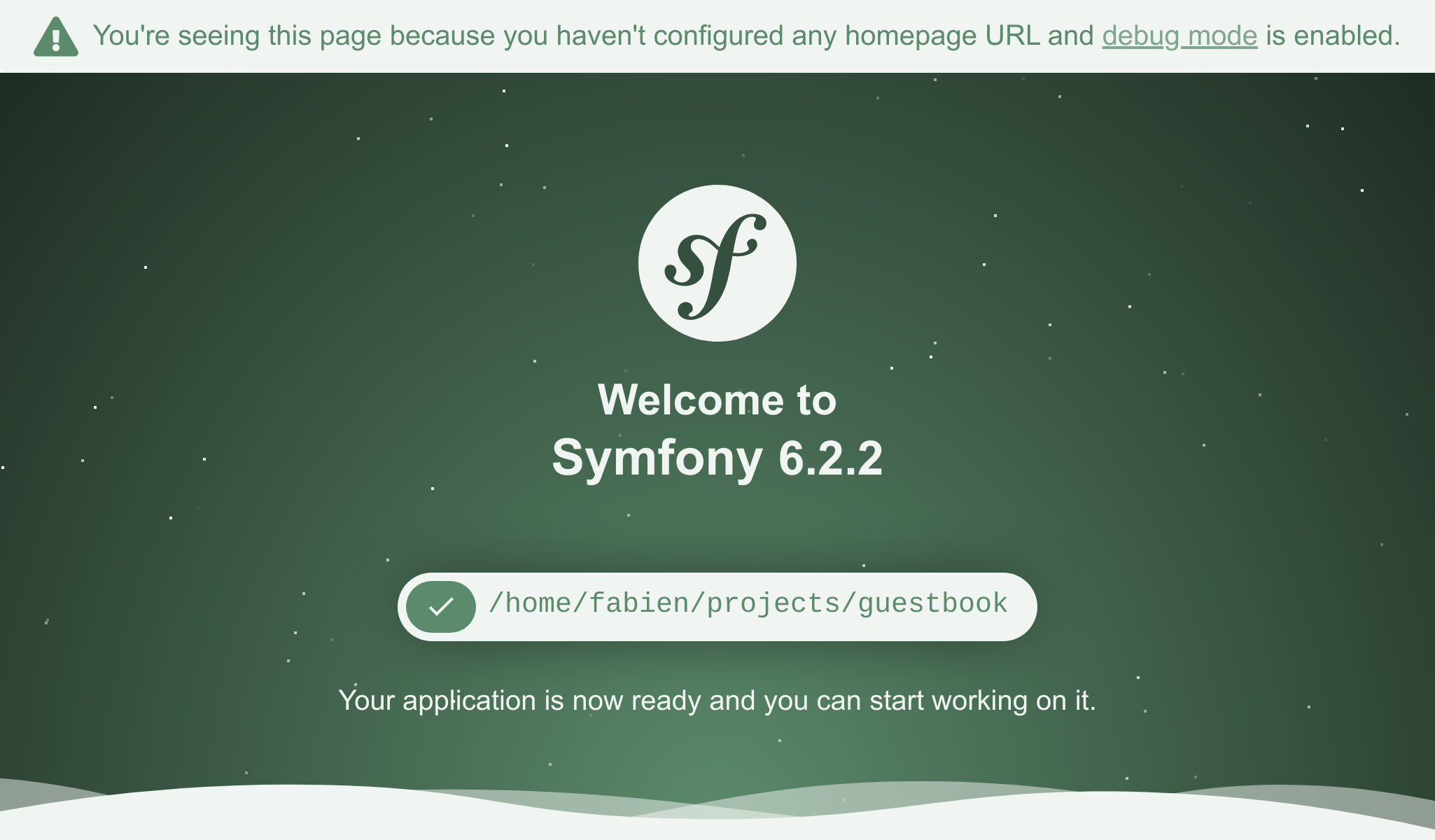 But when you run your project on Upsun, the following error is displayed instead:
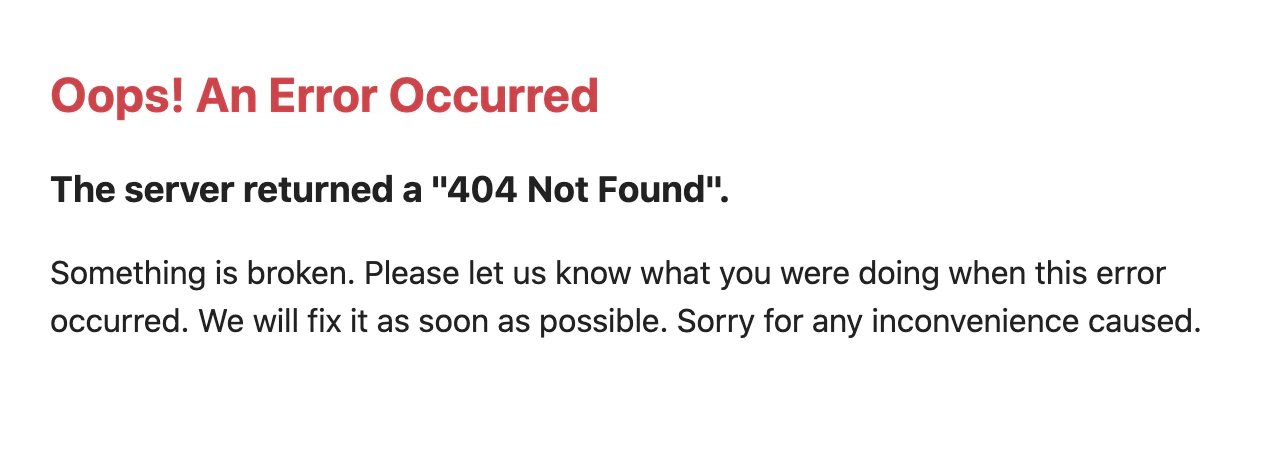 This is because Upsun runs in production mode, leading Symfony to show a generic 404 error.
To fix this issue, [create your first Symfony page](https://symfony.com/doc/current/page_creation.html).
If you've already created a custom homepage, make sure you perform the following actions:
1. Commit all your files.
2. Run the `symfony push` command and check that the deployment is successful.
## Other issues
For other issues unrelated to Symfony, see [Troubleshoot development](/docs/troubleshooting/general).
This is because Upsun runs in production mode, leading Symfony to show a generic 404 error.
To fix this issue, [create your first Symfony page](https://symfony.com/doc/current/page_creation.html).
If you've already created a custom homepage, make sure you perform the following actions:
1. Commit all your files.
2. Run the `symfony push` command and check that the deployment is successful.
## Other issues
For other issues unrelated to Symfony, see [Troubleshoot development](/docs/troubleshooting/general).