> ## Documentation Index
> Fetch the complete documentation index at: https://developer.upsun.com/llms.txt
> Use this file to discover all available pages before exploring further.
# Handle queues with Horizon
> Setting up Laravel Horizon
[Laravel Horizon](https://laravel.com/docs/master/horizon#main-content) provides an appealing dashboard and code-driven configuration
for your Laravel powered Redis queues.
Horizon allows you to monitor key metrics of your queue system,
such as job throughput, runtime, and job failures.
## 1. Add Laravel Horizon
This procedure assumes you have followed the steps on [how to configure Redis and queues](/docs/get-started/stacks/laravel/setup-redis#5-use-redis-for-laravel-queues).
1. To add Laravel Horizon, run the following command:
```bash Terminal theme={null}
composer require laravel/horizon && php artisan horizon:install
```
2. Add the `install` command to your `build` hook in your app configuration, so it's run on every deploy.
```yaml .upsun/config.yaml theme={null}
applications:
myapp:
[...]
hooks:
build: |
set -eux
composer --no-ansi --no-interaction install --no-progress --prefer-dist --optimize-autoloader --no-dev
php artisan horizon:install
```
## 2. Create a worker to run Horizon
To run Horizon on your project, you need to add a separate [worker](/docs/configure-apps/image-properties/workers).
To do so, use the following configuration:
```yaml .upsun/config.yaml theme={null}
applications:
myapp:
[...]
workers:
horizon:
commands:
start: |
php artisan horizon
```
To enable the worker, push your changes to Upsun:
```bash Terminal theme={null}
git add .
git commit -m "Enable Laravel Horizon"
upsun push
```
A new container is started automatically.
It will spawn the Horizon process after the next deploy.
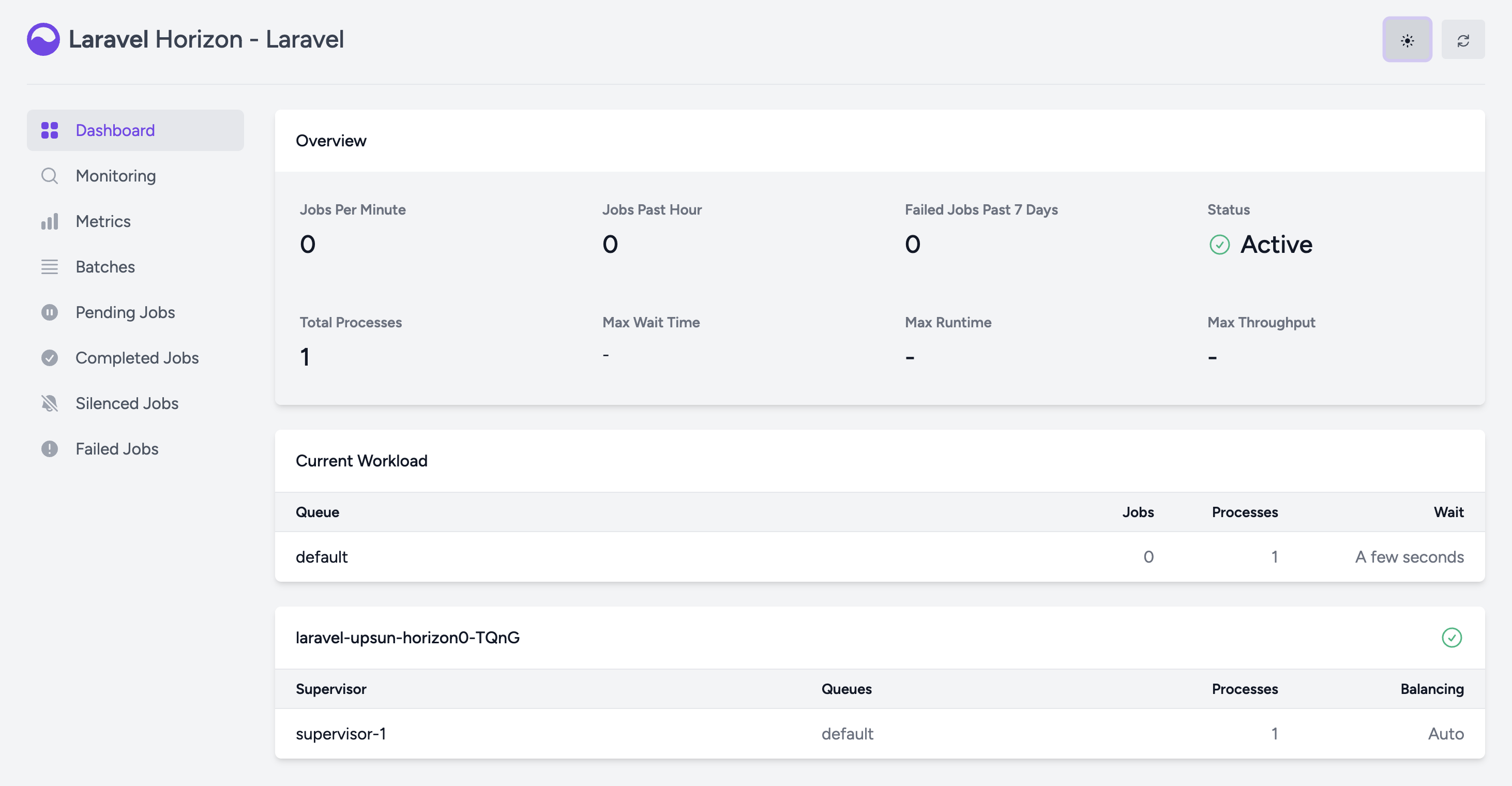
## 3. Access your Horizon dashboard
If you have restricted access to Horizon in your `HorizonServiceProvider.php`,
log in to your app through the web.
Then, go to `/horizon` to access your Horizon dashboard.
 ## 4. Optional: Customize Horizon
Horizon handles jobs that are populated by the queue.
If you need to customize how Horizon works (queues, processes, etc.),
see the official [Laravel Horizon documentation](https://laravel.com/docs/master/horizon#main-content).
## 4. Optional: Customize Horizon
Horizon handles jobs that are populated by the queue.
If you need to customize how Horizon works (queues, processes, etc.),
see the official [Laravel Horizon documentation](https://laravel.com/docs/master/horizon#main-content).
Warning
Web and worker containers don't share mount targets.
You can't share files between those containers using the filesystem.
To share data between containers, use [services](/docs/add-services).
See more information on [workers](/docs/configure-apps/image-properties/workers).
Note that you can customize the resources of your Horizon worker container from the Upsun Console.
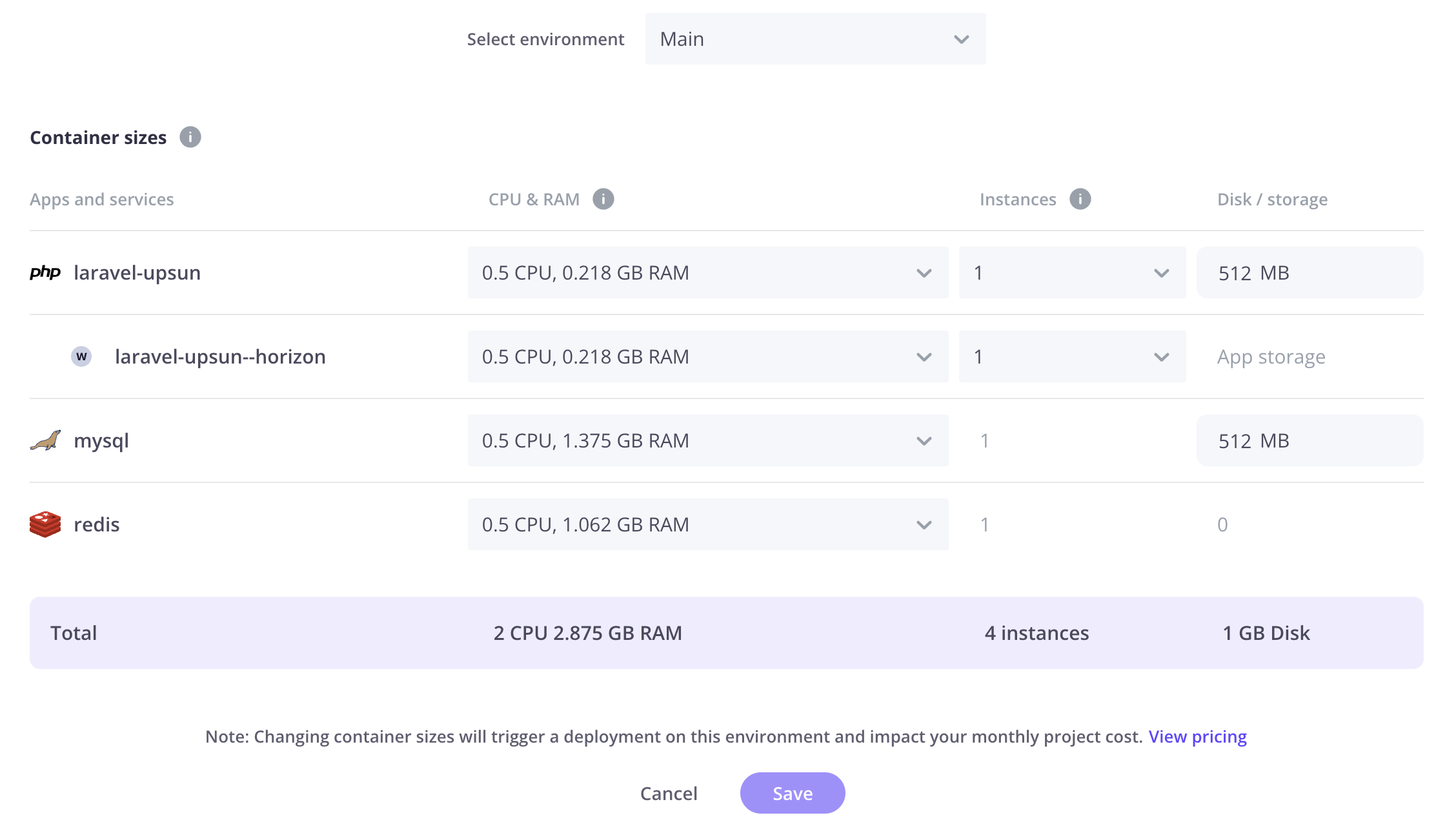 For more information, see how to [configure resources](/docs/manage-resources/adjust-resources).